Brivo ACS Installation Manual ACS5000-E
ENG-WI-001 © 2005 Brivo Systems, LLC. All rights reserved. Page 5
Pre-Installation Procedures
Before you begin installing the Brivo control panel, perform the following tasks to ensure a safe, speedy,
and successful installation.
Understand the function of the Brivo ACS5000-E.
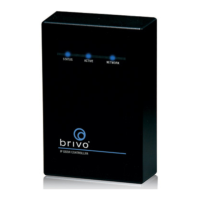
The Brivo ACS5000-E is an IP-enabled Access Control System that interacts with Brivo Central
via the Internet application ACS Online.
Because the system downloads all credential information and operating parameters from Brivo
Central, it must be properly installed and registered before it is fully functional.
Understand Brivo ACS5000-E product compatibility.
Brivo’s ACS5000-E is compatible with a large number of standard Wiegand, mag stripe,
proximity, smart card, and biometric readers. It is also compatible with 4- and 8-bit word style
Wiegand keypads.
Brivo’s ACS product family is designed to accommodate the latest updates in Wiegand reader bit
formats. The ACS5000-E is compatible with Wiegand devices that transmit up to 64-bit data.
A current list of compatible readers and keypads is maintained on Brivo’s dealer website at
http://www.brivo.com/extranet/. Use your dealer login and password to access the Extranet and
download the latest PDF version of the Wiring Guide.
If you have a specific model of reader or keypad that is not listed on the Brivo website, please
contact Technical Support at 1-866-BRIVO-4-U to determine the compatibility.
Verify that the client site is ready to support the installation.
1. Check with the IT department to ensure that the ACS5000-E is compatible with the
company’s local area network (LAN).
a) The ACS5000-E is equipped with a standard RJ-45 socket that accepts a CAT5
cable with an RJ-45 plug on any 10/100 Ethernet network. Physically connecting
the panel is the same as plugging any computer or other device into the LAN.
b) Refer to the Networking Guide attached to this document for instructions on
connecting to the LAN. The Networking Guide also contains a complete list of
requirements regarding TCP/IP configuration parameters, firewall and proxy
settings, and information security considerations.
2. Provide the Master Administrator with the Quick Start Guide contained in the control
panel shipment. This document provides instructions for registering and configuring the
control panel via Brivo Online.
3. Make sure the account has been created and the control panel is registered through
Brivo Online. If the control panel has not been registered by the dealer, contact Brivo
Technical Support for assistance.
4. Verify that the Master Administrator and any other employee who will be accessing the
system have Internet access on a computer equipped with a supported Web browser.


 To Next Page