ControlCenter3
71
3
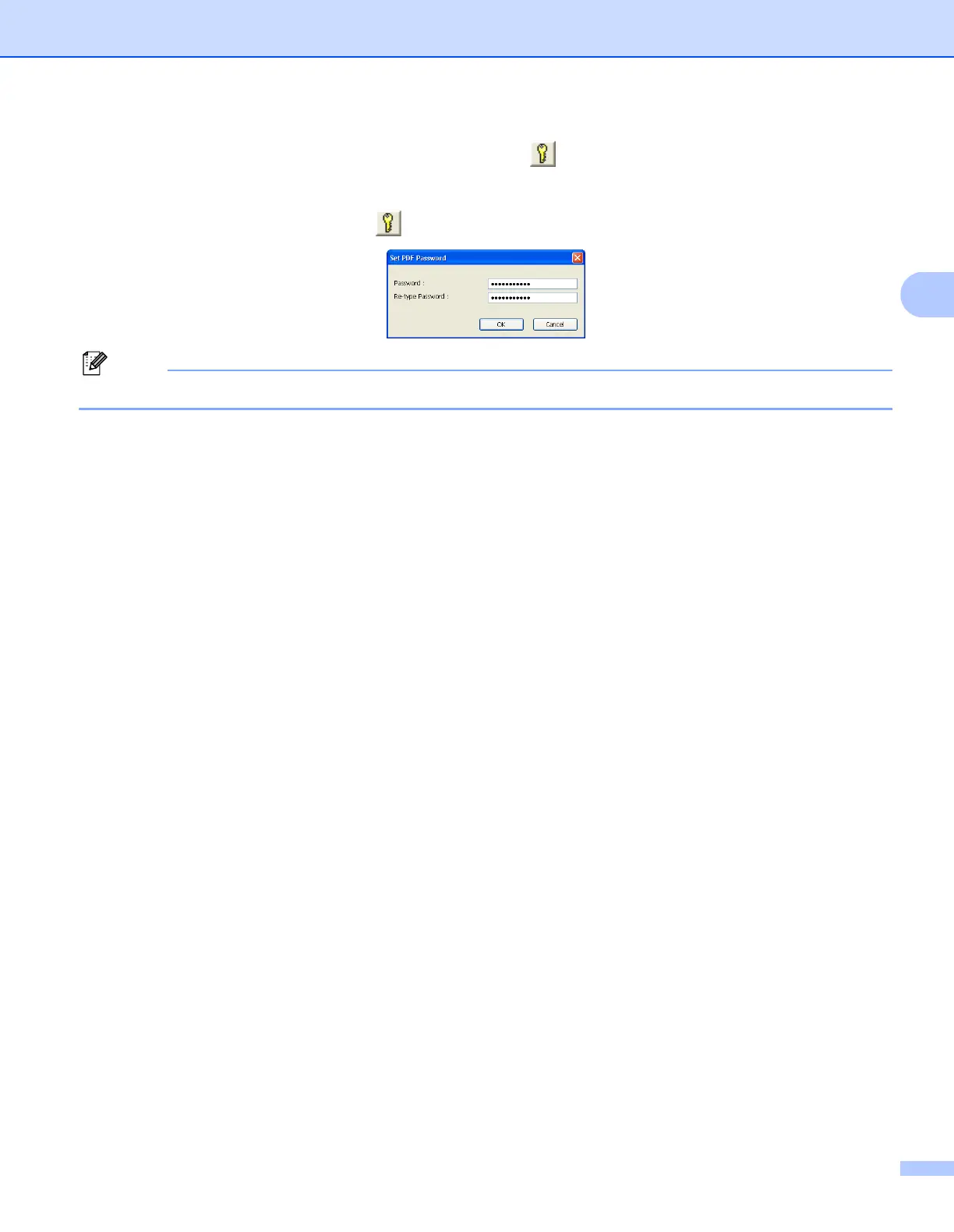
If you choose Secure PDF from the File Type list, click the icon to open the Set PDF Password dialog
box. Enter your password in the Password and Re-type Password box and then click OK. After the
password is saved it will be automatically be saved with your document the next time you scan to a Secure
PDF. If you want to change it, click the icon and set the new password.
Note
Secure PDF is also available for Scan to E-mail and Scan to File.


 To Next Page
 Loading...