CASE 1: When PE-DESIGN NEXT is not installed on the computer
19
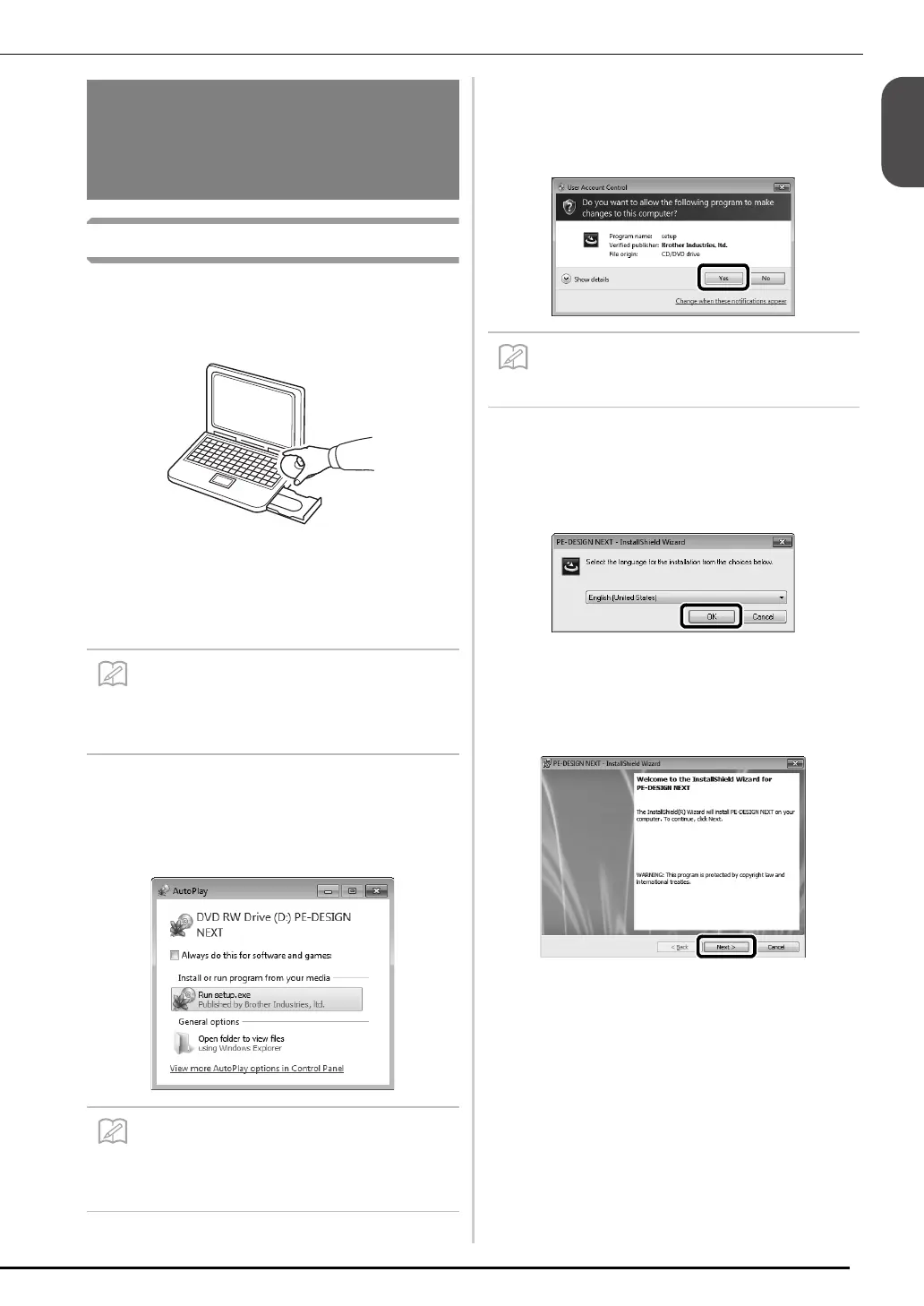
[Step 1] Installing the Software
a
Insert the enclosed CD-ROM2 (for PE-
DESIGN) into the computer’s CD-ROM
drive.
■ Windows® XP users only
→ After a short while, the language selection dialog
box for InstallShield Wizard automatically appears.
Continue with step
d.
■ For Windows® 7 or Windows Vista®
users:
→ After a short while, the “AutoPlay” dialog box
automatically appears.
b
Click “Run setup.exe”.
→ The “User Account Control” dialog box appears.
c
Click “Yes”.
→ After a short while, the following dialog box
automatically appears.
d
Select the desired language, and then click
“OK”.
→ The InstallShield Wizard starts up, and the first
dialog box appears.
e
Click “Next” to continue with the
installation.
→ A dialog box appears, allowing you to select the
folder where the software will be installed.
CASE 1: When PE-
DESIGN NEXT is not
installed on the computer
• If the installer does not automatically start
up, double-click “D:\setup.exe” (where
“D:” is the name of the CD-ROM drive) to
start up the installer.
•If the “AutoPlay” Dialog does not
automatically start up, double-click
“D:\setup.exe” (where “D:” is the name of
the CD-ROM drive) to start up the installer.
• This dialog box does not appear on
Windows
®
XP. Continue with the next step.



 To Next Page
 Loading...