Home > Before You Use Brother Web Connect > Conditions for Using Brother Web Connect > Configure
the Proxy Server Settings Using the Machine's Control Panel
Configure the Proxy Server Settings Using the Machine's Control Panel
If your network uses a proxy server, the following proxy server information must be configured on the machine:
• Proxy server address
• Port number
• User Name
• Password
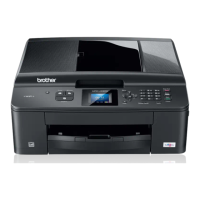
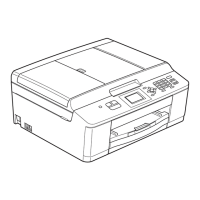
>> MFC-J4320DW/MFC-J4420DW
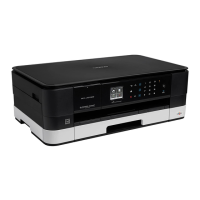
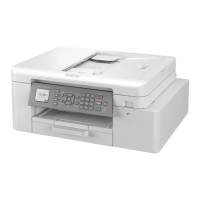
>> MFC-J4620DW/MFC-J5520DW/MFC-J5620DW/MFC-J5720DW/MFC-J5920DW
MFC-J4320DW/MFC-J4420DW
1. Press (Settings) > All Settings > Network > Web Connect Settings > Proxy Settings >
Proxy Connection.
2. Press On.
3. Press the option that you want to set, and then enter the proxy server information.
Press OK.
4. Press .
MFC-J4620DW/MFC-J5520DW/MFC-J5620DW/MFC-J5720DW/MFC-J5920DW
1. Press (Settings) > All Settings > Network > Web Connect Settings > Proxy Settings >
Proxy Connection.
2. Press On.
3. Press the option that you want to set, and then enter the proxy server information.
Press OK.
4. Press
.
Related Information
• Conditions for Using Brother Web Connect
9


 To Next Page
 Loading...