Change the Label Printer Settings
33
5
Apply Setting Changes to Multiple Label Printers 5
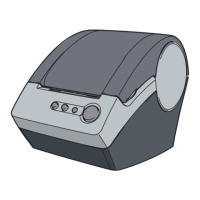
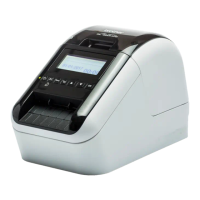
a After applying settings to the first Label Printer, disconnect the Label Printer from the computer, and then
connect the second Label Printer to the computer.
b Select the newly connected Label Printer from the Printer drop-down list.
c Click Apply Settings to the Printer.
The same settings that were applied to the first Label Printer are applied to the second Label Printer.
d Repeat steps a – c for all Label Printers whose settings you want to change.
To save the current settings in a file, click Export.
The same settings can be applied to another Label Printer by clicking Import, then selecting the exported
settings file. For more information, see Settings Dialog Box on page 31.



 To Next Page
 Loading...