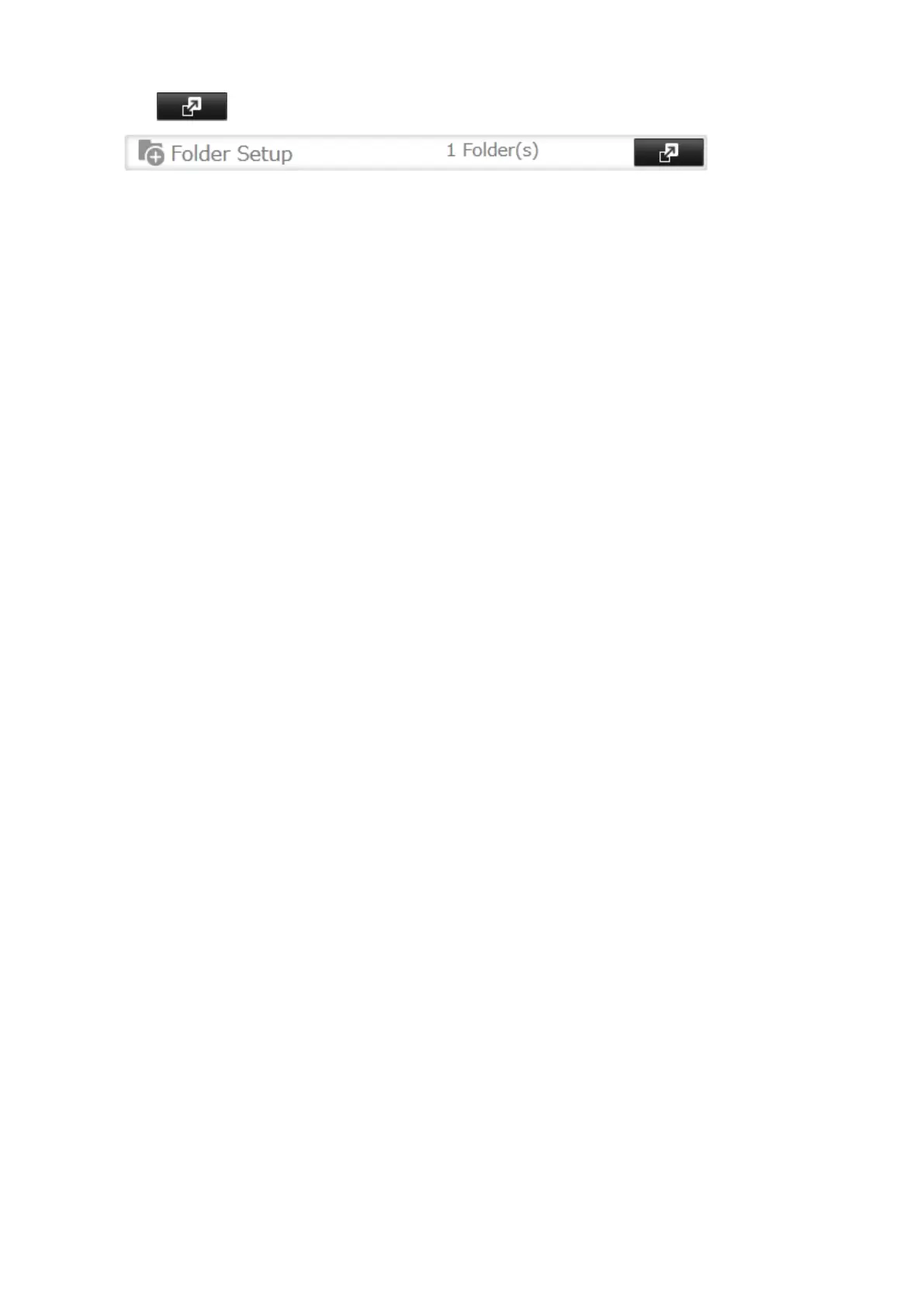
2 Click to the right of "Folder Setup".
3 Choose a folder to enable remote FTP access on.
4 Select read-only or read & write for the shared folder's attribute in the "Basic Settings" tab; under "LAN Protocol
Support", select the "FTP" checkbox in the "Advanced Settings" tab and click OK.
Accessing the TeraStation with an FTP Client
• To access the TeraStation via FTP, configure your FTP client software with the following settings:
Hostname: IP address of the TeraStation
Username: The TeraStation's username
Password: The TeraStation's password
Port: 21
• Shared folders connected by FTP are available from the "/mnt" directory. The default locations are:
For RAID 0, RAID 5, or RAID 1:
/mnt/array1/share
/mnt/usbdisk1
/mnt/usbdisk2
/mnt/usbdisk3
For RAID 1 (two arrays):
/mnt/array1/share
/mnt/array2/share2
/mnt/usbdisk1
/mnt/usbdisk2
/mnt/usbdisk3
For JBOD:
/mnt/disk1/share
/mnt/disk2/share2
/mnt/disk3/share3
/mnt/disk4/share4
/mnt/usbdisk1
/mnt/usbdisk2
/mnt/usbdisk3
Accessing the TeraStation with an Anonymous User
*
• To allow anonymous access to your FTP share, disable access restrictions.
• To access the TeraStation via anonymous FTP, configure your FTP client software with the following settings:
Hostname: IP address of the TeraStation
Username: anonymous
Password: any character string
Port: 21
Notes:
• If a file was created or copied by AFP, you may not be able to delete it using an FTP connection. If this occurs, use
an SMB or AFP connection instead to delete the file.
59



 To Next Page