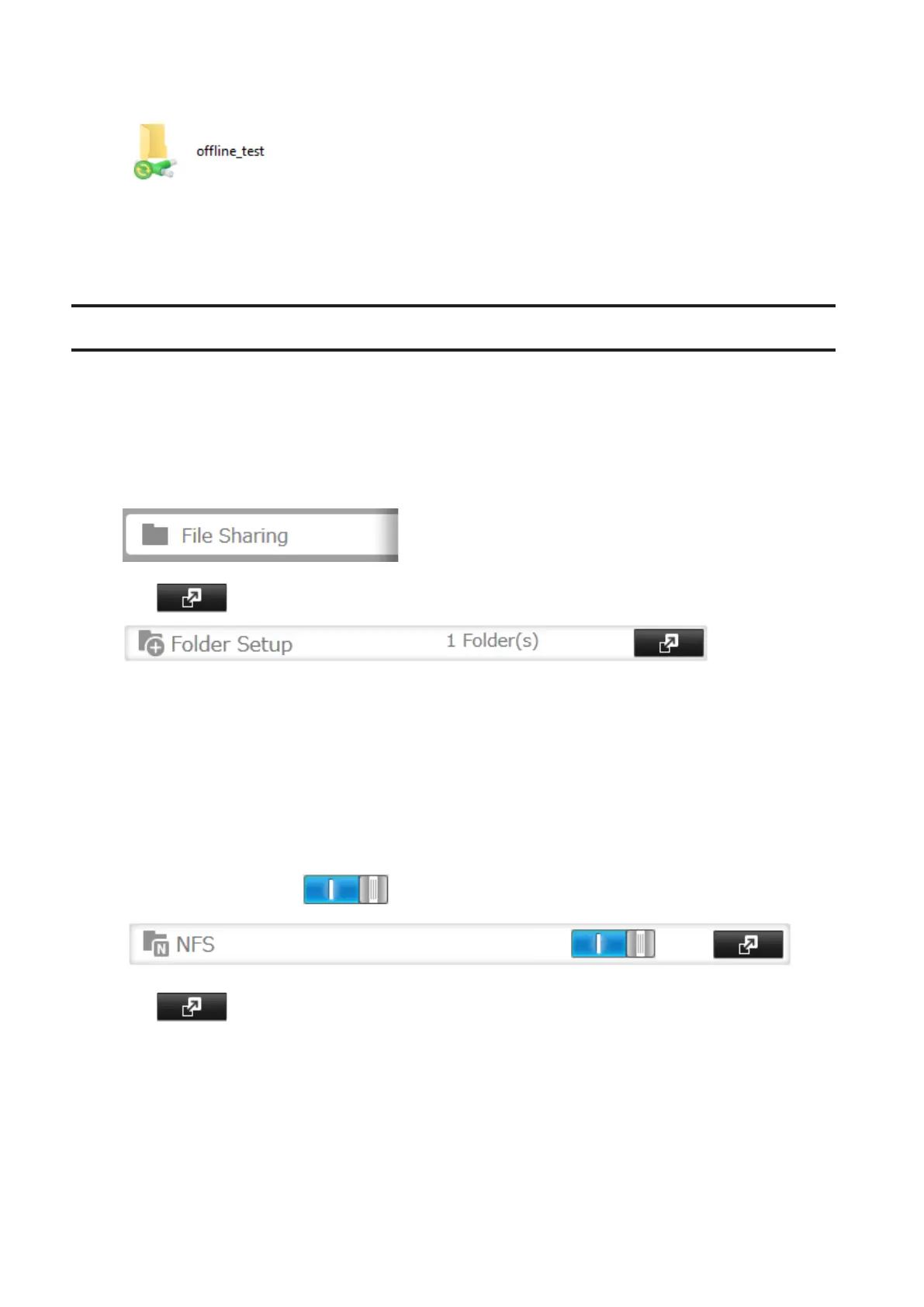
9 When the offline settings and sync settings are completed, the files and folders set appear as shown:
10 If the computer is disconnected from the network after synchronization is completed, the offline file function
can be used.
Offline files can be accessed by the original Universal Naming Convention (UNC) where the data was saved.
Accessing from an NFS Client
Note: (US purchasers only) Buffalo's customer support will help configure the NFS settings on your TeraStation, and
will support VMware and Windows clients but will not provide support for configuring your Linux or other UNIX
clients. There are many types of UNIX and the procedures for configuring NFS with them will vary considerably.
For help configuring your NetWare, Linux, or other UNIX clients for NFS support please consult each client's own
documentation and support.
1 In Settings, click File Sharing.
2 Click to the right of "Folder Setup".
3 Choose the shared folder that will be accessible to the NFS client.
4 Click the Advanced Settings tab.
5 Under "LAN Protocol Support", check "NFS" and click OK.
Note the NFS path. It will be used later for accessing data from NFS clients.
6 Click Close.
7 Move the NFS switch to the position to enable NFS.
8 Click to the right of "NFS".
9 Click Client Settings.
92



 To Next Page