Advanced features
Getting the most from your TV
Advanced features28
If you require any technical guidance or find that your TV is not operating as intended, a simple solution can often be found in the Troubleshooting section of these instructions,
Media Playback via USB Input
You can connect 2.5” and 3.5” inch (hdd with external
power supply) external hard disk drives or USB memory
sticks to your TV by using the USB inputs of the TV.
IMPORTANT! Back up the files on your storage devices
before connecting them to the TV. The manufacturer
will not be responsible for any file damage or data loss.
Certain types of USB devices (e.g. MP3 Players) or USB
hard disk drives/memory sticks may not be compatible
with this TV. The TV supports FAT32 and NTFS disk
formatting.
While formatting USB hard drives which have more
than 1TB (Tera Byte) storage space you may experience
some problems in the formatting process.
Wait a little while before each plugging and unplugging
as the player may still be reading files. Failure to do so
may cause physical damage to the USB player and
the USB device itself. Do not pull out your drive while
playing a file.
You can use USB hubs with your TV’s USB inputs.
External power supplied USB hubs are recommended
in such a case.
We recommend that you use the TV’s USB input(s)
directly, if you are going to connect a USB hard disk.
Note: When viewing image files the Media Browser
menu can only display up to 1000 image files stored
on the connected USB device.
Media Browser Menu
You can play photo, music and movie files stored
on a USB disk by connecting it to your TV. Connect
a USB disk to one of the USB inputs located on the
side of the TV. Pressing the Menu button while in the
Media Browser mode will access the Picture, Sound
and Settings menu options. Pressing the Menu button
again will exit from this screen. You can set your Media
Browser preferences by using the Settings menu.
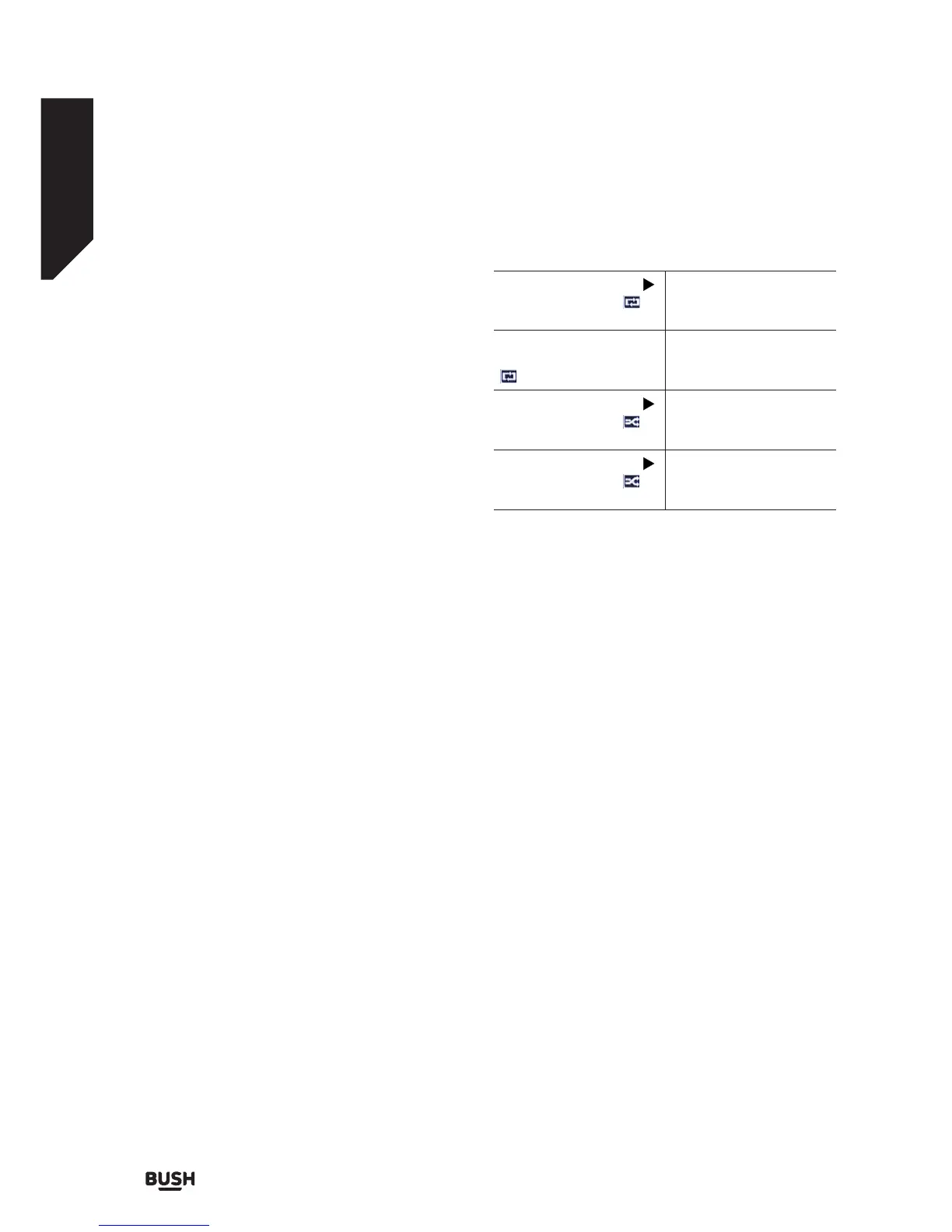
Loop/Shu e Mode Operation
Start playback with the
button and activate
All files in the list will be
continuously played in
original order.
Start playback with the
OK button and activate
The same file will be
played continuously
(repeat).
Start playback with the
button and activate
All files in the list will be
played once in random
order.
Start playback with the
button and activate
All files in the list will be
continuously played in
the same random order.
Custom Boot Up Logo
You can personalize your TV and see your favorite
image or photo on the screen each time your TV boots
up. To do this, copy your favorite image files into a USB
disk and open them from the Media Browser menu.
When you have chosen the desired image, highlight it
and press OK to view it in full screen. Press OK again
to choose the image as custom logo. A confirmation
message will be displayed. Select Yes and press OK
again. If the image is suitable (*) you will see it on the
screen during the TV’s next boot up.
Note: If you perform a First Time Installation the TV will
return to using the default logo, if any.
(*) Images should have an aspect ratio of 16:9 and they
should be in .jpg, .jpeg or .jpe file formats. Only files
with sizes no greater then 300KB are supported. The
image cannot be set as boot logo, which’s resolution
doesn’t appear on the info banner.







 To Next Page