70 xGenConnect Installation and Programming Guide
c. Click Save >.
d. Click Back.
7. Click Back.
8. Click Done.
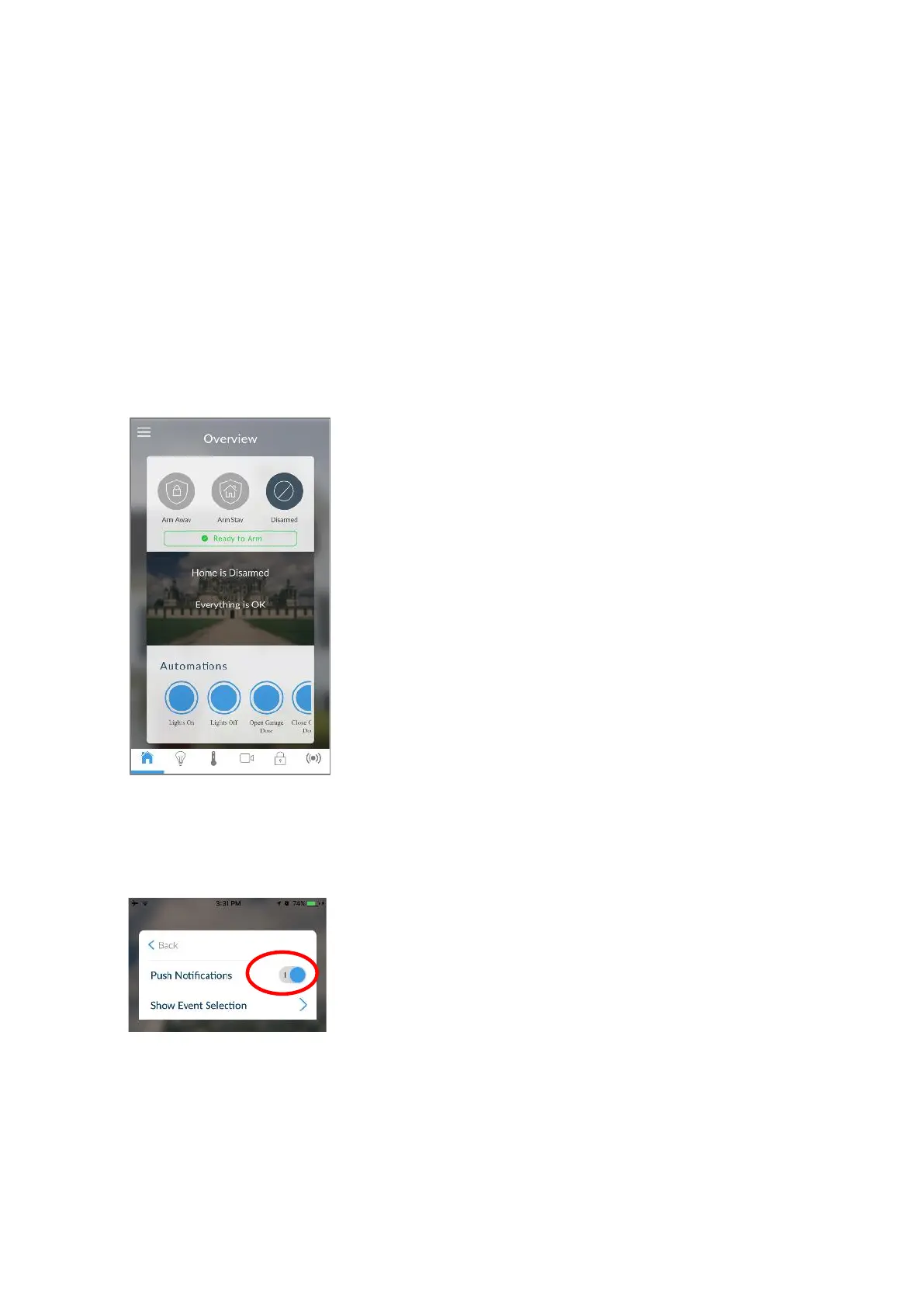
Note: If the device will no longer be used, repeat these steps and disable Push
Notifications to free up the channel position for future use.
Troubleshooting Notifications
If notifications are not working:
• Check you can see the Arm/Disarm screen of the device you wish to receive
notifications from, this ensures you have authority to access the
xGenConnect.
• Check the xGenConnect has at least one unused channel: Log in to the Web
Server and access the Settings > Channels screen.
• Check your site is registered for notifications in the app (follow instructions
above).
• Check your smartphone has notifications enabled (on Apple iOS click
Settings, Notifications, scroll down and click UltraSync, check “Allow
Notifications” and “Show in Notification Centre” are enabled, optionally select
the Alert Style as Banners or Alerts).



 To Next Page