xGenConnect Installation and Programming Guide 71
• If you are on iOS, ensure your phone is logged into your Apple account under
iTunes or iCloud.
If you are on Android, ensure your phone is logged into your Google account
under Google Play or Settings. This is required as UltraSync sends the push
notification to Apple and Google servers for delivery to your device. “Rooted”
or “Jailbroken” phones may not have the required software to receive push
notifications.
• Update your device to the latest version.
• If you have multiple devices registered to receive notifications, each device
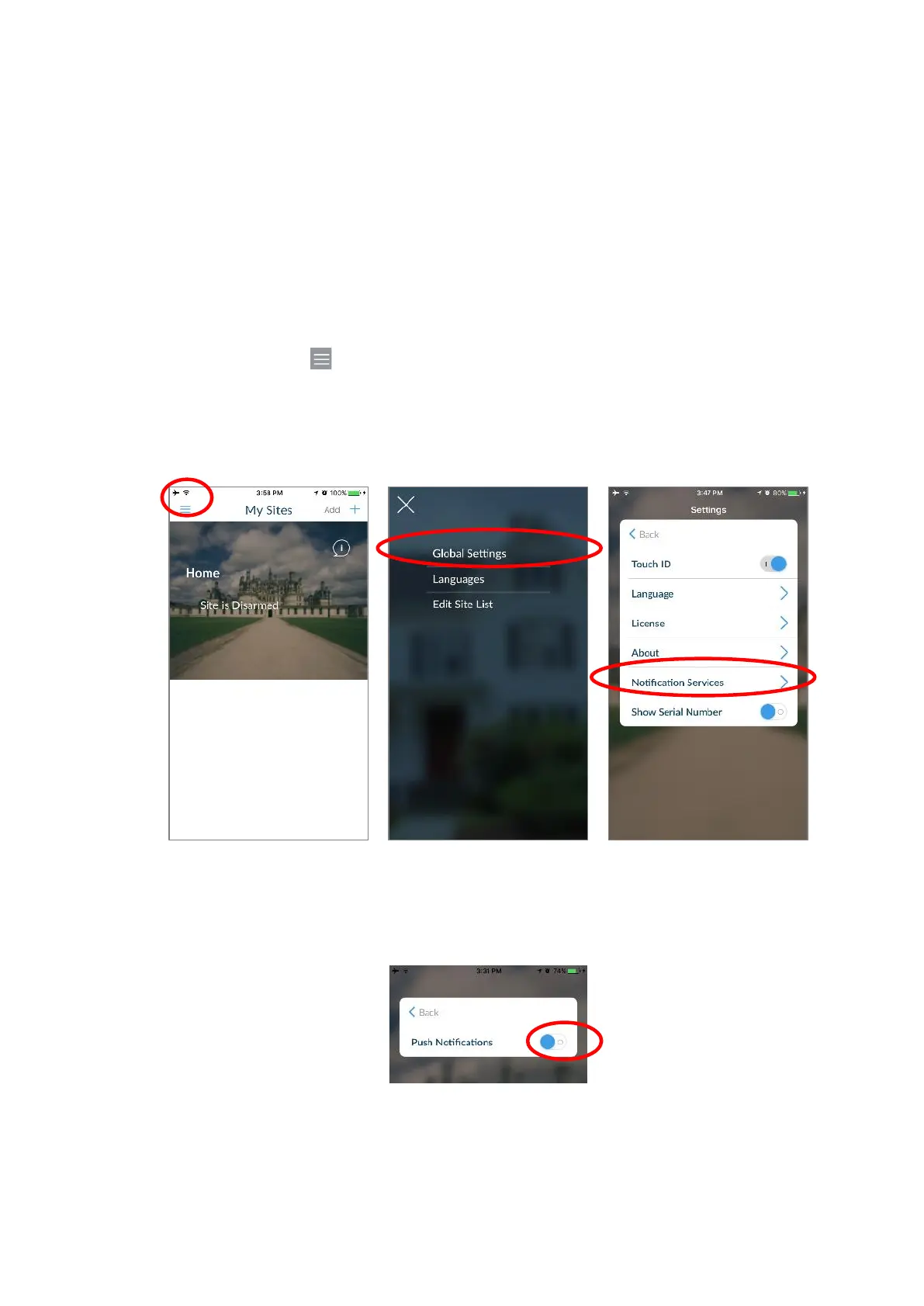
must have a unique name. This is set in the UltraSync+ app:
1. Touch Menu from the Sites screen.
2. Touch Global Settings.
3. Touch Notification Services.
4. The device name is displayed and can be changed.
Removing Notifications
Follow the steps above and disable the “Push Notifications” option. This will
automatically delete your device from the server and xGenConnect.
If you do not have access to the device, the xGenConnect can be modified to
stop sending the notifications:
1. Log in to the Web Server.



 To Next Page