INNOVATION TOTAL LITE Rev. 1 2021-10
www.cafection.com 800-561-6162
40
SERVICE & INSTALLATION MANUAL for Cafection’s Total Lite
Service Mode
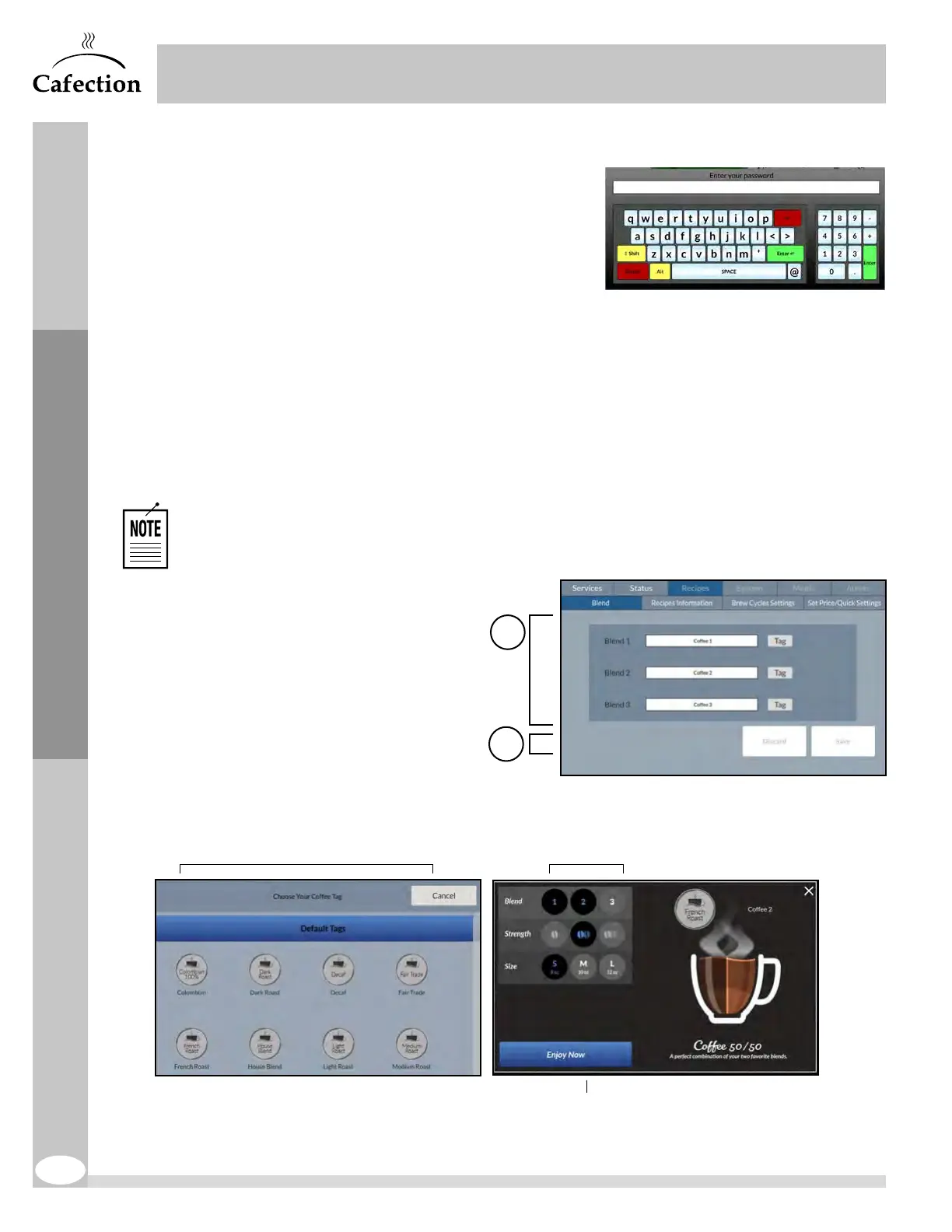
6.4 Password Pop-Up
This pop-up window will appear when pressing the
Recipes, System or Audits tabs. The user needs to type
in his password using the alphanumeric keyboard, then
press on ENTER. Depending on the password entered,
the user will gain access to different tabs.
6.5 Recipes Tab
To access the screen below, press the SW1 button (white) on the main board inside the brewer's
door (see section4.15) and select the Recipes tab.
6.5.1 Blend Sub Tab
The Blend sub tab allows to edit blends names or labels. For each blend, it is possible to
display only one option (name or label) on the selection screen. Default blends' names are
Coffee1, Coffee2 and Coffee3.
Coffee names and labels can be edited with Sophia (Optimum License required).
1. Use the "Tag" button to select
a tag for the associated
blend. Use the "Name" button
to edit the blend's name using
the text box.
2. These buttons are used to
save or discard any changes
to the customization settings.
Any unsaved changes will
belost.
1
2
Recipe name
Blend name or labelLabels list


 To Next Page