59
Advanced Features
More Recording Options
E
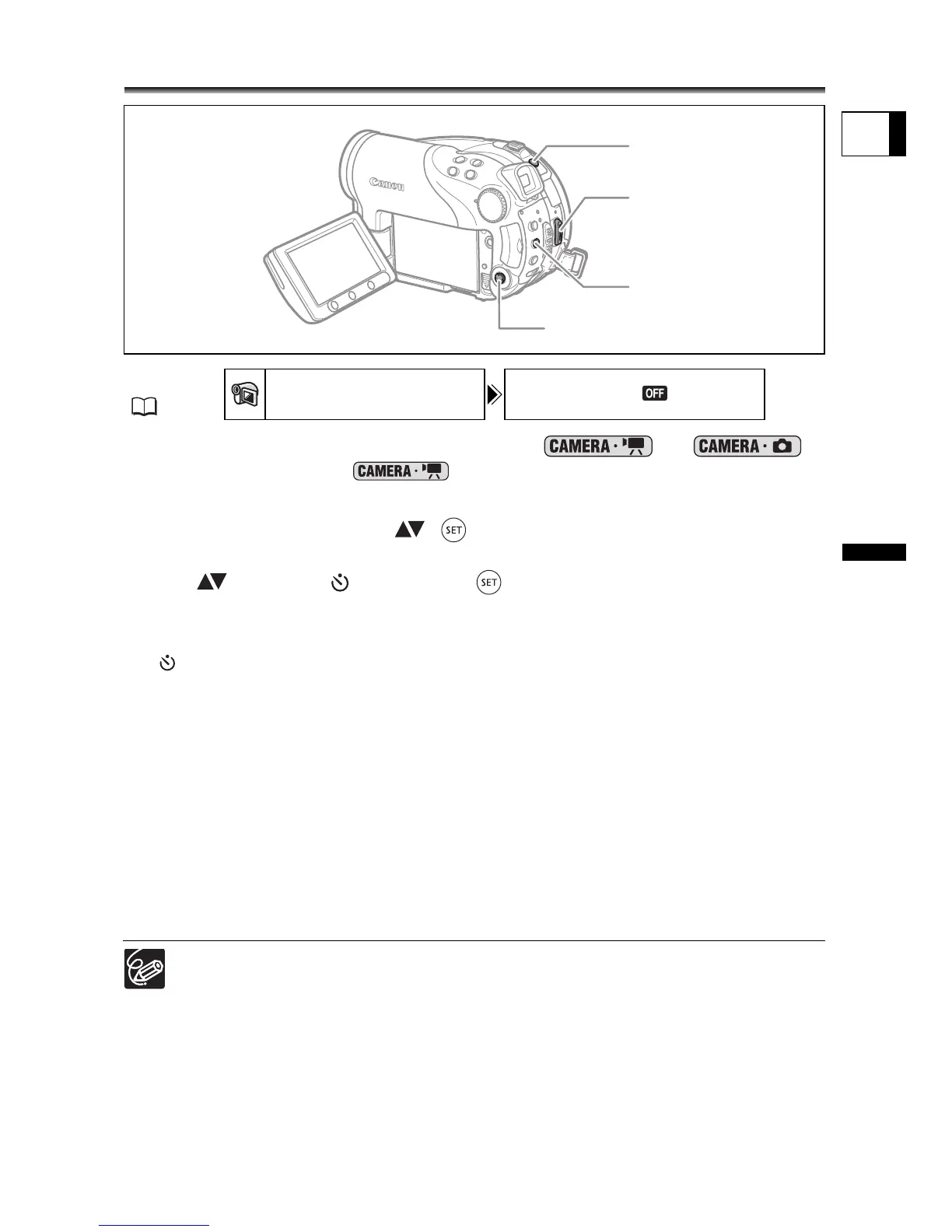
Using the Self Timer
1. Set the camcorder to a recording mode ( or ).
When recording movies ( ) set the camcorder to record pause.
2. Press the MENU button.
3. Using the multi selector ( , ) select the [CAMERA SETUP] menu
and then select the [SELF TIMER] option.
4. Set ( ) it to [ON ] and press ( ) to save the setting.
To cancel the self timer, set it to [OFF].
5. Press the MENU button to close the menu.
“ ” appears.
When recording a movie:
6. Press the start/stop button.
The camcorder starts recording after a 10-second countdown (2 seconds when using
the wireless controller). The countdown appears on the screen.
When recording a still image:
6. Press the PHOTO button, first halfway to activate the autofocus and
then fully to record the still image.
The camcorder will record the still image after a 10-second countdown (2 seconds
when using the wireless controller). The countdown appears on the screen.
Once the countdown has begun, you can also press the start/stop button (when
recording movies) or the PHOTO button (when recording still images) to cancel
the self timer. The self timer will be canceled if you turn off the camcorder.
MENU
(79)
CAMERA SETUP SELF TIMER
OFF
PHOTO button
Multi Selector
MENU button
Start/stop button



 To Next Page