Adjusting the Picture: Exposure, Focus and Color
50
NOTES
When you select the custom white balance
[ SET]:
- Make the white balance adjustment in a place
with sufficient light.
- Set [D.ZOOM] to [ OFF] ( 35).
- Readjust the white balance if the lighting
conditions change.
- Very rarely and depending on the light source,
may keep on flashing instead of staying on.
Even in that case, the white balance would be
properly adjusted and the results should be
better than with [ AUTO].
Custom white balance may provide better
results in the following cases:
- Changing lighting conditions
- Close-ups
- Subjects in a single color (sky, sea or forest)
- Under mercury lamps and certain types of
fluorescent lights
Depending on the type of fluorescent light,
optimal color balance may not be obtained with
[ FLUORESCENT] or [ FLUORESCENT
H]. If the color looks unnatural, adjust it using
[ AUTO] or [ SET].
Image Effects
You can use the image effects to change
the color saturation and contrast of your
recordings.
POINTS TO CHECK
Mode switch: (except for the Special
Scene recording programs)
Options
Default value
* When you select [ CUSTOM], do not
press and continue instead with the
procedure below.
T
O
SET
THE
CUSTOM
IMAGE
EFFECT
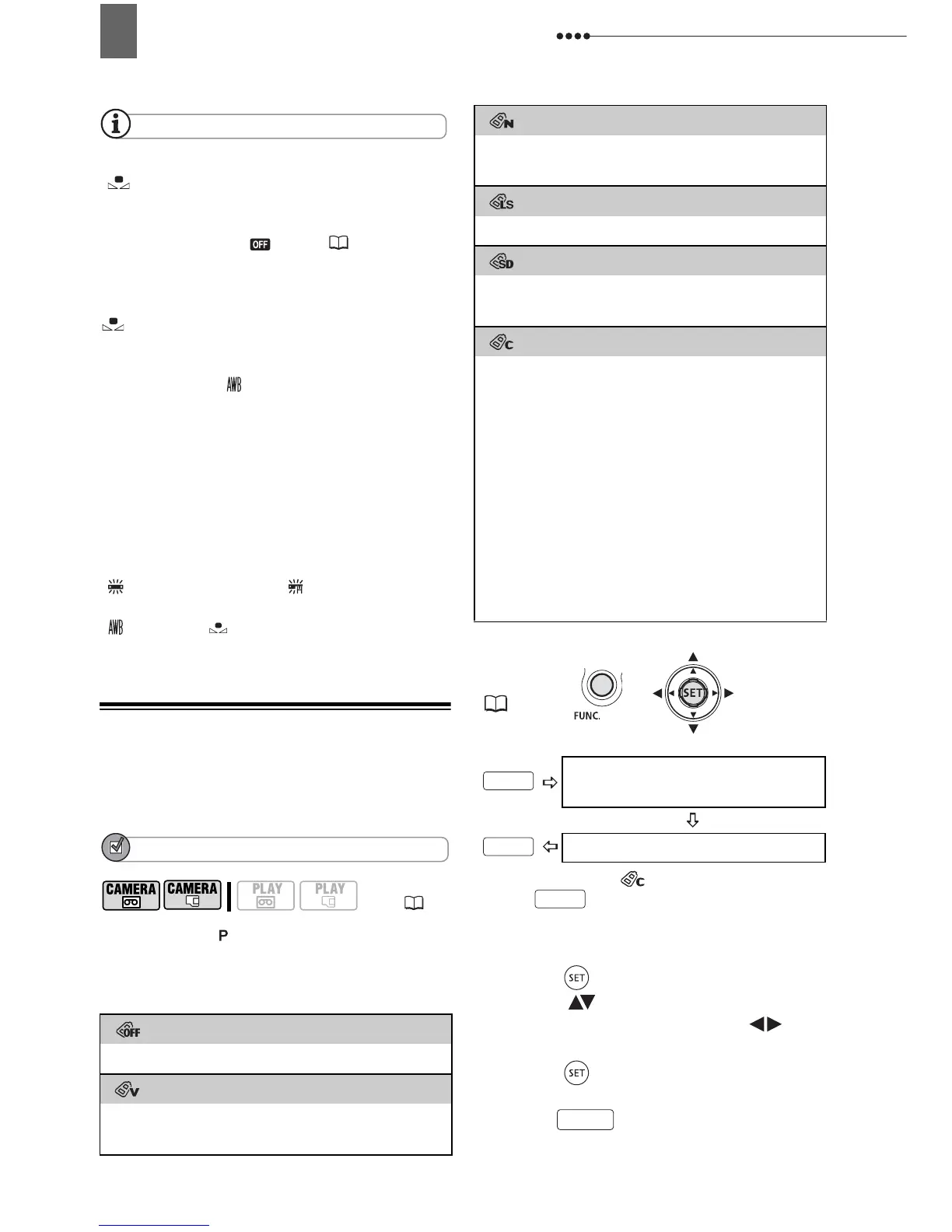
1 Press ( ).
2 Select ( ) each of the custom
setting options and adjust ( ) as
desired.
3 Press ( ) to save the custom
image effect.
4 Press to close the menu.
(8)
[ IMAGE EFFECT OFF]
Records with no image enhancing effects.
[ VIVID]
Emphasizes the contrast and color
saturation.
[ NEUTRAL]
Tones down the contrast and color
saturation.
[ LOW SHARPENING]
Records subjects with softened outlines.
[ SOFT SKIN DETAIL]
Softens the details in the skin tone area for
a more complimentary appearance.
[ CUSTOM]
Allows you to adjust the brightness,
contrast, sharpness, and color depth of the
image.
[COL.DEPTH]: (–) Shallower colors,
(+) Richer color tonality
[BRIGHTN.]: (–) Darker picture,
(+) Brighter picture
[CONTRAST]: (–) Flatter picture,
(+) More defined light and
shade
[SHARPNESS]: (–) Vaguer outlines,
(+) Sharper outlines
FUNC.
(21)
Icon of the currently selected
Image Effect
Desired option*
FUNC.
FUNC.
FUNC.
FUNC.



 To Next Page