6
6-3
Troubleshooting
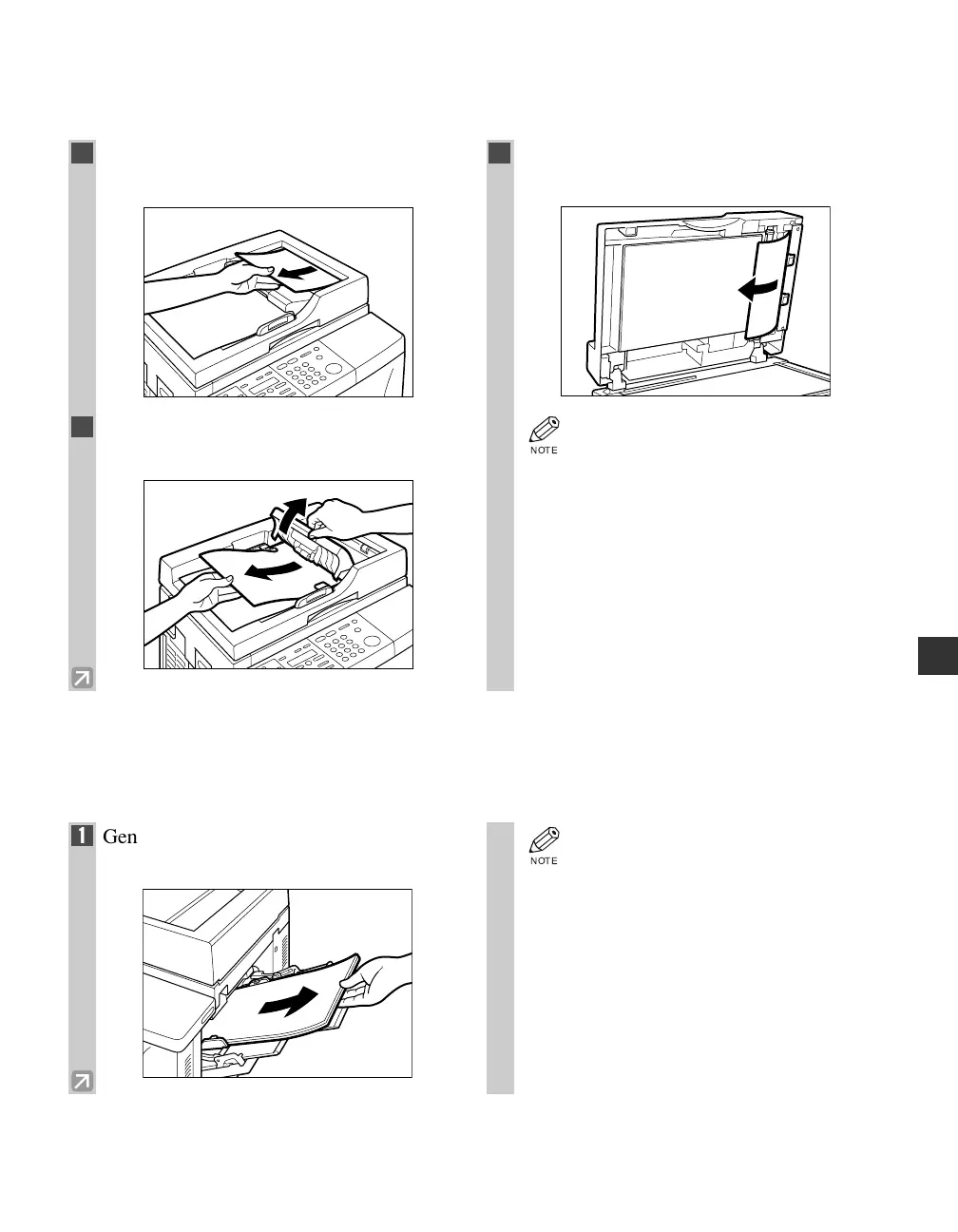
Removing Jammed Paper from the ADF
When print media jams in the ADF, the LCD displays CHECK DOCUMENT and OPEN THE ADF.
Removing Jammed Paper from the Multi-purpose Tray
When print media jams in the multi-purpose tray, the LCD displays REC. PAPER JAM and SLIDE PLATEN
LEFT.
1
Gently remove the jammed paper from the
document output slot of the ADF.
2
Open the feeder cover and gently remove
the jammed paper from the ADF.
3
Open the ADF, then pull the paper out
straight.
• Open the ADF and make sure there is no
document remaining.
• After removing jammed paper, even edges
of the document and reload it in the ADF.
1
Gently remove the jammed paper from the
multi-purpose tray.
• Please check any jammed paper inside the
machine. (
→ p. 6-1)
06 RG_Chap6.qxd 03.7.10 3:26 PM Page 6-3














 To Next Page