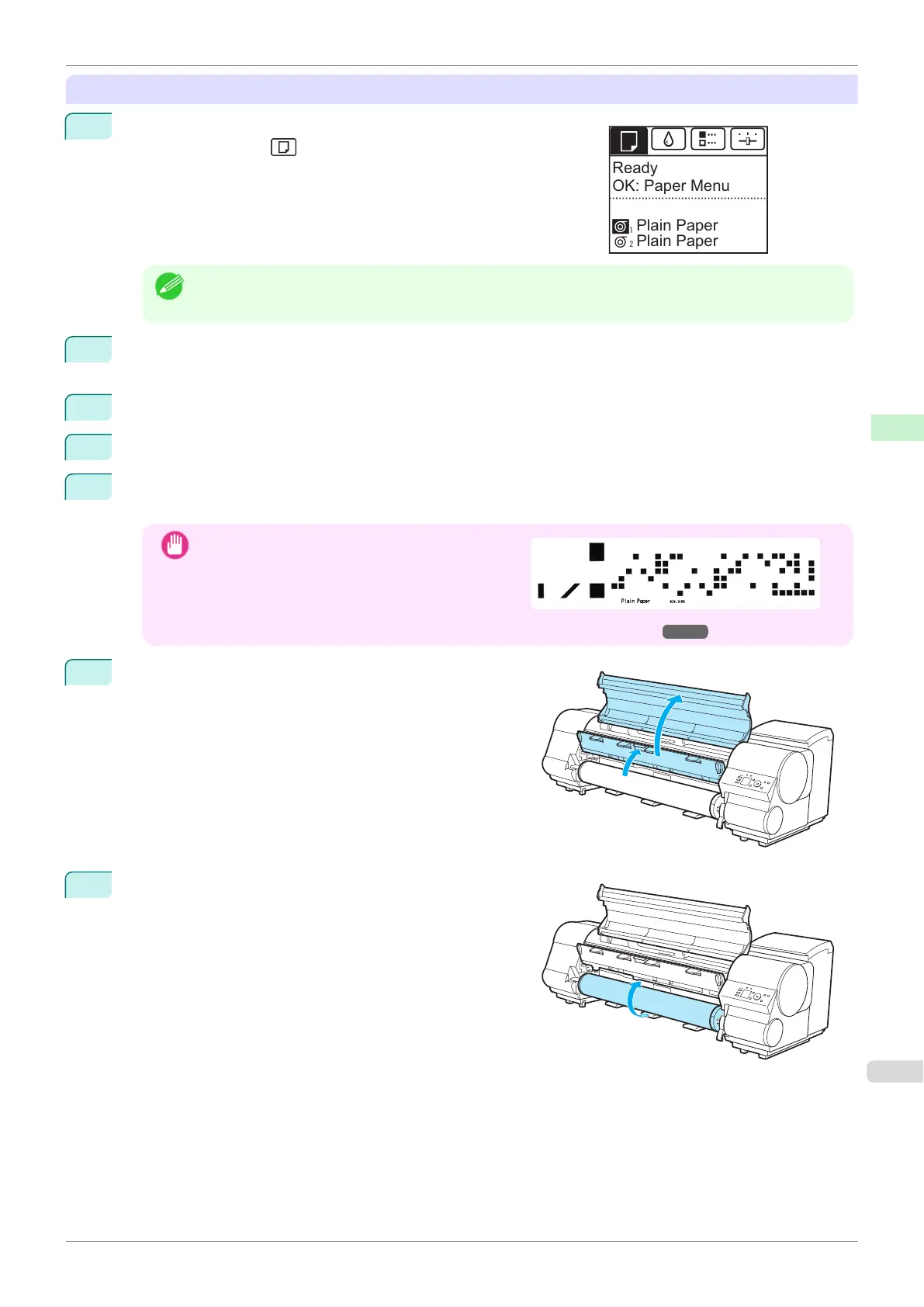
Removing rolls from the Roll 1 (Upper) position
1
On the Tab Selection screen of the Control Panel, press ◀ or ▶ to
select the Paper tab ( ).
Note
•
If the Tab Selection screen is not displayed, press the Menu button.
2
Press the OK button.
The Paper Menu is displayed.
3
Press ▲ or ▼ to select Remove Roll, and then press the OK button.
4
Press ▲ or ▼ to select Roll 1 (Upper), and then press the OK button.
5
Press ▲ or ▼ to select Yes, and then press the OK button.
The roll is rewound.
Important
•
If you have selected ManageRemainRoll > On in
the Control Panel menu, a barcode is printed on
the leading edge of the roll.
Do not remove the roll before the barcode is prin-
ted. You will be unable to keep track of the amount
of roll paper left. (See "Keeping Track of the Amount of Roll Paper Left.") ➔P.358
6
Open the Top Cover and lift the Ejection Guide.
7
Using both hands, rotate the Roll Holder in the direction of
the arrow to rewind the roll.
Ready
Plain Paper
OK: Paper Menu
Plain Paper
iPF840
Removing the Roll from the Printer
User's Guide
Handling and Use of Paper Handling rolls
353















 To Next Page