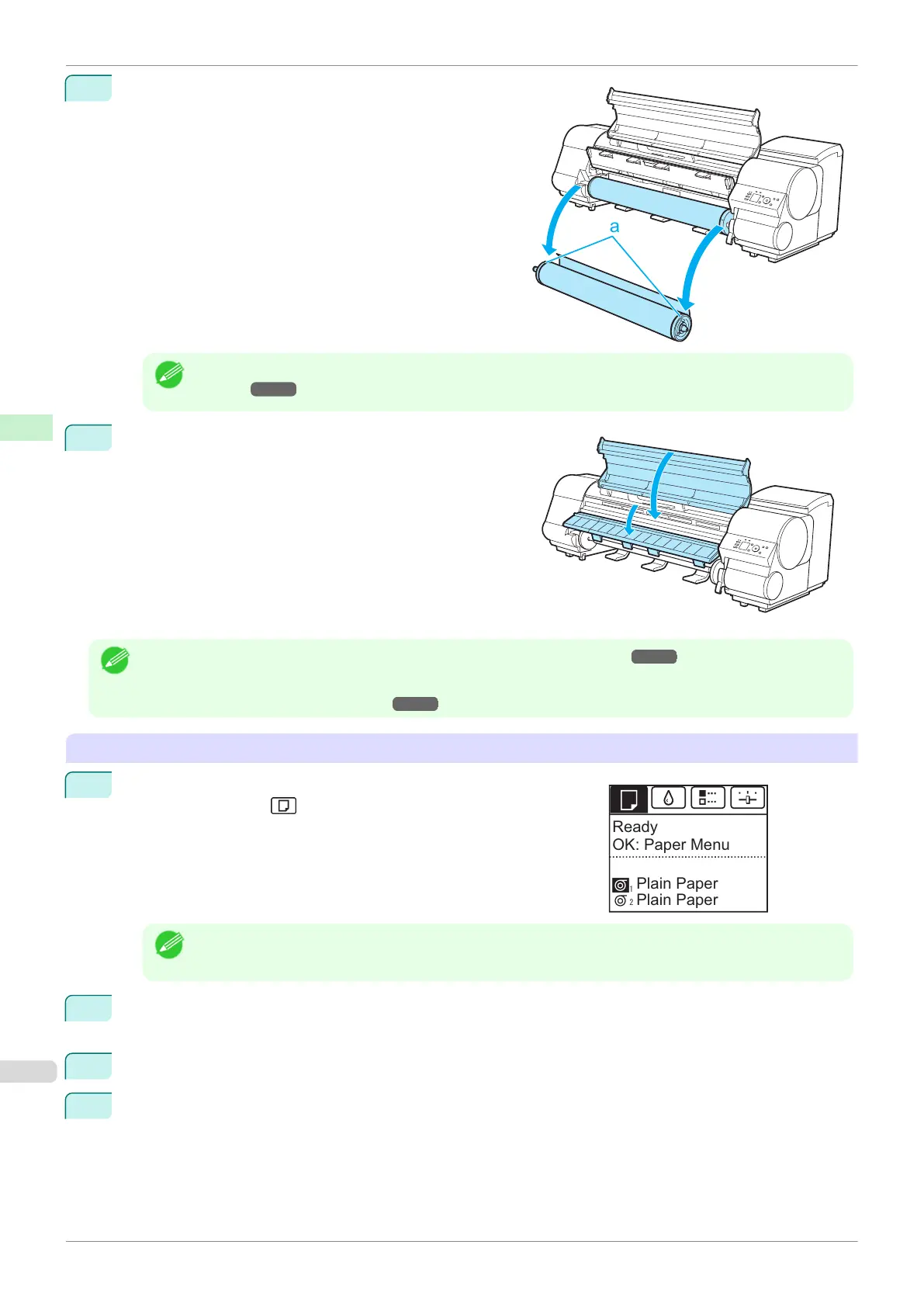
8
Holding the Roll Holder flange (a), remove the holder from
the Roll Holder Slot.
Note
•
For instructions on removing the Roll Holder from rolls, see "Removing the Roll Holder from
Rolls." ➔P.356
9
Lower the Ejection Guide and close the Top Cover.
Note
•
To load new paper in the printer at this point, see "Loading Rolls in the Printer." ➔ P.345
•
Clean inside the top cover before loading paper.
(See "Cleaning Inside the Top Cover.") ➔ P.591
Removing rolls from the Roll 2 (Lower) position
1
On the Tab Selection screen of the Control Panel, press ◀ or ▶ to
select the Paper tab ( ).
Note
•
If the Tab Selection screen is not displayed, press the Menu button.
2
Press the OK button.
The Paper Menu is displayed.
3
Press ▲ or ▼ to select Remove Roll, and then press the OK button.
4
Press ▲ or ▼ to select Roll 2 (Lower), and then press the OK button.
Ready
Plain Paper
OK: Paper Menu
Plain Paper
Removing the Roll from the Printer
iPF840
User's Guide
Handling and Use of Paper Handling rolls
354















 To Next Page