3
Check
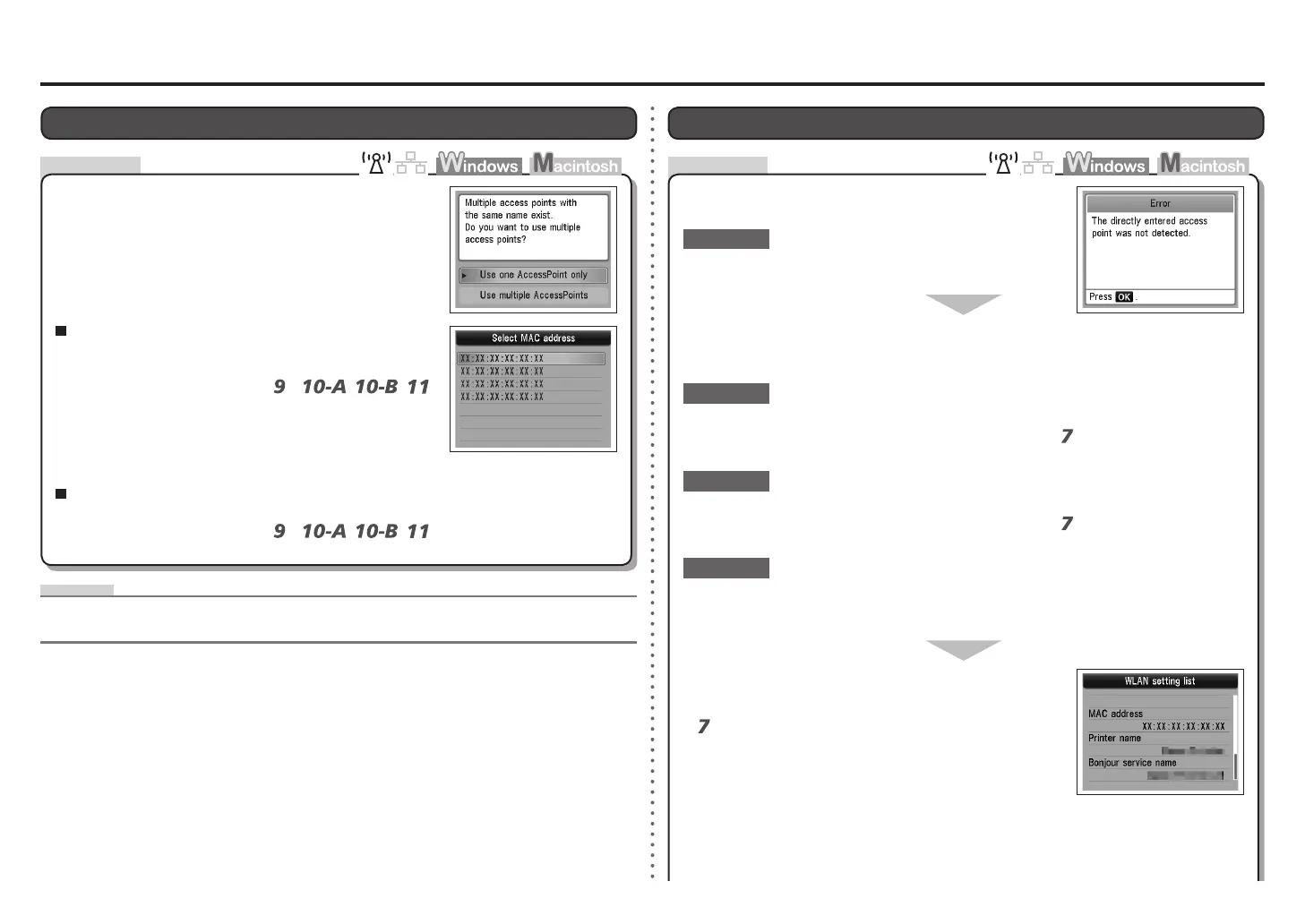
The message appears when no access point is found by
the entered access point name/network name (SSID).
Press the OK button to make sure that the entered access
point name/network name (SSID) is correct, then press the
OK button again.
Check 1
Is the entered access point name/network name (SSID)
correct?
Is the MAC address ltering enabled on the access point?
Set the access point to accept the MAC address of the
machine.
Check 4
For details on how to change the settings of the access point,
refer to the manual supplied with the access point or contact its
manufacturer.
•
To check the MAC address of the machine, press the Setup
button, then using the { } [ ] and OK buttons, select
Device settings > LAN settings > Conrm LAN settings >
WLAN setting list, then check MAC address.
•
For details on how to check the settings of the access point, refer to the manual supplied with the
access point or contact its manufacturer.
•
Make sure that you follow Check 1, 2, 5 and 6 of "Connection Checklist" on page 12.
Turn off the access point, then turn it back on.
Check 3
Check 2
After that, press the OK button, then proceed with the setup from
in "Entering the Access
Point's Wireless LAN Settings Directly on the Machine" on page 9.
•
After that, press the OK button, then proceed with the setup from
in "Entering the Access
Point's Wireless LAN Settings Directly on the Machine" on page 9.
•
The directly entered access point was not detected. is Displayed
After that, press the OK button, then proceed with the setup from
in "Entering the Access Point's Wireless LAN Settings Directly
on the Machine" on page 9.
•
Check
Multiple access points with the same name exist. is Displayed
Select Use multiple AccessPoints.
For details on how to check the MAC address of the access
point, refer to the manual supplied with the access point or
contact its manufacturer.
•
Select Use one AccessPoint only, then select the MAC
address of the target access point.
When using multiple access points
Glossary
A unique number assigned to each network device.
MAC address•
For subsequent operations, go to
or
/
/
in "Entering the Access Point's
Wireless LAN Settings Directly on the Machine" on page 9.
•
For subsequent operations, go to
or
/
/
in "Entering the Access Point's Wireless LAN Settings Directly
on the Machine" on page 9.
•
When you have only one access point
The message appears when multiple access points with the
same name are found.






 To Next Page