9
1
2
3
4
6
7
5
9
8
Action
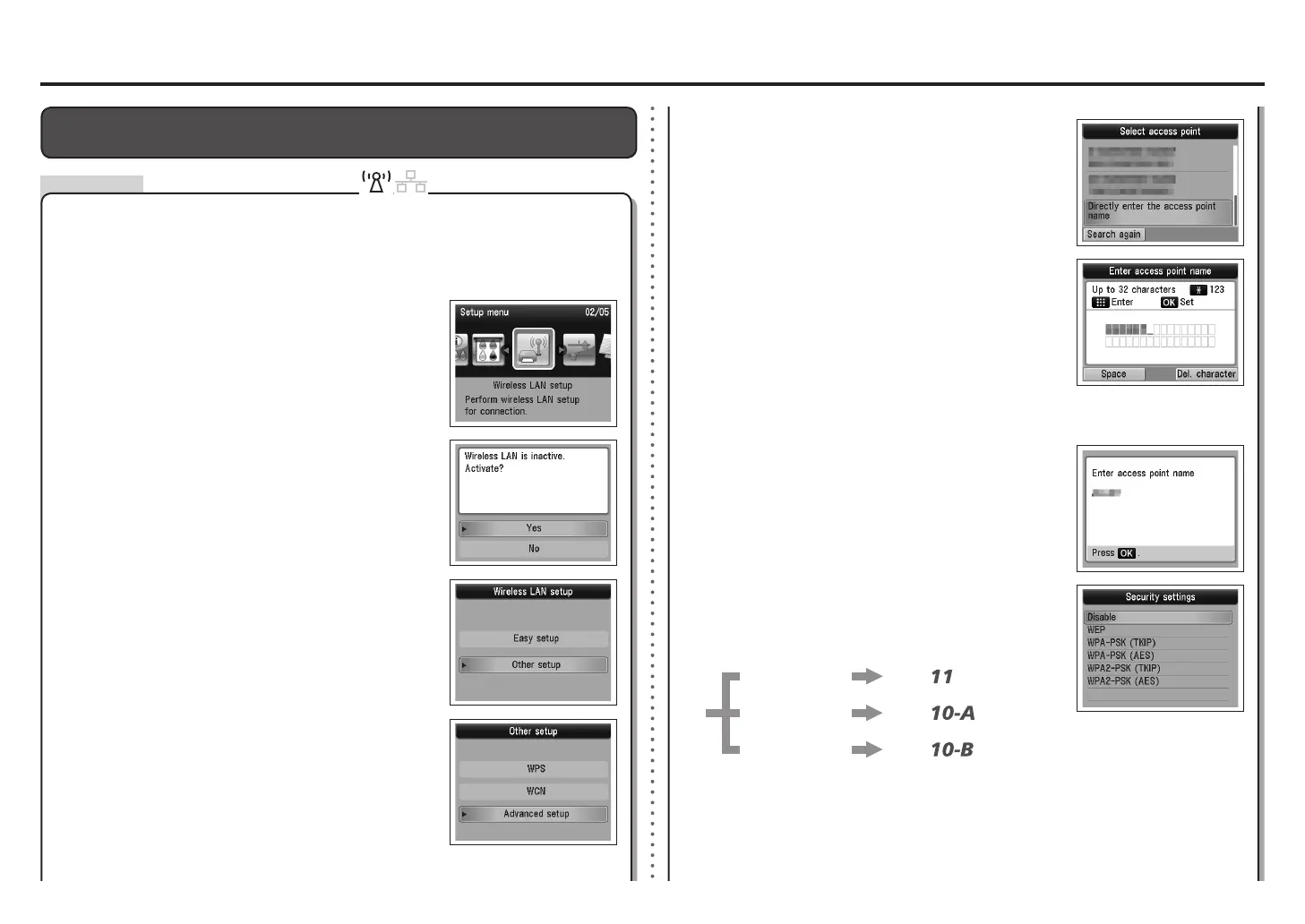
Use the { or } button to select Other setup, then
press the OK button.
Select Yes, then press the OK button.
Use the [ or ] button to select Wireless LAN Setup,
then press the OK button.
Press the Setup button.
Enter the access point name/network name (SSID) and security setting (WEP, WPA,
etc.) on the machine directly.
Follow the procedure below.
When wireless connection is enabled, the Wi-Fi lamp lights
blue.
•
Select Directly enter the access point name, then
press the OK button.
If you are living in an apartment, nearby access points in use
may be detected.
•
Enter the access point name/network name (SSID)
using the Numeric buttons, then press the OK button.
For details on how to check the access point name/network
name (SSID), refer to the manual supplied with the access
point or contact its manufacturer.
•
Enter the same access point name/network name (SSID) as
that of the access point on the machine.
•
Enter upper and lower case letters of the alphabet correctly. Letters are case sensitive.•
Entering the Access Point's Wireless LAN Settings Directly on the
Machine
For details on how to enter characters, refer to "Character
Entry" on page 8.
Select Advanced setup, then press the OK button.
Go to either of the following steps according to the selected
security protocol.
•
Disable
WEP
WPA/WPA2
Go to
on page 10.
Go to
on page 10.
Go to
on page 10.
Select a security protocol for the access point, then
press the OK button.
When WEP 40 bit or WEP 128 bit is selected in AirPort Utility (AirPort Admin Utility), select
WEP.
•
When WEP (Transitional Security Network) is selected in AirPort Utility, select WPA2-PSK
(AES).
•
Make sure that the access point name/network name
(SSID) is correct, then press the OK button.






 To Next Page