AM
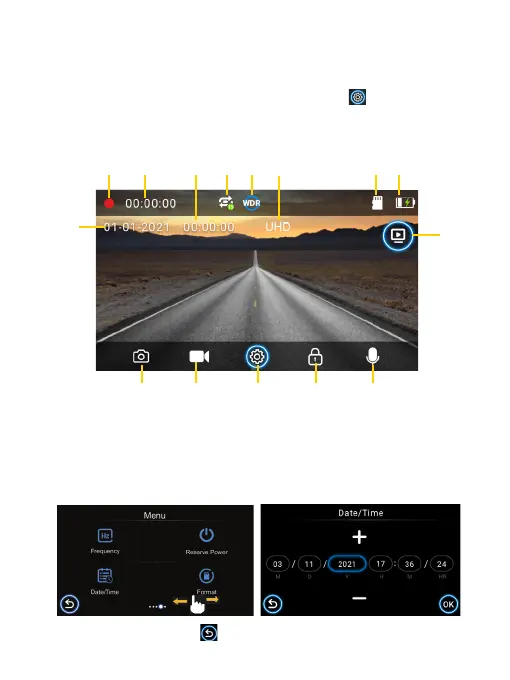
1. When in Video Recording mode, press the Settings icon to go into System
settings, then scroll and select “Date /Time” to enter date and time settings.
2. Press the +/- buttons on the Dash Cam to make changes to date or time, then
press the OK button to confirm.
1
11
9
2
12
3
13
4
14
5
15
6 7 8
10
When done, press the back icon to return to previous menu.
9 EN
3-2 Date and Time Settings
Make sure you set the date and time before recording to “Protect Your Side of The
Story”.
1. Recording status indicator
2. Recording duration
3. Time
4. Loop Recording (Enabled by default)
5. WDR (Enabled by default)
6. UHD (Current Video resolution)
7. TF card is inserted
8. Battery status
9. Date
10. Playback button
11. Camera button
12. Camera recording button
13. System settings button
14. File lock button
15. Audio recording button (Enabled by
default)
Scroll Left/Right



 To Next Page