BT2 user manual - H-5911-9004-02-B Page | 70
Carlson Boretrak immediately runs an auto-detect process to identify any Boretrak2 probe which has been paired
to the tablet and which is currently powered ON.
When a Boretrak2 is identified, the connection is made.
The Hole Setup window appears (see section 14.2.1). Enter your hole coordinates, or just accept the default values.
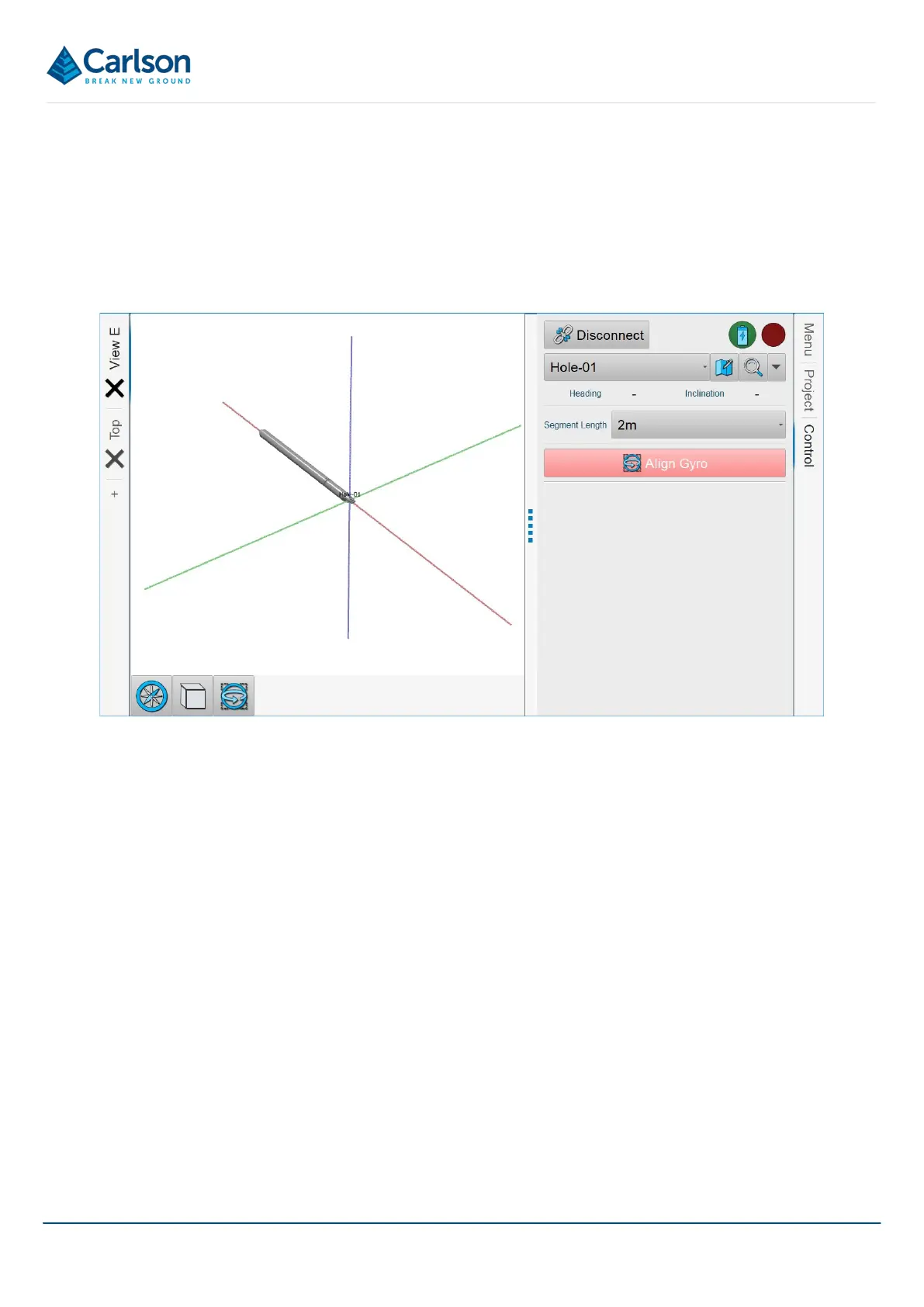
Tap Finish. The probe is displayed graphically on screen, located at the newly generated station. The Boretrak2
deployment is now ready to begin.
To import existing data into the project, open the Menu tab and select Open.
11.2 Open
11.2.1 Open Carlson Boretrak projects
From the Home screen, tap Open to open an existing Carlson Boretrak project. An Open dialog appears.
Select the appropriate project from the recent files list. Alternatively, tap Browse Files to open an Open File
windows dialog. Browse to the project location and select the *.NDV file to open the project in Carlson Boretrak.
On opening a project, you can reconnect to a Boretrak2 via the Find Boretraks button on the Control tab (see
section 15) or through the Project Details window (see section 14.1).
11.2.2 Import existing survey data
The Open function can also be used to open other files containing pre-existing data such as surveyed points, solids
or linework. This data can be used as a backdrop to data collected with the Boretrak2.
Currently supported file types are:
• E57: Lidar point cloud data
Figure 78 New project - ready to deploy



 To Next Page