BT2 user manual - H-5911-9004-02-B Page | 69
11 Touch mode – Home screen
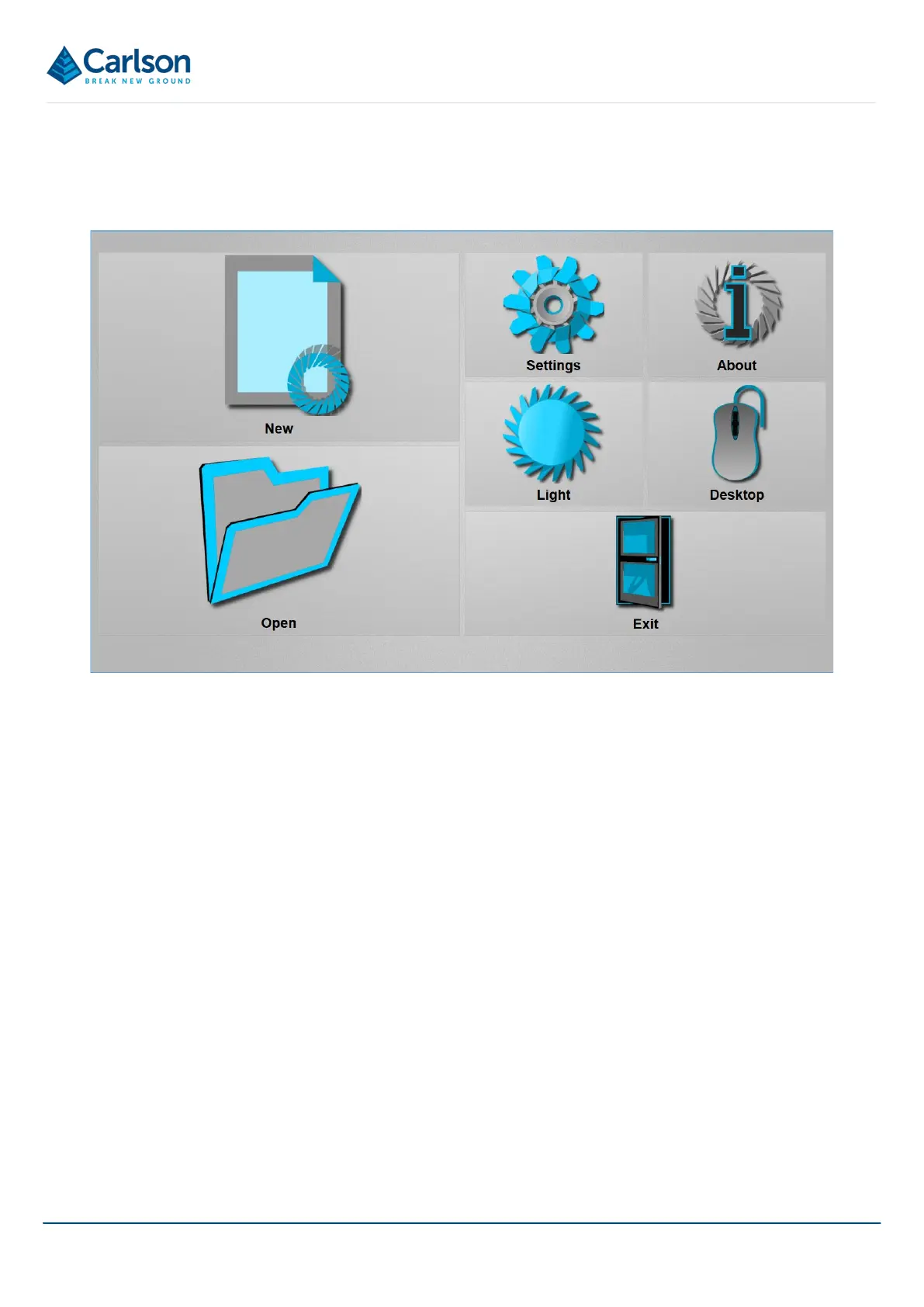
When Carlson Boretrak is first opened in Touch mode, the Home screen appears.
The project is stored in the defined project folder. This folder can be changed from the Settings window (see section
11.3.4).
A single station is added to the project using the default station coordinates. The default station coordinates can be
specified in the Settings window (see section 11.3.7).
The main Touch mode interface opens. Carlson Boretrak immediately runs an auto-detect process to identify any
Boretrak2 probe which has been paired to the tablet and which is currently powered ON.
When a Boretrak2 is identified, the connection is made and the probe is displayed graphically on screen, located at
an automatically generated station. The Boretrak2 deployment is now ready to begin.
11.1 New
Tap New to create a new, Carlson Boretrak project.
The Project window opens (see section 14.1). Edit the details as required. You can enter hole positions in advance,
give the project an appropriate name and change the default folder location.
By default, the project is named <Project YY-MM-DD HH MM>.
Tap Create to accept the entered details and create a new project.
The main Touch mode interface appears with the 3D View on the left-hand side of the screen and the Control tab
on the right-hand side.
Figure 77 Touch mode Home screen


 To Next Page