35
34
RS- 232C Port Connection
n
RS 232C port connection to PC
Connect SERIAL port on the rear panel of the indicator to serial port of PC as the
follows.
RXD 3 ㅇ
TXD 2 ㅇ
GND 7 ㅇ
ㅇ 2 Transmit Data
ㅇ 3 Receive Data
ㅇ 7 Signal Ground
ㅇ 4 Request To Send
ㅇ 5 Clear To Send
ㅇ 6 Data Set Ready
ㅇ 8 Carrier Detect
ㅇ 20 Data Terminal Ready
9 pin port (Male)
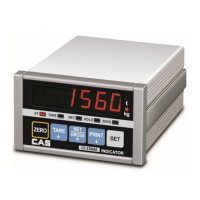
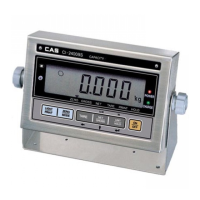
RS-232C port of CI-1560A
25 pin port (Female)
Serial port of computer
RXD 3 ㅇ
TXD 2 ㅇ
GND 7 ㅇ
ㅇ 3 Transmit Data
ㅇ 2 Receive Data
ㅇ 5 Signal Ground
ㅇ 1 Carrier Detect
ㅇ 4 Data Terminal Ready
ㅇ 6 Data Set Ready
ㅇ 7 Request to Send
ㅇ 8 Clear to Send
9 pin port (Male)
RS-232C port of CI-1560A
9 pin port (Female)
Serial port of computer
n
Sub - display connection
RXD 3 ㅇ
TXD 2 ㅇ
GND 7 ㅇ
ㅇ 2 Transmit Data
ㅇ 3 Receive Data
ㅇ 7 Signal Ground
9 pin port (Male)
RS-232C port of CI-1500A
9 pin port (Male)
RS-232C port of sub-display
RXD 3 ㅇ
TXD 2 ㅇ
GND 7 ㅇ
ㅇ 9 Transmit Data
ㅇ 5 Receive Data
ㅇ 1 Signal Ground
n
CAS TOP printer connection (P-202)
9 pin port (Male)
RS-232C port of CI-1500A
9 pin port (Male)
TOP printerf of P-202 port
n
CP - 7000 Series printer connection
RXD 3 ㅇ
TXD 2 ㅇ
GND 7 ㅇ
ㅇ 2 Transmit Data
ㅇ 3 Receive Data
ㅇ14 Signal Ground
9 pin port (Male)
RS-232C port of CI-1500A
9 pin port (Male)
Serial printer of CP-7000 port
Clock
n
Connect serial port on rear panel of indicator to serial printer.
F14 Clock usage 0 : unused 1 : used
CI - 6 Set date and time yy, mm, dd, hh, mm, ss



 To Next Page
 Loading...