●
Getting Ready
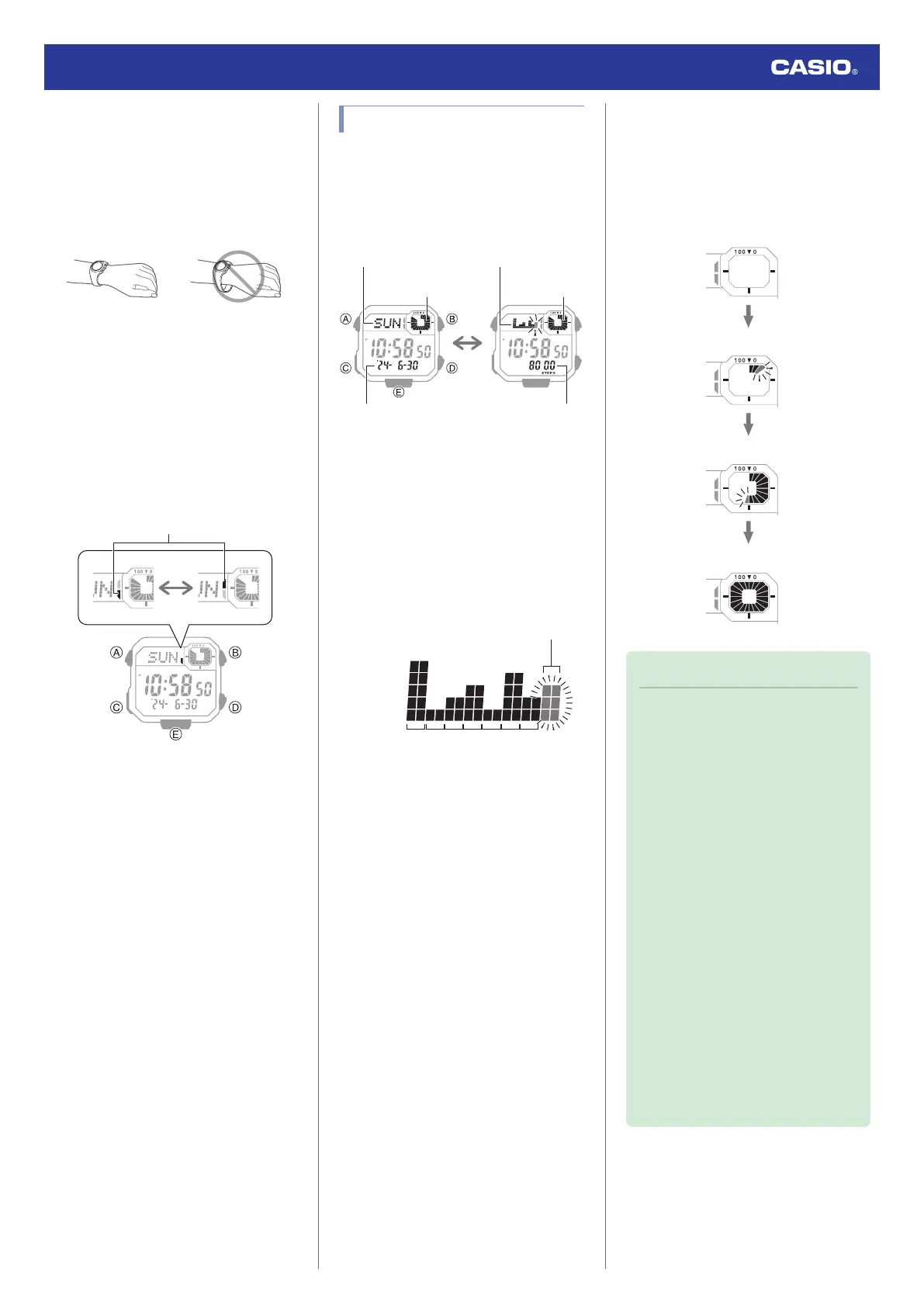
To enable the most accurate step count, wear
the watch with the face on the outside of your
wrist and tighten the band securely. A loose
band may make it impossible to obtain correct
measurement.
●
Counting Steps
The watch will start counting your steps when
you start walking. The step indicators show
whether or not the step count is being
incremented.
Alternating at one-second intervals: Walking
(step count being incremented)
Both displayed: Not walking (step count not
being incremented)
●
To check the step count
l
Displaying the Step Count
Displaying the Step Count
1. Enter the Timekeeping Mode.
l
Navigating Between Modes
2. Use (E) to change to the step count
display.
Year, month, day Daily step count
Step count goal
progress
Day of the week
Step count goal
progress
Step count graph
●
Interpreting the Step Count Graph
The Step Count Graph shows the number of
steps (up to 1,000) you have taken each hour.
This lets you easily check your walking pace
over the past 7 or 8 hours.
●
The Step Count Graph is not displayed
while the step count is zero.
●
Graph contents are normally updated at the
top of each hour.
1‒250
251‒500
501‒750
751‒1000
1001‒
1765432
Time
Step count
Current
●
Checking Your Progress to Your Daily
Step Target
The graphic display area shows your current
progress toward achieving the daily step
target specified by you.
Example: Daily target of 10,000 steps
0 steps
1,000 steps
5,000 steps
10,000 steps (goal attained)
Note
●
The step count can show a value up to
999,999 steps. If the step count
exceeds 999,999, the maximum value
(999,999) remains on the display.
●
To prevent miscounts, the displayed
count does not increase for about 18
seconds after you start walking. After
you have been walking for about 18
seconds, the correct count appears,
including the steps you took during the
previous 18 seconds.
●
The step count is reset to zero at
midnight each day.
●
To save power, step counting stops
automatically if the watch is removed
from the wrist and no movement is
detected for about two to three
minutes.
●
Graph contents are also updated when
any one of the events below occurs.
ー
When the step counting is disabled
to save power
ー
When counting is not possible due
to accelerometer error or insufficient
power
Watch Operation Guide 3564
24



 To Next Page