EasyManua.ls Logo

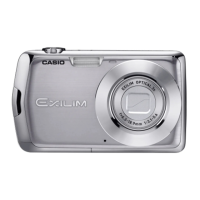
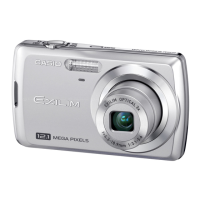
Casio EXILIM EX-Z150 - User Manual

Casio EXILIM EX-Z150
137 pages
Print Icon
To Next Page IconTo Next Page
Loading...
1
E
Thank you for purchasing this CASIO product.
Before using it, be sure to read the precautions contained in this User’s Guide.
Keep the User’s Guide in a safe place for future reference.
For the most up-to-date information about this product, visit the official EXILIM
Website at http://www.exilim.com/
K1123PCM2DMX
Digital Camera
User’s Guide

Table of Contents

Questions and Answers

  • O
    omartinezJul 29, 2025
    Why does my Casio Digital Camera suddenly power down?
    • A
      Andrew WelchJul 29, 2025
      Your Casio Digital Camera may be powering down because Auto Power Off is activated; simply turn the power back on. Alternatively, the battery may be dead, so try charging it. Also, the camera's protection function may have activated due to high temperature; turn off the camera and allow it to cool down before reuse.
  • K
    kevinburkeAug 3, 2025
    How to fix a Casio EXILIM EX-Z150 that does not turn on?
    • K
      Kathleen WoodAug 3, 2025
      If your Casio Digital Camera won't turn on, ensure the battery is correctly loaded. Charge the battery. If the battery dies quickly after charging, it needs replacement. Purchase a CASIO NP-70 rechargeable lithium ion battery.
  • M
    Mitchell NguyenAug 8, 2025
    What to do if Auto Focus does not focus properly on Casio Digital Camera?
    • G
      Gregory HendersonAug 8, 2025
      If the auto focus on your Casio Digital Camera isn't working correctly, start by cleaning the lens. If that doesn't work, and if your subject isn't compatible with Auto Focus, use manual focus. Also, avoid moving the camera when shooting, or use Anti Shake or a tripod.
  • K
    Kenneth SandersAug 13, 2025
    What to do if the Casio EXILIM EX-Z150 doesn't record image when pressing the shutter button?
    • M
      Miranda FloresAug 13, 2025
      If your Casio Digital Camera is in PLAY mode, press the REC button to switch to REC mode. If the flash is charging, wait for it to finish. Alternatively, if a 'Memory Full' message appears, transfer images to your computer, delete unnecessary images, or use another memory card.
  • A
    akennedyAug 18, 2025
    Why are subjects too dark when shooting images in a seashore or ski area with Casio EXILIM EX-Z150?
    • A
      Alyssa WilliamsAug 18, 2025
      When shooting in a seashore or ski area with your Casio Digital Camera, sunlight reflected by water, sand, or snow can cause underexposure. To correct this, change the flash mode setting to Flash On for daylight synchro flash, or adjust EV shift to the + side.
  • S
    Shannon JohnsonAug 23, 2025
    Why is the color of the playback image different from what appears on the monitor screen when shooting with Casio Digital Camera?
    • J
      Jay AlvarezAug 23, 2025
      If the color of the playback image on your Casio Digital Camera differs from what you saw on the monitor screen while shooting, it may be due to sunlight shining directly into the lens. Reposition the camera to prevent direct sunlight from entering the lens.

Summary

Quick Start Basics

First, charge the battery prior to use.

Ensures the camera battery is fully charged before initial use, following a simple charging procedure.

Preparing a Memory Card

Guides on selecting compatible memory cards and loading them into the camera for storage.

Turning the Camera On and Off

Provides instructions on powering the camera on and off, including sleep mode functions.

To shoot a snapshot.

Explains the basic steps for taking a photograph, including focusing and capturing the image.

Snapshot Tutorial

Using the Control Panel.

Details how to access and use the camera's on-screen Control Panel for quick settings adjustments.

Changing the Image Size (Size)

Explains how to select different image resolutions, balancing detail with file size.

Using Flash (Flash)

Covers the different flash modes like Auto, Off, On, and Red-eye Reduction for optimal lighting.

Using Face Detection (Face Detection)

Describes how the camera automatically detects and focuses on faces for better portraits.

Reducing the Effects of Camera and Subject Movement (Anti Shake)

Explains how to minimize blur caused by camera or subject movement using the Anti Shake feature.

Recording Movie Images and Audio

To record a movie

Provides step-by-step instructions on how to capture video footage with the camera.

Recording Audio Only (Voice Recording)

Explains how to use the camera to record audio without capturing video or images.

Advanced Settings

Using On-screen Menus.

Details how to navigate and use the camera's main menu system for comprehensive settings.

REC Mode Settings (REC)

Explains various settings available in the recording mode, such as focus, shutter, and metering.

Configuring Power On Default Settings (Memory)

Allows saving camera settings that are restored automatically when the camera is turned on.

Specifying Movie Image Quality (Quality (Movie))

Guides on selecting video quality settings, impacting detail, smoothness, and recording time.

Using the Camera with a Computer

Viewing and Storing Images on a Computer

Guides on connecting the camera to a computer for viewing and saving photos and videos.

Save images to a computer automatically;Manage images

Explains how to install and use software for automatic image transfer and management.

Uploading Movie Files to YouTube

Provides instructions on how to upload recorded videos to the YouTube platform.

Using the Camera with a Macintosh

Details the process of connecting and using the camera with Macintosh computers.

Appendix

Precautions during Use

Covers essential safety guidelines and warnings for operating the camera correctly.

Data Error Precautions

Warns about actions that can lead to data corruption in the camera's memory.

Rechargeable Battery

Provides important information and precautions regarding the use and care of the camera's battery.

When things don’t go right...

Troubleshooting

Offers solutions for common problems encountered while using the camera.

Display Messages

Lists and explains various error and status messages displayed by the camera.

Casio EXILIM EX-Z150 Specifications

General IconGeneral
BrandCasio
ModelEXILIM EX-Z150
CategoryDigital Camera
LanguageEnglish

Related product manuals