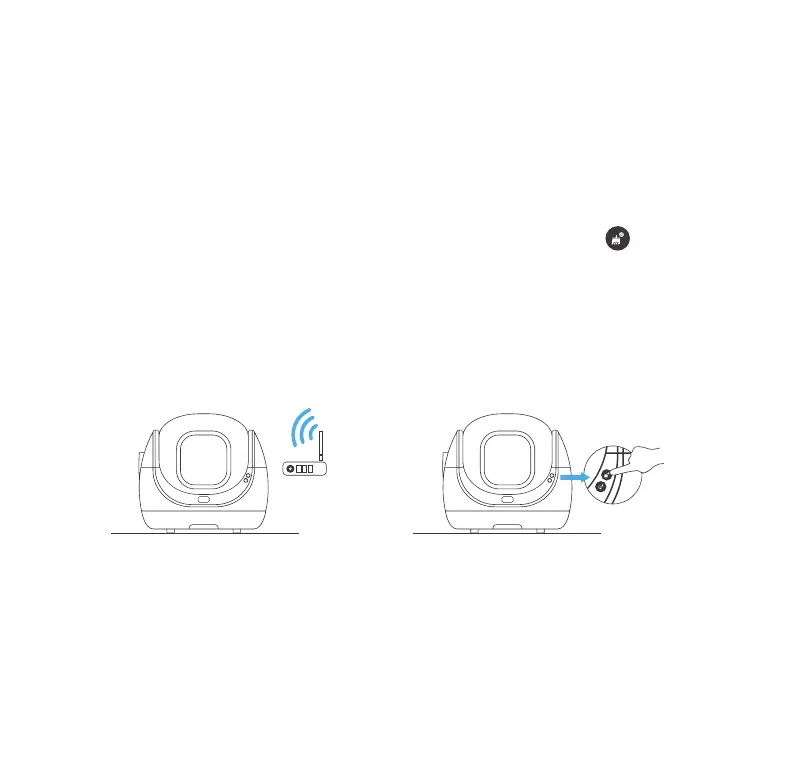
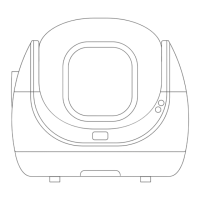
Connection Failed
Placed close
to the router.
Press the Clean
Button for 10s.
5
Toll free: +1 833 440 2772 Email: support@catlink.cn
Connect your phone to 2.4GHz Wi-Fi.
Register your account in the app and log in. (Make sure to authorize location information and
turn on GPS for your Android phone). On the DEVICE page, click the ‘+’ in the upper right corner,
select the SCOOPER SE, and follow the instructions to complete the Wi-Fi connection. If the Unit
can't be searched, click SCOOPER SE to add it manually at the bottom of the page, and follow the
prompts.
If you need to add the device manually, press and hold the Clean Button [ ] for 10 seconds.
You will hear two initial beeps, followed by two more beeps. Release the button once the Indica-
tor flashes.
Connect SCOOPER SE to Wi-Fi according to the prompts in the CATLINK app.
After the Wi-Fi connection is successful, the Indicator of the Unit will turn on.
After completing the above steps, you can use the functions in the CATLINK app.
②
③
④
⑤
⑥
⑦
If you experience connection failure, turn off the power and repeat the steps outlined above. Be
sure to read the NOTE under the [WiFi Connection] section of this chapter to ensure that you
follow the process correctly and avoid any errors.
If you fail to connect the device, please feel free to contact us.



 To Next Page