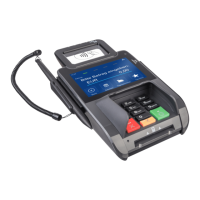
2.3.2 Using the card reader
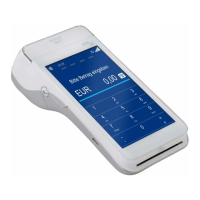
Make sure the card remains visible to the card holder. It is best to allow the card holder to put his payment card into the
chip-card reader or slide it through the magnetic card reader himself. When this is not possible for practical reasons, then
make sure you show the card holder how you put the payment card into the chip-card reader or slide it through the
magnetic card reader.
2.3.3 Environmental factors
Environmental factors may affect the operation of the equipment. Keep this in mind when positioning the equipment.
Your point-of-sale terminal is able to operate under the following environmental factors:
• an ambient temperature of between 0°C and 50°C
• a relative humidity of between 5% and 90%
Avoid:
• shocks and vibrations
• direct sunlight or heat-emitting objects
• excessive heat and dust
• oil and dirt
• water or condensation
• Placing of the terminal close to objects that cause excessive current fluctuations and/or electromagnetic fields
2.4 Information required to be able to carry out an installation
To be able to install the VX 820 ITS PIN pad, you need to have the following information at your disposal:
• IP address, subnet mask and gateway for the PIN pad. This information should be available at the customer’s or from
the supplier of the cash register;
• TMS TID of the PIN pad;
• TMS IP address and the TMS port for the PIN pad.
2.5 Overview of the installation, step by step
Step Explanation
1 Preparing for installation Before installation, check the following:
• whether all necessary facilities are available on the location of
installation
• whether all positioning instructions have been met
• whether you have all necessary information at hand
2 Installing AdminLight
Install AdminLight. You need this program to install the VX 820 ITS.
3 Configuring the communication
settings of the PIN pad
To be able to install the VX 820 ITS PIN pad, the PIN pad must be able
to communicate with AdminLight. First, configure the communication
settings of the VX 820 ITS. Next, connect the PIN pad to AdminLight.
4 Connecting the PIN pad to
AdminLight
5 Installing the PIN pad with AdminLight
(new PIN pad)
Open the menu of the VX 820 ITS PIN pad using AdminLight. Next,
carry out the actions necessary to install the PIN pad.
Installing the PIN pad with AdminLight
(used PIN pad)
6 Activating the PIN pad A used PIN pad must be activated with AdminLight after installation.
You do not need to carry out this step if the PIN pad is new and never
used at a customer.
7 Configuring OPI settings (conditional) You can configure the OPI settings if you want to have the OPI
communication run via RS232 rather than via the Ethernet.
CID087A/15042015 © CCV Services B.V. 9 / 45



 To Next Page