44
Check the cleaning history.
Conguration
Img. 10
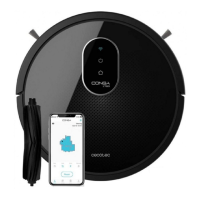
Download the Conga 1490/1590 App from AppStore or Google Play.
Create an account with your e-mail and password.
Conrm again.
Add your Conga robot.
Connect to Wi-Fi.
Warning:
The App does not support 5G networks.
The Wi-Fi name and password cannot exceed 32 bits.
If the network conguration fails to connect, follow the steps below:
Press the start button for 7 seconds, the robot will enter Standby mode and the Wi-Fi light
indicator will blink fast indicating connection error. Retry connecting the robot again following
the steps in the before section.
If the connection fails again, check if: The robot is too far away from the router.
The Wi-Fi password is incorrect.
The Wi-Fi networks is not 2.4G Hz.
*This model is compatible with voice virtual assistants Google Assistant and Alexa.
4. OPERATION
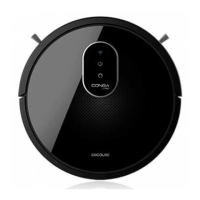
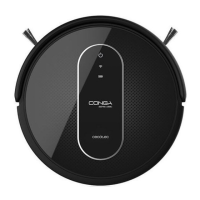
Touch display
Img. 11
On/off button
Wi-Fi indicator light
Battery indicator light
Note: The power button on the robot and on the remote control has the same function.
On/off button
Press the On/off button to start the robot up.
From the Standby mode:
Press the On/off button to start Auto cleaning mode.
Hold down the On/off button for 3-7 seconds to enter network conguration.
Hold down the On/off button for 7 seconds to enter standby mode.
During operation:
Press the On/off button to stop operation.
During charging:



 To Next Page