The default setting is single shot, but you can set for timed shots.
VIDEO MODE
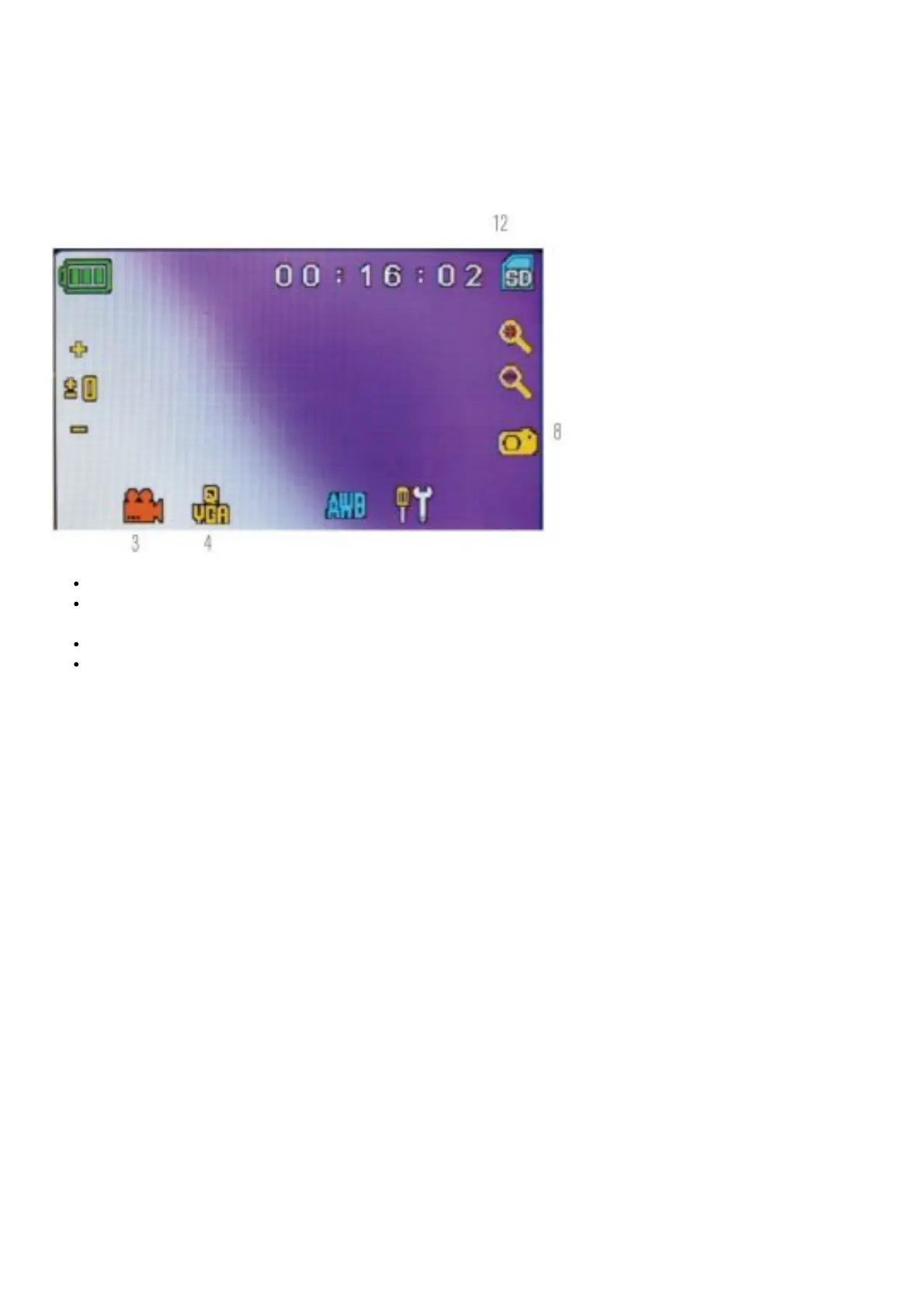
To take videos, change the “video” setting first. The icons on this image (Figure 10) work the same way as in the
snapshot mode with the following exceptions:
VIDEO MODE
(3) Touch to go to viewing mode.
(4) Set the pixel size to 640×360 (the highest resolution for videos) by touching the screen. In both resolutions
(high 640×360 or low – QVGA), the frame specifications is 20fps.
(8) Record Video — Touch to begin video and touch again to stop the video.
(12) Indicates recording time remaining.
SNAPSHOT OR VIDEO REVIEW
From the video mode, touch the video icon in the lower left of the screen to go to the review mode. In this mode, you
can review the snapshots and videos you have taken. Touch the arrows and touch/ scroll the screen to navigate and
view your videos and snapshots. You can also delete them if you choose.
NOTE: Inserting or removing an SD card while the LCD is on may cause the LCD to shut down and/or could damage
the SD card.
TRANSFERRING YOUR IMAGES
To transfer images to a PC or Mac, you need to have a free USB port on your PC and have an imaging program for
snapshots and/ or video.
NOTE: Do not disconnect the USB cable while transferring images or damage may occur.
1. You can transfer images from the SD card to your PC by using the supplied USB cable. The small plug end of the
cable plugs into the LCD monitor (see Figure 1) and the large plug end of the cable plugs into your PC.When
connected properly, you will see “MSDC” or similar on the screen. Your PC will automatically recognize the new
hardware. Then you will choose a program on your PC to use for transferring images.
2. You can take the SD card out and use the SD card slot on your PC (if available) to transfer the images as well.
Either way, your PC will ask you to choose which program you want to transfer the images to.
Deleting all Snapshots/Video Images – To delete all images use the memory format function, select Settings /
Memory / Format and choose SD card or Flash memory.
TROUBLESHOOTING



 To Next Page