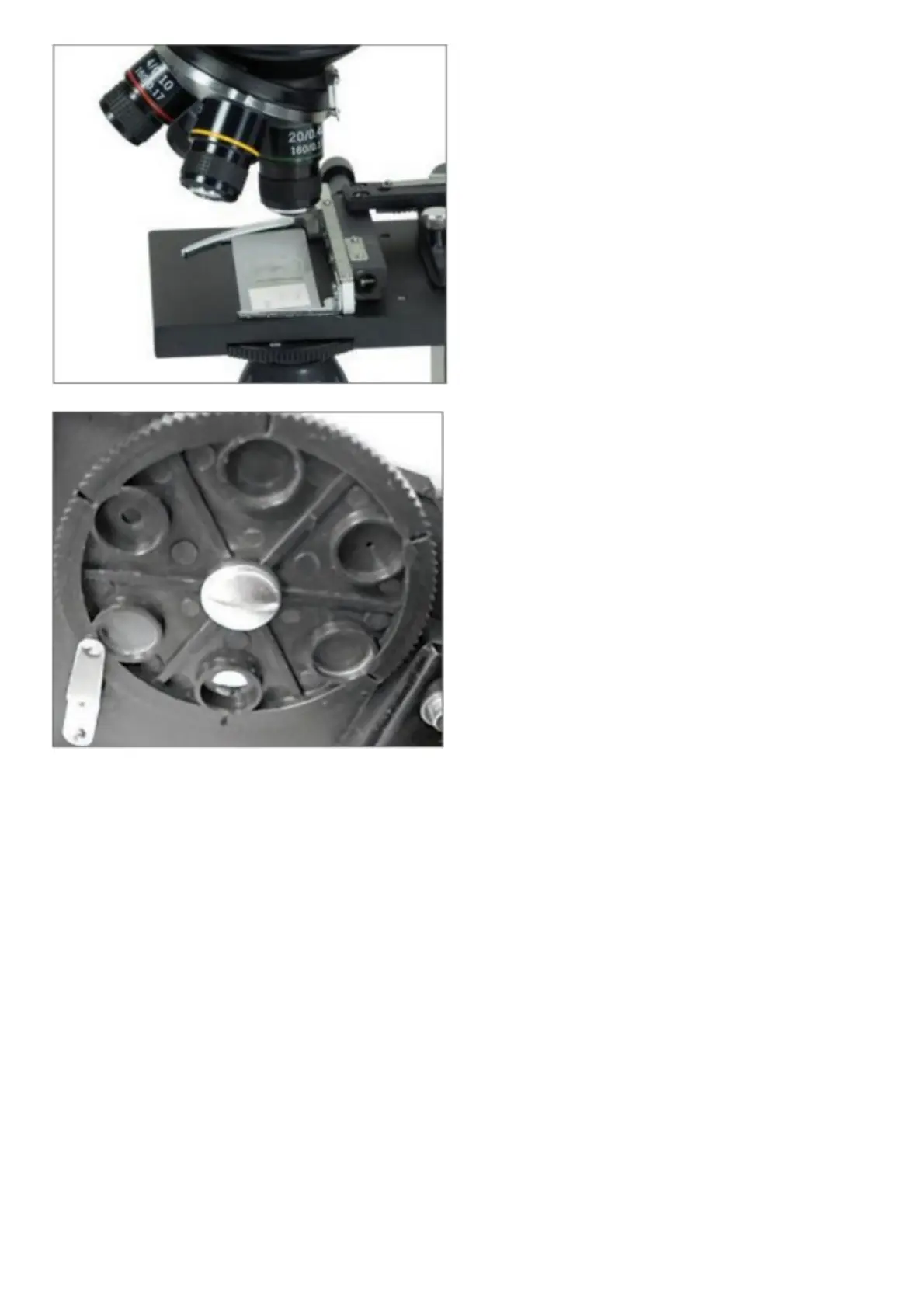
Figure: 7
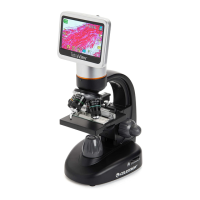
Figure: 8
Diaphragm — Within the wheel are holes with three different diameters, (1) 1 mm, (3) 3 mm, (6) 6 mm that limit the
amount of light passing through to the specimen. These holes are part of the diaphragm. Changing the hole opening
size helps you maximize the contrast, brightness, etc.
The default setting is (6) for the 6 mm hole, which should be used for most viewing. You can look under the stage (see
Figure 8) to make sure the proper setting is actually being used.
ROTATING THE LCD SCREEN
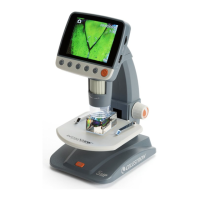
You can rotate the viewing position of the LCD screen 180°: 90° to the right and 90° to the left. You can view any
position you choose along the 180° rotation. This function allows you to share the view with others without actually
moving the complete microscope. To move the LCD screen, hold the top of the arm (see Figure 1) with one hand, hold
the LCD module with the other, and move it to the position you desire.
You can adjust the tension of the rotation of the monitor by tightening/loosening the adjustment screws as shown in
Figure 1. It is best to have the tension somewhat tight so the monitor is rigid. Turn the LCD screen on and you are
now ready to use your microscope for viewing. If any problems arise, check the troubleshooting section.
AV/TV CABLE
To view specimens or images on a larger format screen, connect the AV/TV cable in the receptable (see Figure1) on
one end and the other end into the socket on the monitor (if your monitor has a socket for this purpose).



 To Next Page