26
5.3 Advanced features
5.3.1 Crosslinking using the UV LED
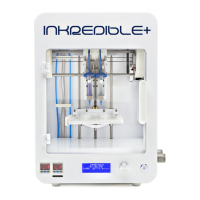
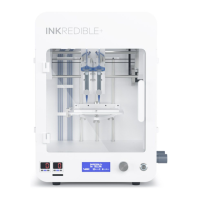
If you wish you can crosslink bioprints using the built-in UV LED crosslinking system of
the INKREDIBLE 3D Bioprinter. To do so follow these steps:
1. Manually place the UV LED [3] as close as possible to the top of the bioprinted
construct.
2. Select the “Ulies Menu” and press the control knob to enter [8].
3. Select “Turn ON LED” and press the control knob to turn on the UV LED. To turn o
the UV LED curing, simply select “Turn OFF LED” and press the control knob [8].
The crosslinking me will vary depending on the bioink used and the thickness of
layers/construct.
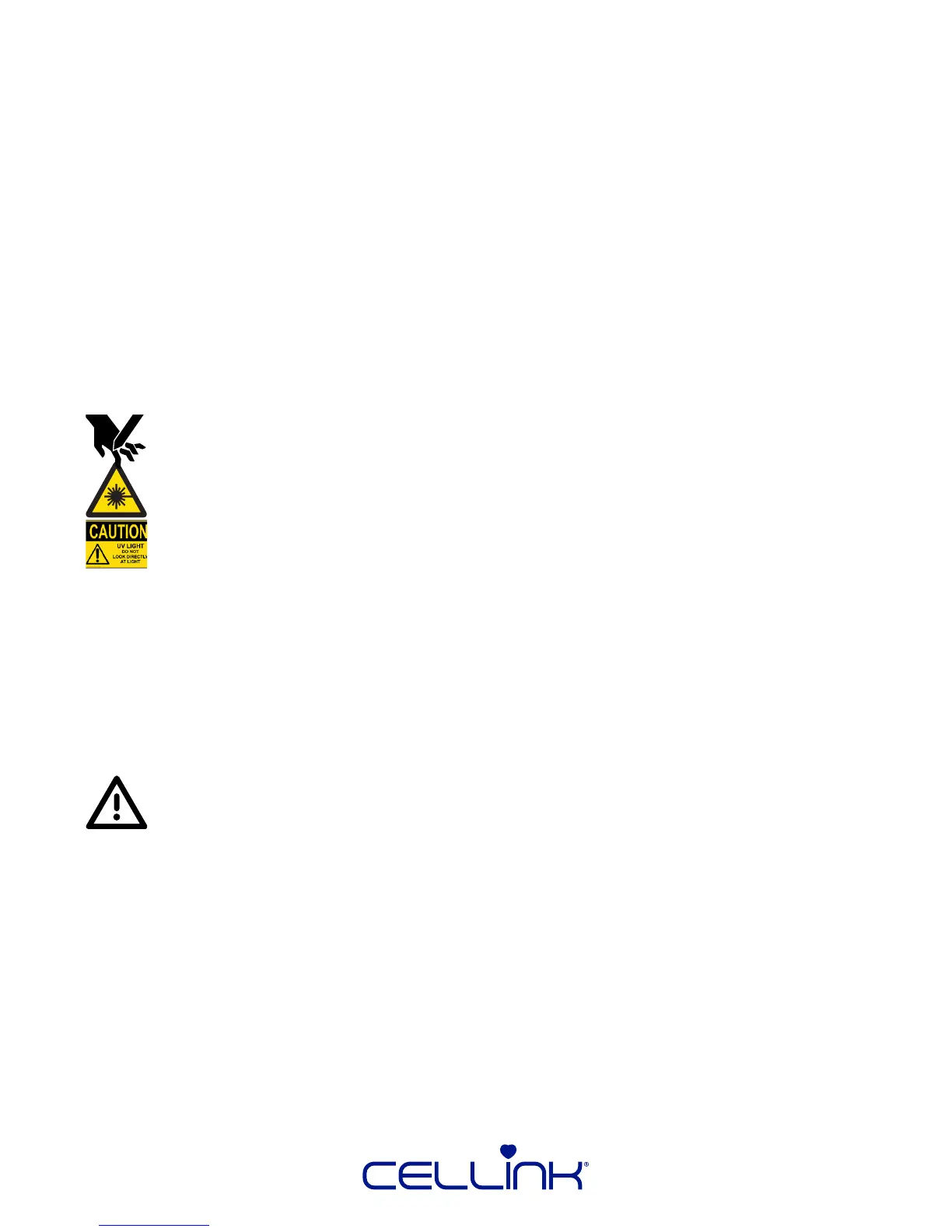
WARNING! Always wear UV protecve goggles and gloves, and secure
the environment of the instrument to other personnel while operang the
INKREDIBLE. All safety equipment, including UV protecve safety goggles,
must be used with the UV curing system.
5.3.2 Bioprinng using dual printheads
To bioprint using dual printheads, rst control the following:
1. When converng your 3D model to G-code, verify that you are using a prole
that supports using dual printerheads.
2. Verify that both cartridges have the same length nozzle aached.
CAUTION! The INKREDIBLE 3D Bioprinter CAN NOT bioprint using
nozzles with dierent lenghts! Doing this can damage your INKREDIBLE
3D Bioprinter!
3. Verify that printhead 1 and printhead 2 are completely level with each other:
-Select the “Ulies Menu” in the menu and enter by pressing the
control knob [8].
-Select “Home printheads” by pressing the control knob [8].
-Select “Raise printheads” by pressing the control knob [8].
-If the printheads are not completely leveled, follow the instrucons
in chapter 8.2.7 “Dual head bioprinng: Printhead 1 and printhead 2 are
not leveled with each other aer the “Raise printheads” opon has been
selected”.


 To Next Page