58
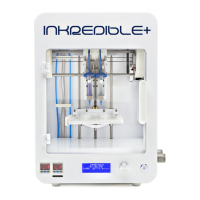
8.2 Support for your INKREDIBLE 3D Bioprinter
Please visit CELLINK’s Support Portal for updated informaon on your INKREDIBLE 3D
bioprinter.
www.cellink.freshdesk.com/
www.cellink.freshdesk.com/support/soluons/35000068779
8.2.1 One or both of the printheads are not dispensing ink or not dispensing ink in a
connuous ow
The issue is most likely that the nozzle(s) are clogged. To x this, do the following:
1. Press the control knob and select “Pause bioprint”
2. In the “Ulies Menu”, turn o the printhead(s).
3. Remove the cartridge(s) from the printhead(s) causing the problems WITHOUT
removing the air pressure hose.
4. Remove the nozzle of the cartridge(s) and replace it with a new one of the same
type.
5. Carefully place the cartridge(s) back into the printhead(s).
6. Press the control knob and selsct “Resume bioprint”.
8.2.2 The “Bioprint” opon is not showing up in the menu
The issue is most likely that the SD-card was or is not properly inserted. To x this, do the
following:
1. Verify that the SD-card is properly inserted in the SD-card reader.
2. Select the “Reload SD-card” opon from the main menu.
8.2.3 Selecng a le in “Bioprint” does not start the bioprinng process
The issue is most likely that the temperature was not set to 0 when preparing the print
le in the Slic3r soware. To x this, do the following:
1. Open up the STL-le in the Slic3r soware.
2. Under the “Filament Sengs” tab, check that:
-The extrusion temperature is set to 0 for both rst layer and other
layers.
-The bed temperature is set to 0 for both rst layer and other layers.
8.2.4 The layers of the bioprint are not evenly thick
The issue is most likely that the printbed is not compeltely leveled. To x this, follow the
sequence described in point 1 of chapter 5.1.


 To Next Page