50
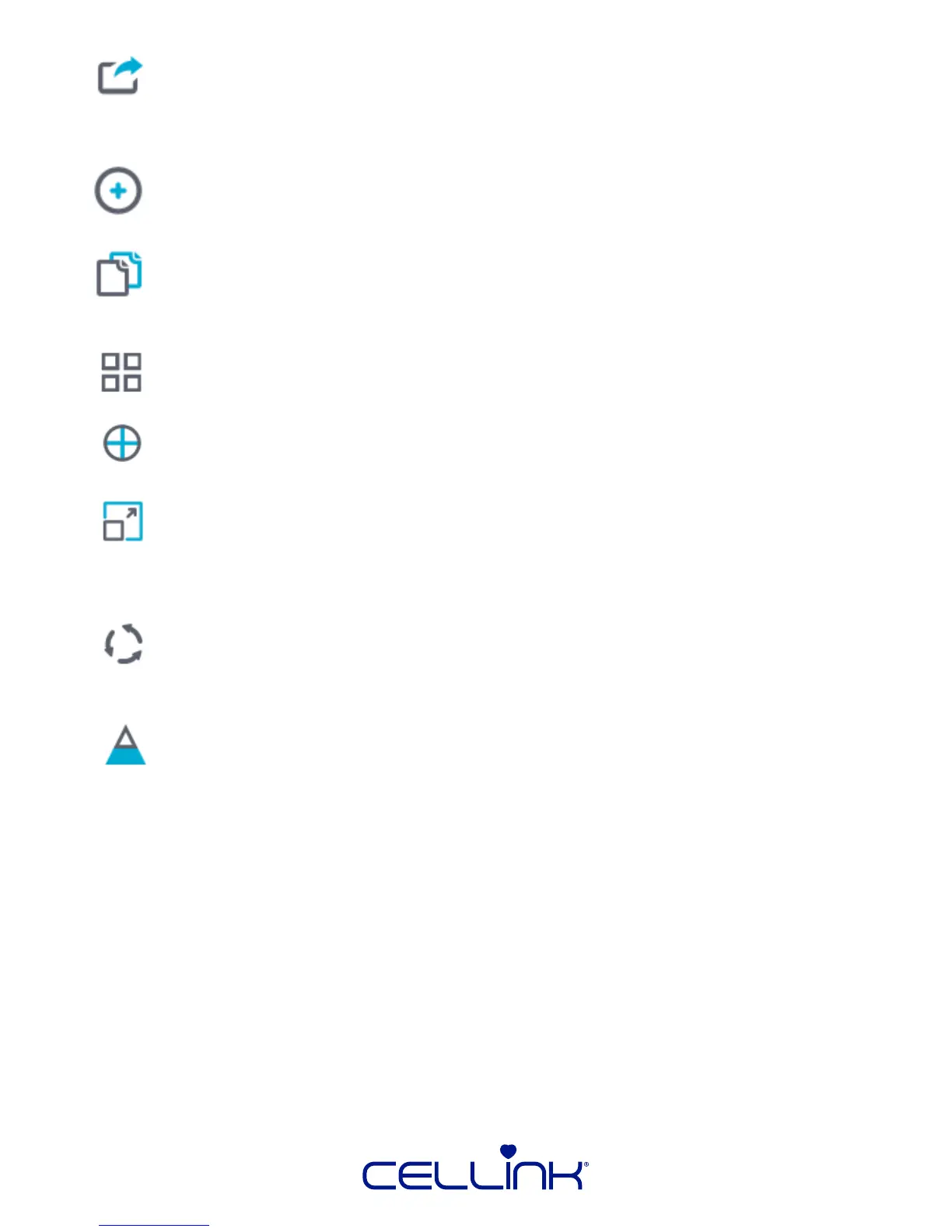
Export – Once one or models have been posioned in a desired arrangement,
they can be saved for later use. This can be useful f the same arrangement will
be sliced at dierent thickness, run with dierent inll, or built with dierent
materials.
Add Object – Load a model.
Copy Object(s) – Create addional copies of one or more models.
These can be created in the same exact coordinates relave to the original or
automacally spaced apart.
Autoposion – Automacally arrange mulple models 6mm apart from one
another in the XY plane.
Center Object – Drop a single model in the center of the print area, leveled to
a height of Z = 0mm
Scale – Resize models using scale factors. These factors can be applied to one
or all axes simultaneously. In addion, the model can be scaled to ll the enre
print volume (raos will be preserved). Click “Reset” to return the model to its
original size.
Rotate Object – Rotate an object around the X, Y, or Z axes using degrees.
This can also be used to level the object with respect to what HeartWare
determines is the closest at surface.
View Cross-Secon – Use a cung plane to hide a poron of the model.
The “Posion”, “Inclinaon”, and “Azimuth” sliders control the amount and angle
of the poron of the model that is hidden and shown.
Things to consider when placing your models:
• If prinng mulple parts, leave a few mm of room between each part to ensure
they don’t collide during the print.
• All materials need me to solidifying when being printed. While this is
happening, if there is nothing below to support the material it can sag,
aecng not only that layer, but all the layers above it. This
type of geometry is called an overhang. Try to orient parts or support them to
minimize the presence of overhangs.
• Flat surfaces are the most stable, so you should try to use those as the base of
the print, along the print bed.


 To Next Page