Connecting to an Office Computer
27
the receiver.
(4) Turn on the receiver by pressing the power button for 3 s.
(5) Switch on the data controller and connect it to the receiver.
(6) Use software to configure the receiver as cellular rover or UHF rover mode.
(7) Center and level the receiver more precisely.
(8) Use software to start survey.
4 Connecting to an Office Computer
The receiver can be connected to an office computer for upgrading firmware,
configuring GNSS board parameters or outputting NEMA0183 data via a GPS to PC data
cable. Before you connect to the office computer, ensure that the receiver is powered
on.
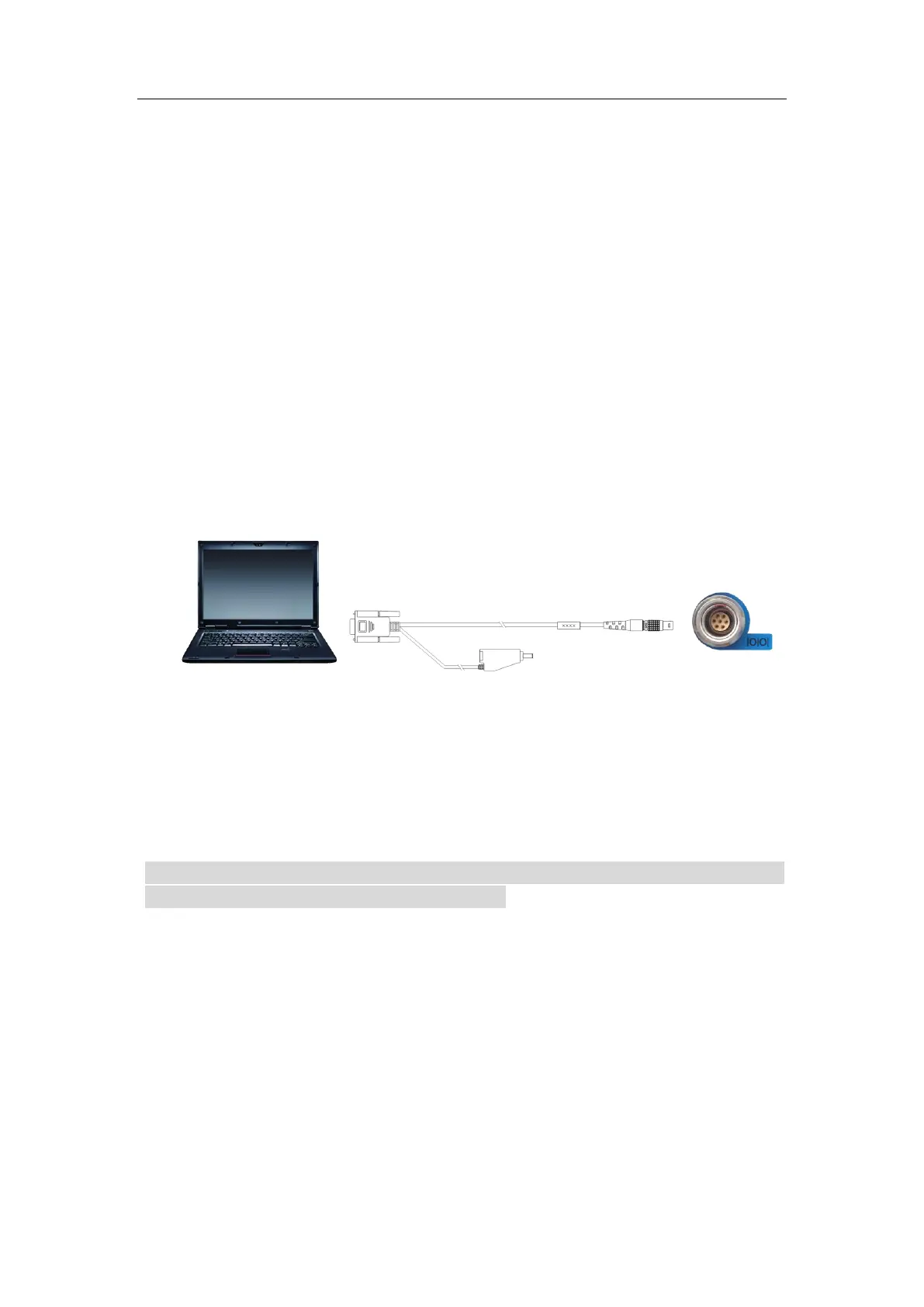
The following figure shows how to connect to the computer:
Steps:
(1) Use the 7-pin LEMO port to connect to the receiver, and use the RS232 port to
connect to the PC.
(2) Connect the receiver to the PC software for configuring upgrading firmware,
configuring GNSS board parameters or outputting NEMA0183 data.
Note: To prevent the damage of the receiver caused by misoperation, please use the
firmware provided by HUAYI NAV for upgrading.


 To Next Page