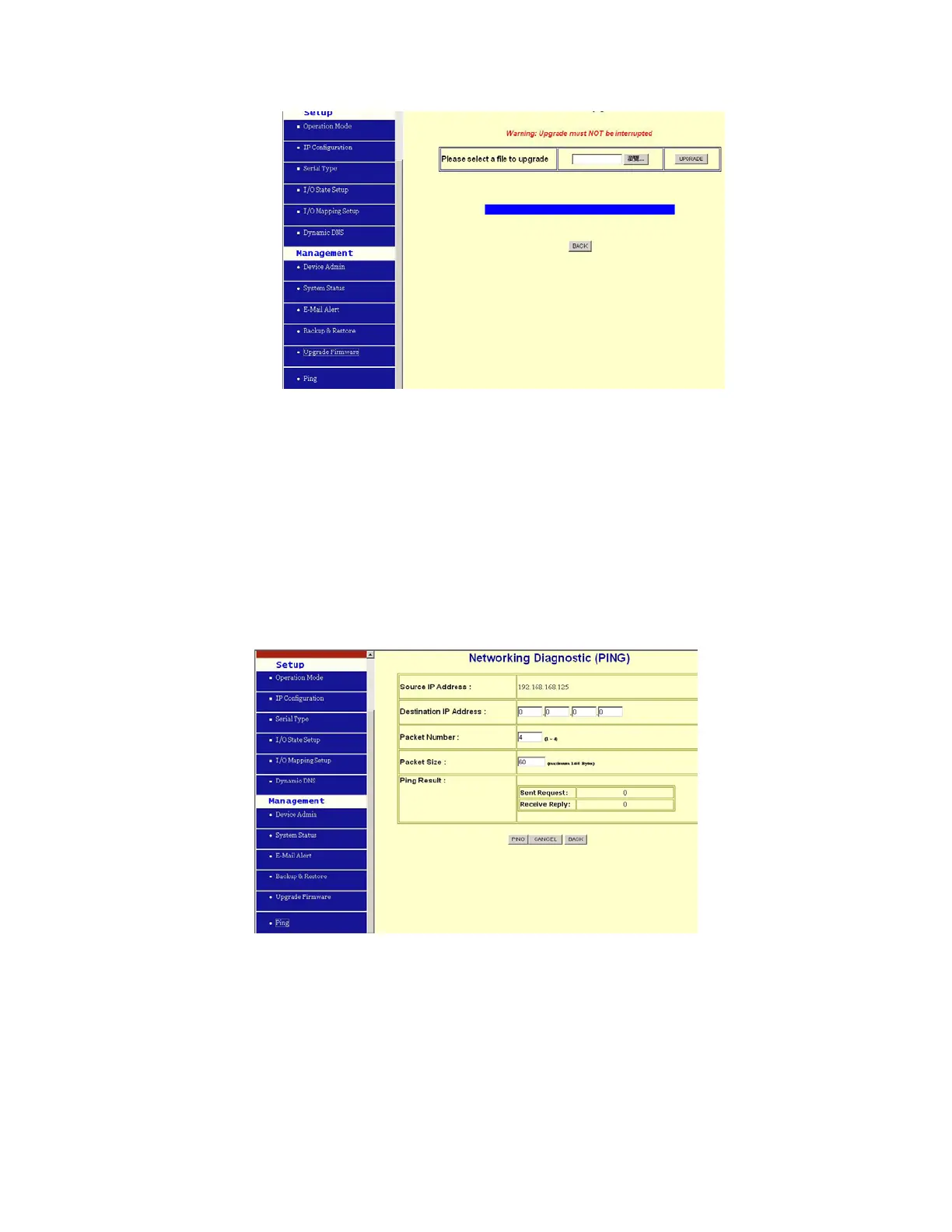
Browse: To select a file to upgrade, you have to enter path of the latest firmware you saved on
the PC. You can choose “Browse” to view the folders and select the firmware.
Upgrade: After you enter or select the path, click “Upgrade” to start the firmware upgrade
process
.
Note: don’t power off the router during the firmware upgrading, otherwise the
incompletion of firmware upgrading will cause serious damage to the integrity of the
BF-480’s firmware that will lead to fail to boot the BF-480 again.
4.6 Ping
This function allows you to test the connection between BF-480 and LAN or between BF-45M and
Internet.
Source IP Address: the current BF-480’s IP address (Read Only).
Destination IP Address: the IP Address of destination device you want to ping.
Packet Number: the packet numbers you wish to use to ping the destination device. The
maximum numbers are 4.
Packet Size: the numbers of packet size you wish to use to ping the destination device. The
maximum packet sizes are 1400.
Ping Result: The result will show the numbers of sending packet, numbers of packet receiving
(Read Only).


 To Next Page