Section 3: Operation
013-100199-04 3-21.
Position, V-Position or Blanking do not correspond to those for a preset. This option
is not offered in the Resize Presets pull-down list.
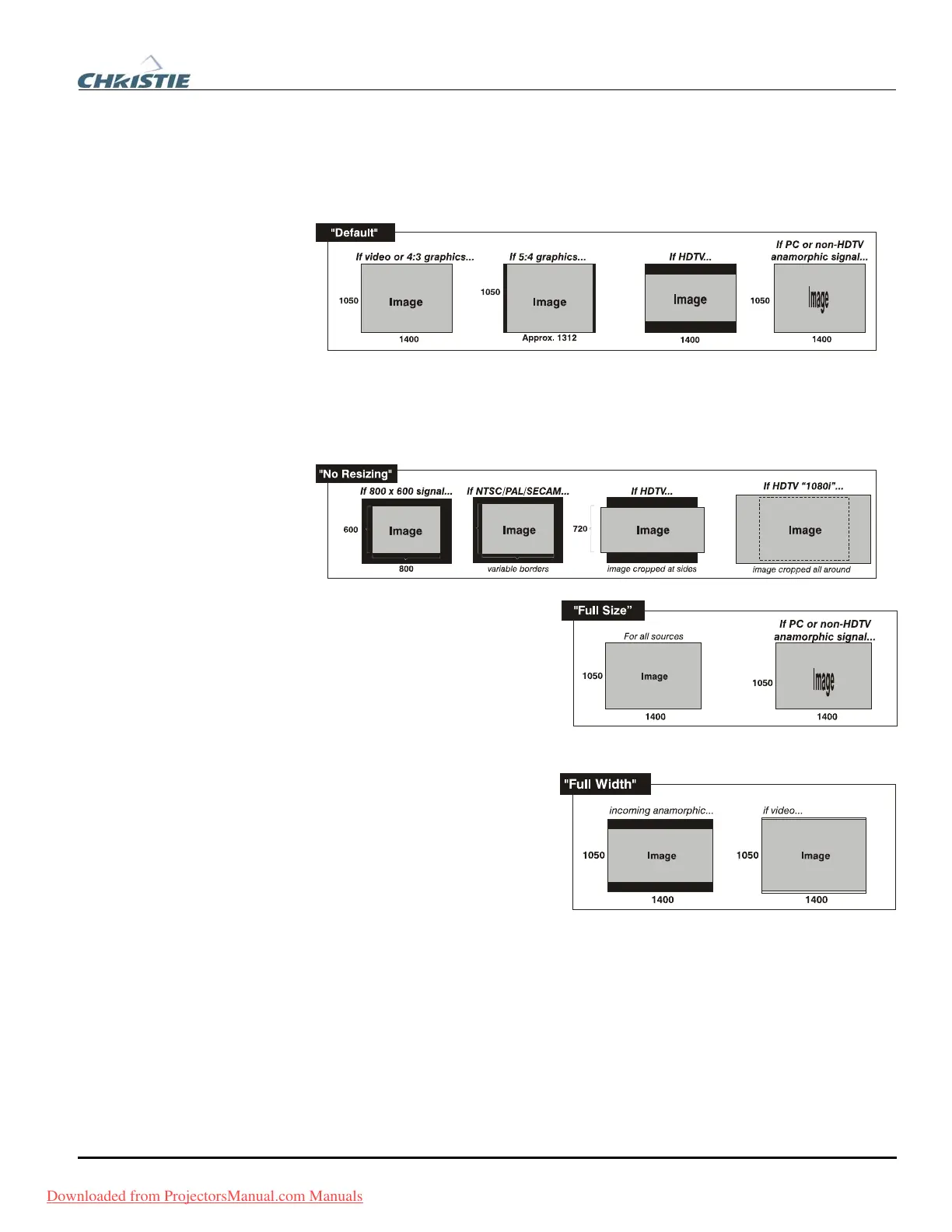
• Select
“DEFAULT” for most sources (factory default). The image will be centered
and displayed as large as possible depending on the type of source.
• Select
“NO RESIZING” to display the image in its native resolution, which may or
may not match the projector’s resolution. For example, for a source with a native
resolution of 800 x 600, “No Resizing” in an SXGA+ projector will use the central
800 x 600 pixels and have a black border—the black border areas are unused areas.
See below.
• Select “FULL SIZE” to use all
pixels for displaying the image,
regardless of source or original
aspect ratio. Incoming source
material having a different
aspect ratio than the projector
will be stretched for display.
• Select
“FULL WIDTH” to fill the
projector’s display from left-to-
right without changing the
original aspect ratio of the
image. Depending on the
source, data at the top and
bottom may be discarded
(cropped), or the display may
have black borders at the top
and bottom (called “letterboxed”).
• Select
“FULL HEIGHT” to fill the display from top-to-bottom. Depending on the
source, this may create borders.
Downloaded from ProjectorsManual.com Manuals



 To Next Page