See also 4K Sector Format SAS/SATA Drives Considerations, on page 3.
Note
Removing a Blade Server Hard Drive
To remove a hard drive from a blade server, follow these steps:
Procedure
Step 1 Push the button to release the ejector, and then pull the hard drive from its slot.
Step 2 Place the hard drive on an antistatic mat or antistatic foam if you are not immediately reinstalling it in another
server.
Step 3 Install a hard disk drive blank faceplate to keep dust out of the blade server if the slot will remain empty.
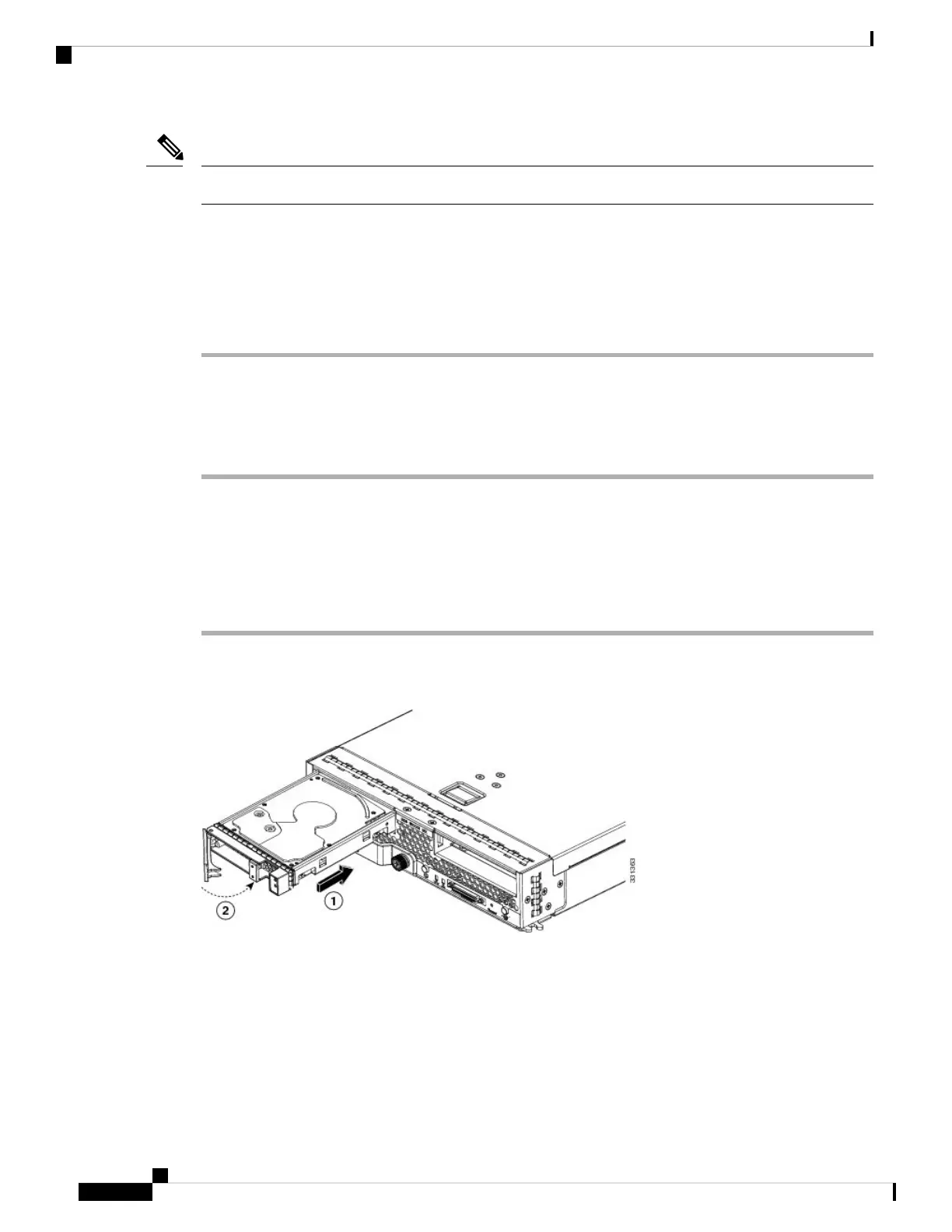
Installing a Blade Server Drive
To install a drive in a blade server, follow these steps:
Procedure
Step 1 Place the drive ejector into the open position by pushing the release button.
Figure 1: Installing a Hard Drive in a Blade Server
Step 2 Gently slide the drive into the opening in the blade server until it seats into place.
Step 3 Push the drive ejector into the closed position.
You can use Cisco UCS Manager to format and configure RAID services. For details, see the Configuration
Guide for the version of Cisco UCS Manager that you are using. The configuration guides are available at
the following URL:
http://www.cisco.com/en/US/products/ps10281/products_installation_and_configuration_guides_list.html
Servicing a Blade Server
2
Servicing a Blade Server
Removing a Blade Server Hard Drive


 To Next Page
 Loading...