Then set up G2_ip to be 10.5.4.35. This is the IPv4 address of the G2 interface which will connect
to the ISP's gateway.
Lastly, set the IP4 Address object G2_net to be 10.5.4.0/24. Both the address objects G2_ip and
wan_gw must belong to the same network in order for the interface to communicate with the
ISP.
Together, these three IPv4 address objects will be used to configure the interface connected to
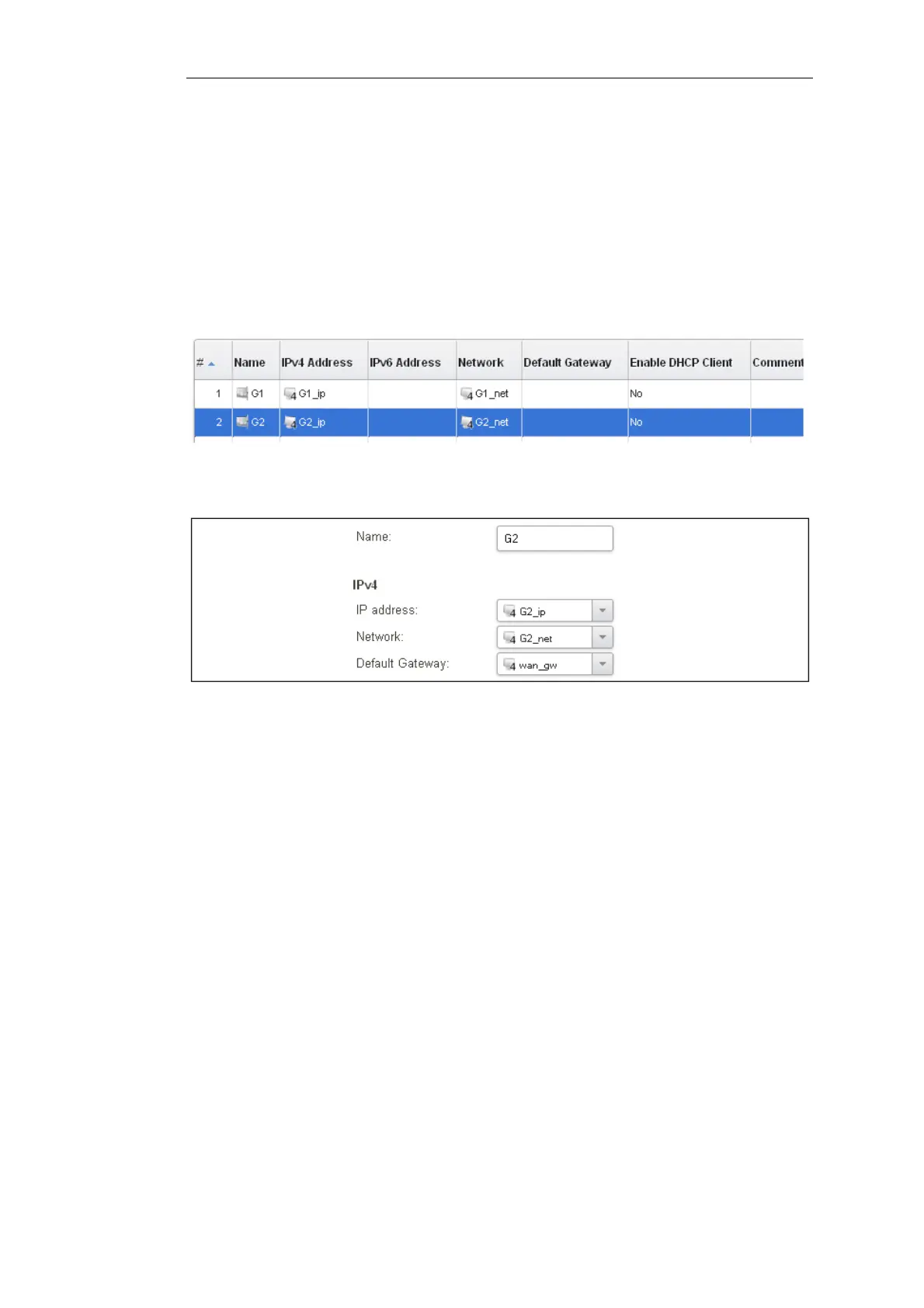
the Internet which in this example is G2. Select Network > Interfaces and VPN > Ethernet to
display a list of the physical interfaces. The first lines of the interface list for the E20 are shown
below.
Click on the interface in the list which is to be connected to the Internet. The properties for this
interface will now appear and the settings can be changed including the default gateway.
Press OK to save the changes. Although changes are remembered by cOS Core, the changed
configuration is not yet activated and won't be activated until cOS Core is told explicitly to use
the changed configuration.
Remember that DHCP should not be enabled when using static IP addresses and also that the IP
address of the Default Gateway (which is the ISP's router) must be specified. As explained in more
detail later, specifying the Default Gateway also has the additional effect of automatically adding
a route for the gateway in the cOS Core routing table.
At this point, the connection to the Internet is configured but no traffic can flow to or from the
Internet since all traffic needs a minimum of the following two cOS Core configuration objects to
exist before it can flow through the Clavister Security Gateway:
• An IP rule or IP Policy object that explicitly allows traffic to flow from a given source network
and source interface to a given destination network and destination interface.
• A route defined in a cOS Core routing table which specifies on which interface cOS Core can
find the traffic's destination IP address.
If multiple matching routes are found, cOS Core uses the route that has the smallest (in other
words, the narrowest) IP range.
We must therefore first define an IP rule that will allow through traffic from a designated source
interface and source network. In this case let us assume we want to allow web browsing from the
internal network G1_net connected to the interface G1 to be able to access the public Internet.
To do this, first go to Policies > Firewalling > Main IP Rules.
Chapter 4: cOS Core Configuration
42


 To Next Page