2222
Technical Support: 800-283-5936
3. Click the
UUppddaattee
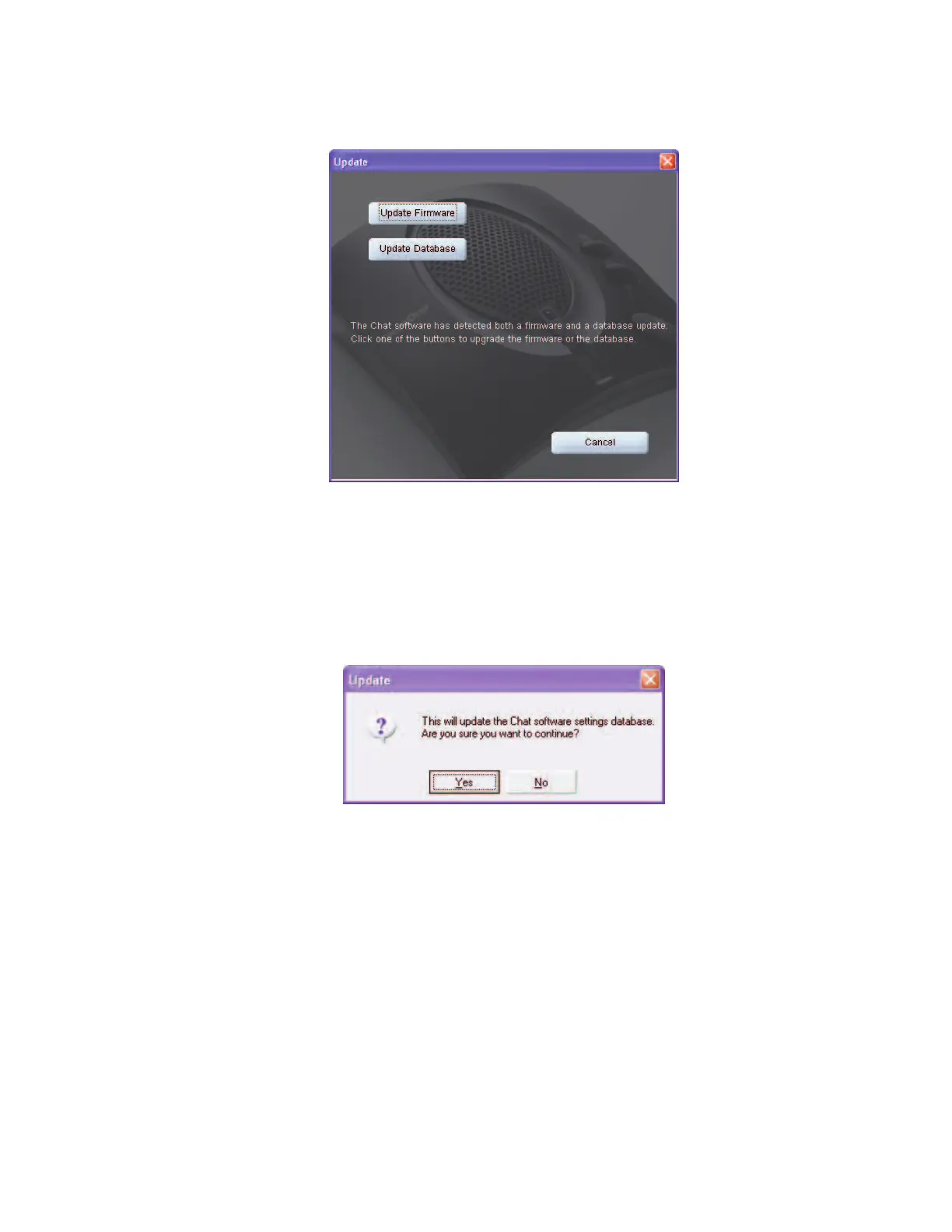
button to install available updates. The Update dialog box appears.
4. Click
UUppddaattee FFiirrmmwwaarree
to update firmware only.
Click
UUppddaattee DDaattaabbaassee
to update the device database only.
Click
CCaanncceell
to cancel the update procedure and return to the
UUppddaattee FFiirrmmwwaarree
screen.
5. If you choose to update the device database, a warning dialog appears.
6. Click
YYeess
to proceed with the firmware or device database update.
7. A second warning dialog appears. Click
YYeess
to proceed.
8. A series of messages appears below the progress bar indicating that the updates are in progress.
>
NNoottee
: Windows Vista will prompt you to unplug and then reconnect the CHAT 60 to complete the
firmware update.
9. When the update is complete the following messages appear below the progress bar:
• "
Update Successful! The firmware for CHAT has been changed to <new revision level>
” where <new
revision level> is the new firmware revision number.
• "
Update Successful! The database has been updated to <new revision level >
" where <new revision
level> is the new database version number.
The most recent firmware and device database updates are now loaded.


 To Next Page