SSeelleecctt FFiillee ((MMaannuuaall UUppddaattee))
>
NNoottee
: This procedure is for advanced users, technical support purposes, and corporate environments
where IT security policies may prohibit automatic updates. Loading an incorrect firmware file can cause
unpredictable results. In most cases, you should use the automatic update procedure by clicking the
CChheecckk ffoorr uuppddaatteess
button.
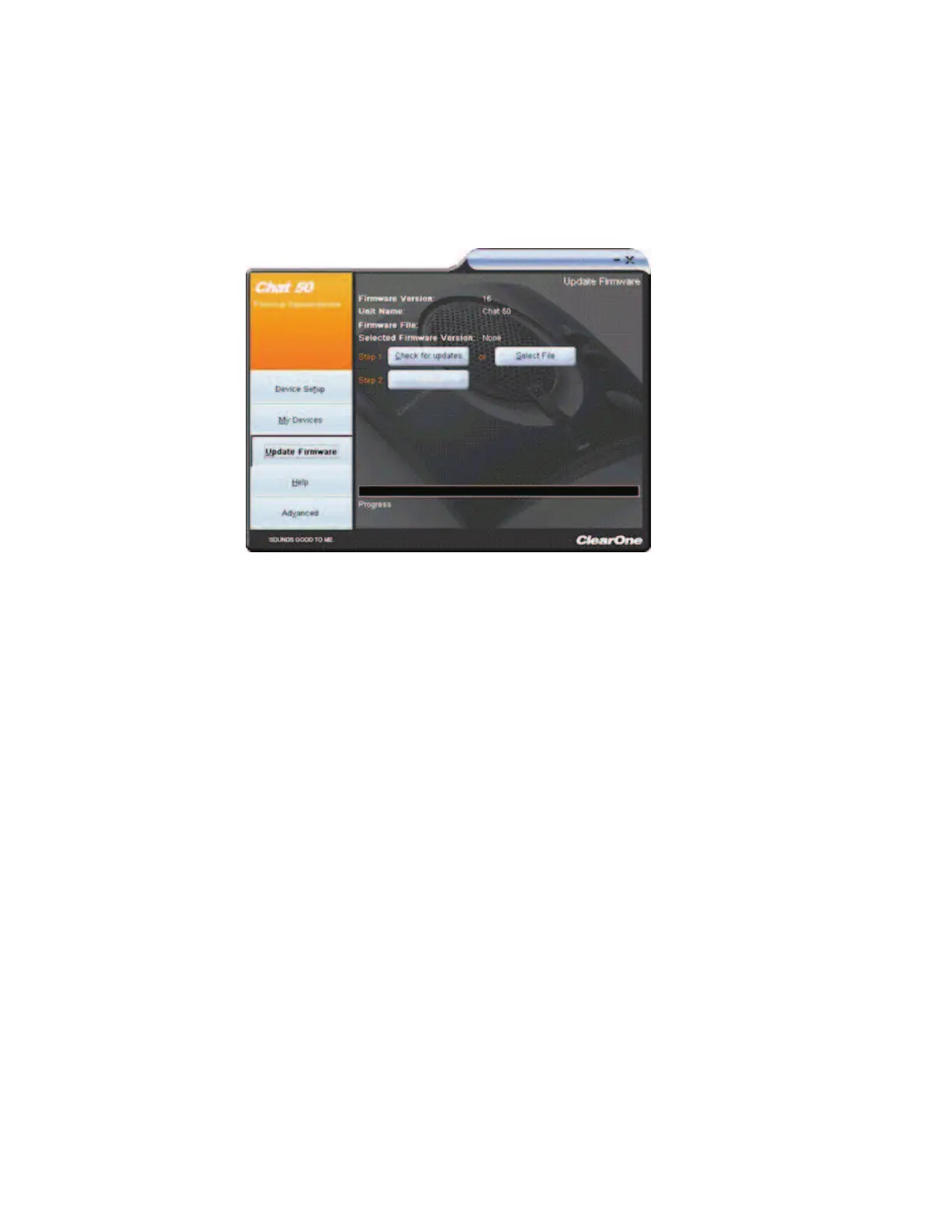
To manually change the firmware version loaded in the CHAT 60, use the procedure shown below.
1. Click the
SSeelleecctt FFiillee
button. An
OOppeenn
dialog appears.
2. A list of the available firmware files on your system appears in a scroll list on the left side of the screen.
3. Select the firmware file you wish to load and click the
OOKK
button.
4. Click the
UUppddaattee
button to load the selected firmware file.
5. A warning dialog appears. Click
YYeess
to load the selected firmware file or
NNoo
to cancel.
6. A series of messages appears under the progress bar indicating the update is in progress.
>
NNoottee
: Windows Vista will prompt you to unplug and then reconnect the CHAT 60 to complete the
firmware update.
When the update is complete, the following message appears below the progress bar:
"
Update Successful! The firmware for CHAT has been changed to <new revision level>
" where <new revision
level> is the new firmware revision number.
Chapter 4: Using The CHAT Application
2233


 To Next Page