2288
Technical Support: 800-283-5936
Adjust the audio settings as you wish or click
UUppllooaadd ffrroomm CCHHAATT
to upload the CHAT 60’s current audio
settings. When you are finished editing the record, click
OOKK
. If you wish to cancel your edits, click
CCaanncceell
.
DDeelleettiinngg CCuussttoomm DDeevviicceess
To delete custom devices from the database, simply click the
DDeelleettee
button after selecting the device you wish
to delete. You can only delete custom devices; you cannot delete pre-programmed devices (devices with the
ClearOne icon next to them).
ADVANCED SETTINGS: LOG
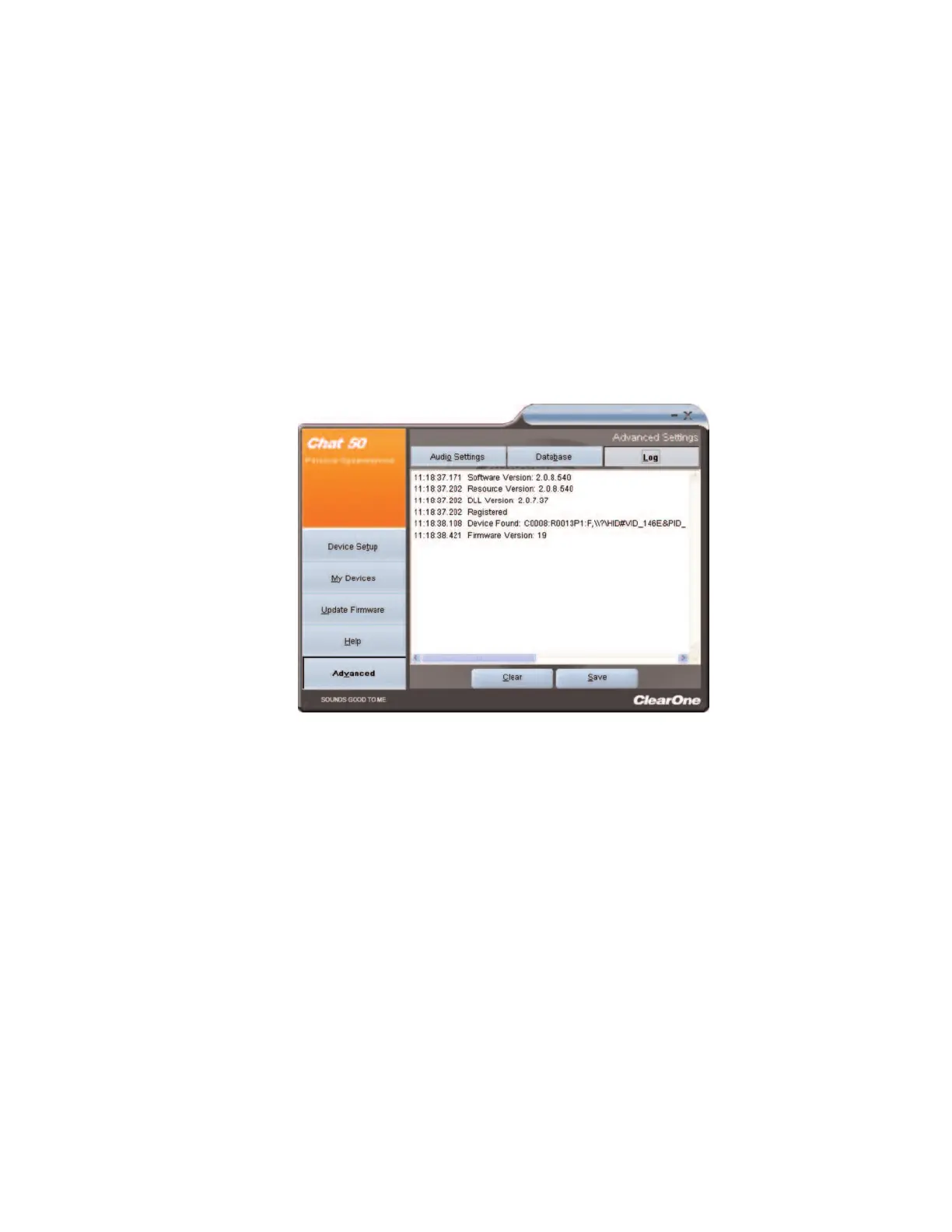
The CHAT application keeps a log of device events, firmware upgrades, and software upgrades in a text file.
You can view, save, and print the log as needed. To view the log, select the
AAddvvaanncceedd
tab, then click the
LLoogg
button. The log is displayed in the center pane.
SSaavviinngg tthhee LLoogg
To save the log to a text file, click the
SSaavvee
button. A standard Windows save dialog appears. Name the file
and choose a directory to save the file in. The default directory is the
CHAT 60 Log
, which is located in the
same directory as the CHAT software.
PPrriinnttiinngg aa LLoogg FFiillee
Open the log file by double-clicking on it’s icon, then use the text editor application in Windows or OS X to
print the file.
CClleeaarriinngg tthhee LLoogg
Click
CClleeaarr
to clear the events listed in the log. This action cannot be undone.


 To Next Page