Chapter 4: Using The CHAT Application
2277
CCrreeaattee AA NNeeww DDeevviiccee
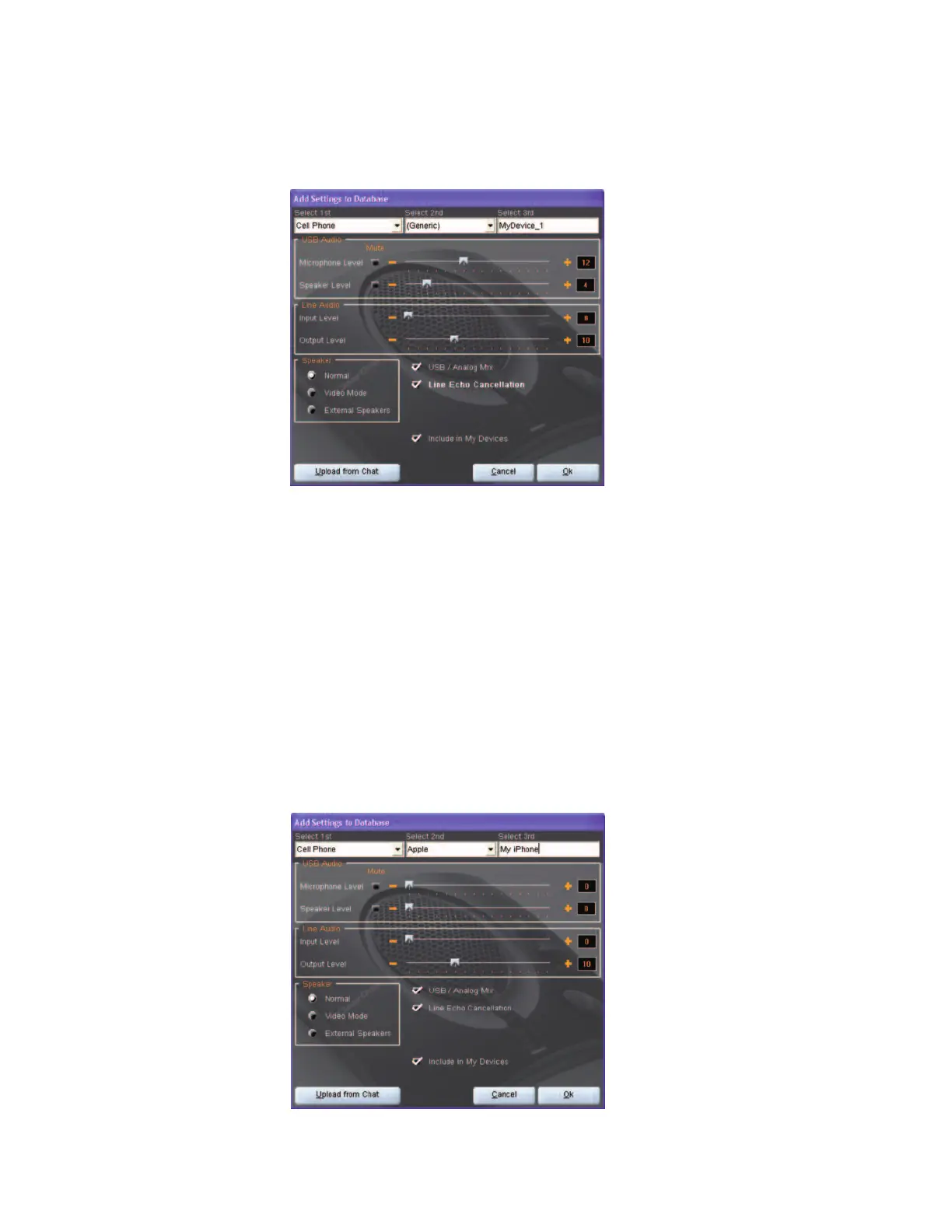
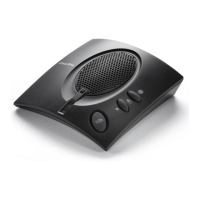
To create a new device with custom audio settings, use the following procedure:
1. Click the
NNeeww
button. The
AAdddd SSeettttiinnggss ttoo DDaattaabbaassee
dialog appears.
2. Adjust the audio settings as needed, or click
UUppllooaadd ffrroomm CCHHAATT
to upload and display the CHAT 60’s
current audio settings.
3. Use the
SSeelleecctt 11sstt
and
SSeelleecctt 22nndd
lists to select a device type and manufacturer for the device; select
either the
OOtthheerr
or the
AAllll
if no appropriate setting is available. Enter a custom name for your device in the
SSeelleecctt 33rrdd
entry field.
4. The
IInncclluuddee iinn MMyy DDeevviicceess
checkbox is selected by default to include this device in
MMyy DDeevviicceess
. When you
are finished, click
OOKK..
.
The device is now available in the
MMyy DDeevviicceess
and
DDeevviiccee SSeettuupp
screens.
EEddiittiinngg CCuussttoomm DDeevviicceess
To edit custom devices, select the device in the Advanced Settings: Database screen, then click the
EEddiitt
button that appears instead the
VViieeww
button that is shown for pre-configured ClearOne devices. The
EEddiitt
DDaattaabbaassee RReeccoorrdd
appears. Change the device name and/or settings as needed, then click
OOkk
.


 To Next Page