English - 9 -
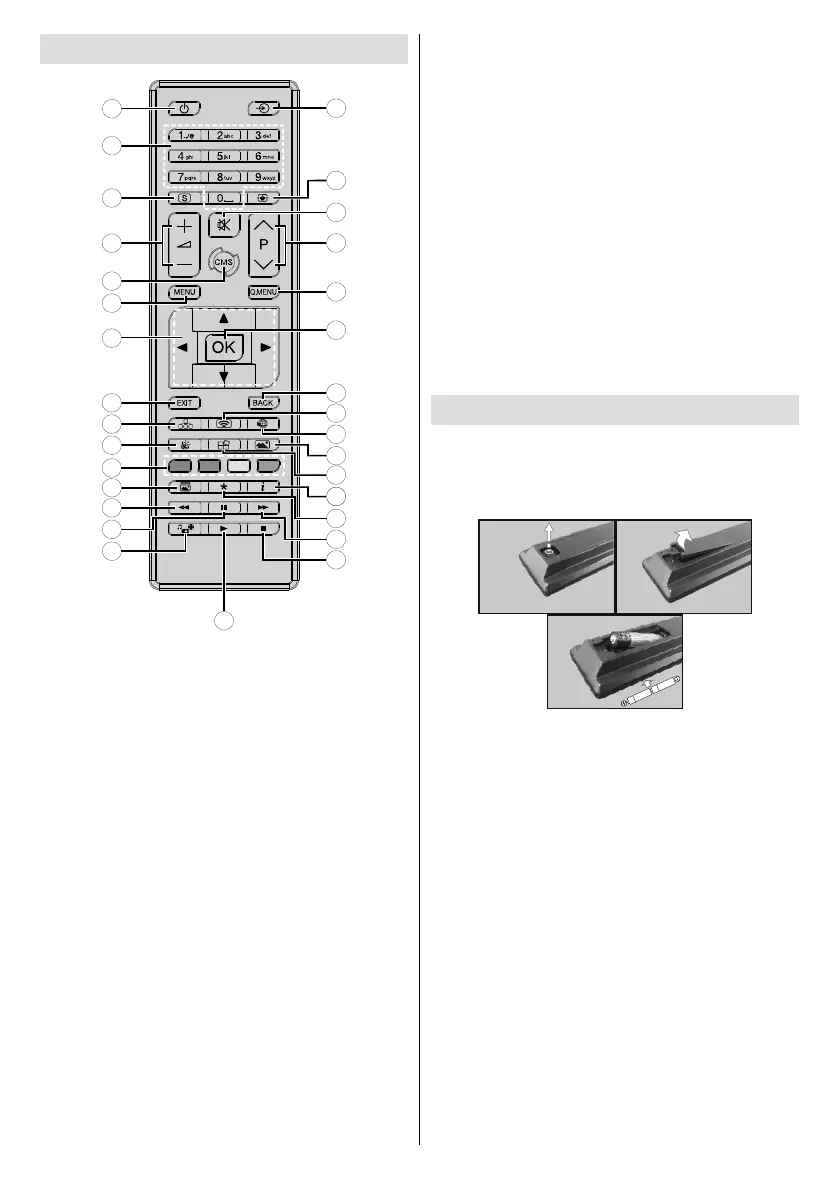
Remote Control
19
20
22
24
26
27
29
7
6
5
4
3
2
1
10
11
12
13
15
16
17
8
9
28
23
14
21
18
25
30
31
1. Standby:
2. Numeric buttons: Enters a number or a letter in the text
box on the screen.
3. Signage: Displays Settings>Signage menu
4. Volume +/-: Increases or decreases the volume
5. CMS:Start url (in Settings>Sig-
nage>Link Options menu). Press and hold 3 seconds
Settings url (in Settings>Sig-
nage>Link Options menu)
6. Menu: Displays the main menu
7. Directional buttons:
8. Exit: Closes and exits from displayed menus or returns
to previous screen
9. Network: Displays Network/Internet Settings menu
10. Sound: Displays Sound menu
11. Coloured Buttons: Follow the on-screen instructions
for coloured button functions
12. Picture Mode: Cycles between picture modes
13. Rapid reverse: Moves frames backwards in media
such as movies
14. Pause: Pauses the media being played
15. Media browser: Opens the media browsing screen
16. Play: Starts to play selected media
17. Stop: Stops the media being played
18. Rapid advance: Moves frames forward in media such
as movies
19. No function
20. Info: Displays information about on-screen content
21. No function
22. Picture: Displays Picture menu
23. Internet: Opens the predefined Start url (in Set-
tings>Signage>Link Options menu).
24. Wireless Display: Opens the wireless display connection
screen
25. Back/Return: Returns to previous screen
26. OK:
27. Quick Menu: Displays picture and sound setting menus
28. No function
29. Mute:
30. Screen: Changes the aspect ratio of the screen
31. Source: Shows all available content sources
Inserting the Batteries into the Remote
Remove the screw that secure the battery compartment cover
gently. Insert two AAA batteries. Make sure the (+) and (-)
signs match (observe correct polarity). Place the cover back
on. Then screw the cover back on again.


 To Next Page