English - 27 -
Connectivity
access the NetworkSettings menu.
Wired Connectivity
To Connect to a Wired Network
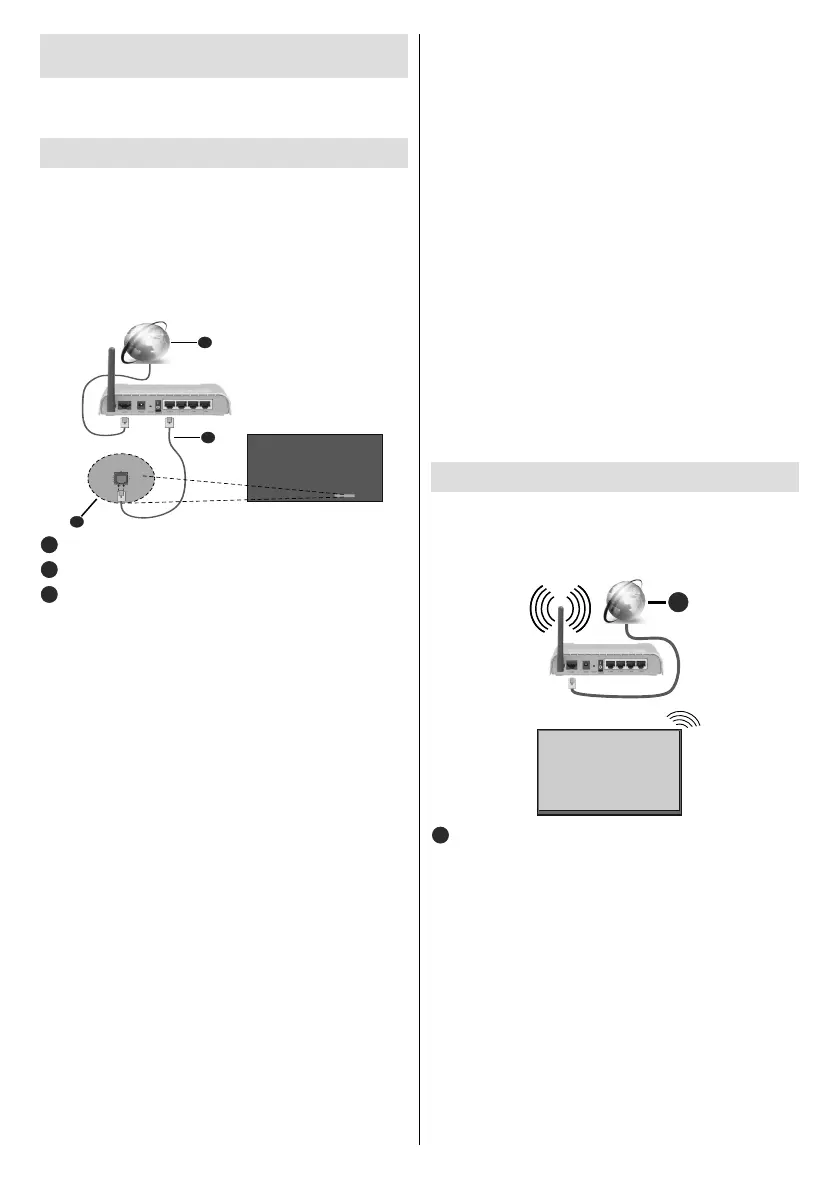
You must have a modem/router connected to an
Broadband ISP connection
2
LAN (Ethernet) cable
LAN input on the bottom of the rear side of the
Display
Network Type
Set the Network Type as Wired Device if you are
connecting via an Ethernet cable.
Internet Speed Test
Internet Speed Test and press the OK
Advanced Settings
Advanced and press the OK but-
ton. On the next screen you can change the IP and
from to Manual. Now you can enter the
Manual IP and / or Manual DNS values. Select the
-
te. Highlight Save and press the OK button to save
Other Information
You can also enable or disable Wake On feature using
the related option. The status of the connection will
be displayed as Connected or Not Connected and
established.
Wireless Access Point (Optional)
If the network type is set as Wired Device access point
feature will be available. Highlight Access Point option
and press OK. Access PointSSIDSecurity Type and
Password options will be available.
Access Point: Start or stop access point functionality.
The function of this option will change according to the
current status.
SSID: Set the name of the accesspoint.
Security Type: Secure your network using WPA2 PSK.
You can also set this option as None. In that case no
password will be required to connect to the access point.
This option can be set only if the access point feature
is not activated.
Password:
This option will be available if the Security Type option
is set as WPA2 PSK and can be set only if the access
point feature is not activated.
Wireless Connectivity
To Connect to a Wireless Network
You must have a wireless modem/router connected
to an active broadband connection.
1
1
Broadband ISP connection
A Wireless-N router (IEEE 802.11a/b/g/n) with
simultaneous 2.4 and 5 GHz bands is designed
to increase bandwidth. These are optimized for
transfers and wireless gaming.
the area.


 To Next Page