English - 10 -
First Time Installation
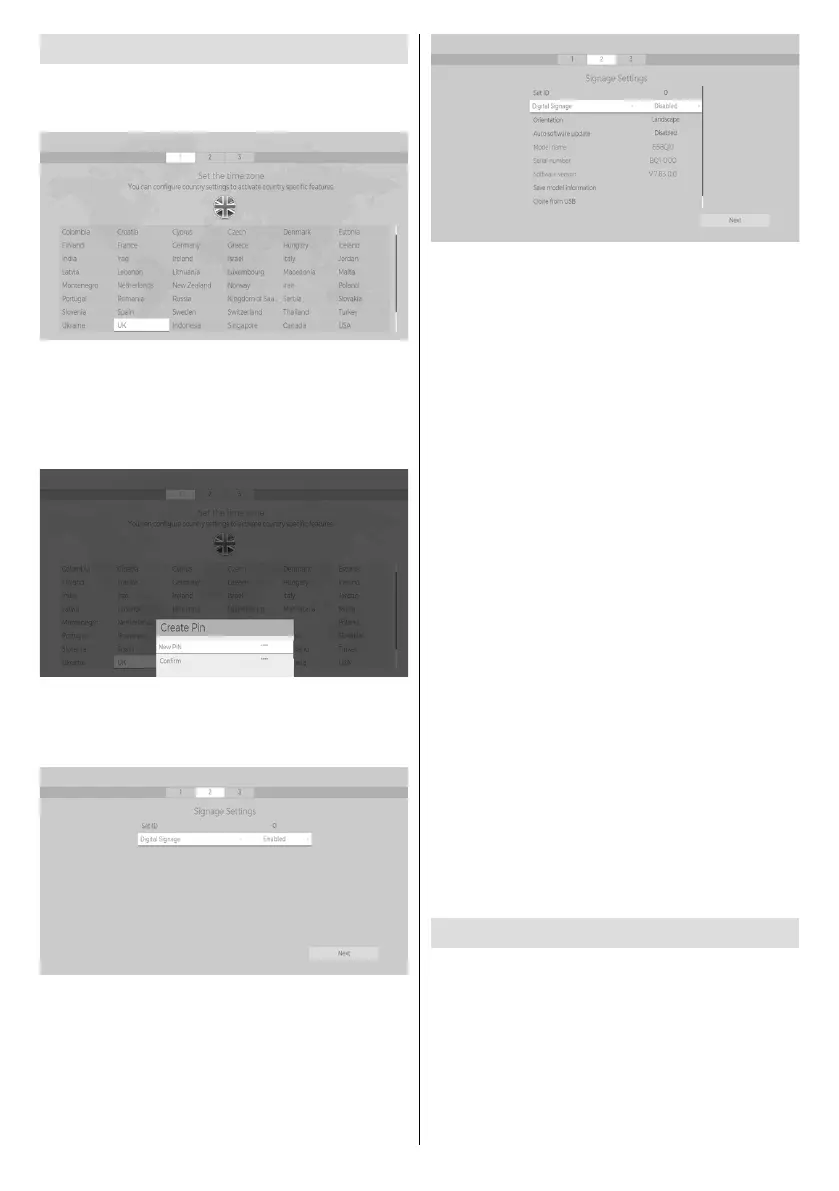
screen will be displayed. Select the desired country
and press OK.
0000
number combination. You have to enter this PIN if you
are asked to enter a PIN for certain menu operations
such as resetting the display.
The Signage Settings menu will be displayed next. If
you set Digital Signage option to Enable and select
Next and press OK
software.
If you set Digital Signage
Display will continue with the standard setup process.
Set ID, OSD Orientation, Auto Software Update
Model
name, Serial number and Software version options
are for information only. They will be greyed out and
not selectable. You can save the model information
data of the Display to a connected USB device using
the Save model information option. You can also
the Display using the Clone from USB option. Refer
to the Signage Settings Menu Content section for
more information on the options of this menu. After
Next and press
OK to continue.
Network/Internet Settings
menu will be displayed. Please refer to Connectivity
If you want your Display to consume less power in
Wake On option
by setting it as . After the settings are completed
highlight Next and press OK button to continue.
The First Time Installation is completed.
To repeat this process and reset the Display's settings
to the factory defaults enter the Settings>Signage
First time installation and press
OK. You will be asked to enter the PIN that you have
asking whether you want to delete all settings and
reset the Display. Select Yes and press OK
Note: Do not turn o the Display while initializing rst
time installation. Note that, some options may not be
available depending on the country selection.
Android Launcher
Access the Android input as follows.
focus to ANDROID and press the OK button to switch
to Android source if another source is set as the
currently active input source.


 To Next Page