English - 11 -
Setting up the internet connection
There is a secondary ethernet socket on the rear
side of the Display for Android source only. Plug an
ethernet cable into this socket in order to establish
a wired LAN connection for Android source. The
connection status will be displayed in the All apps>-
Settings>Device-Network menu under the Ethernet
caption on the home screen of Android as Connected
or Not connected.
d
source by turning on the Wi-Fi option under the same
menu. Refer to following Network and Connecting
to Internet sections for more information on internet
based settings for Android source.
Home Screen
on the screen instead of using the remote control.
The remote control buttons may not function properly.
available.
see the Settings (Home Screen) section
Logo
The logo used on the home screen of the launcher is
Wallpaper
The wallpaper used on the home screen of the
Time & Date Widget
In the middle of the home screen time and date
information will be displayed. You can enable or
the home screen.
Home Screen Apps
Only All apps application will be pre-loaded on the
home screen which is located on the left hand side
of the screen. You can manage the home screen
applications from the hidden Settings menu. See the
Settings (Home Screen) section for more information
on this settings menu.
All apps: Touch All apps in order to access many pre-
loaded applications such as App Store, Chromium,
Downloads, File Manager, Gallery and Settings.
See Settings section for detailed information on
Settings menu contents. If you experience problems
an auxiliary application such as a media player from
the App Store.
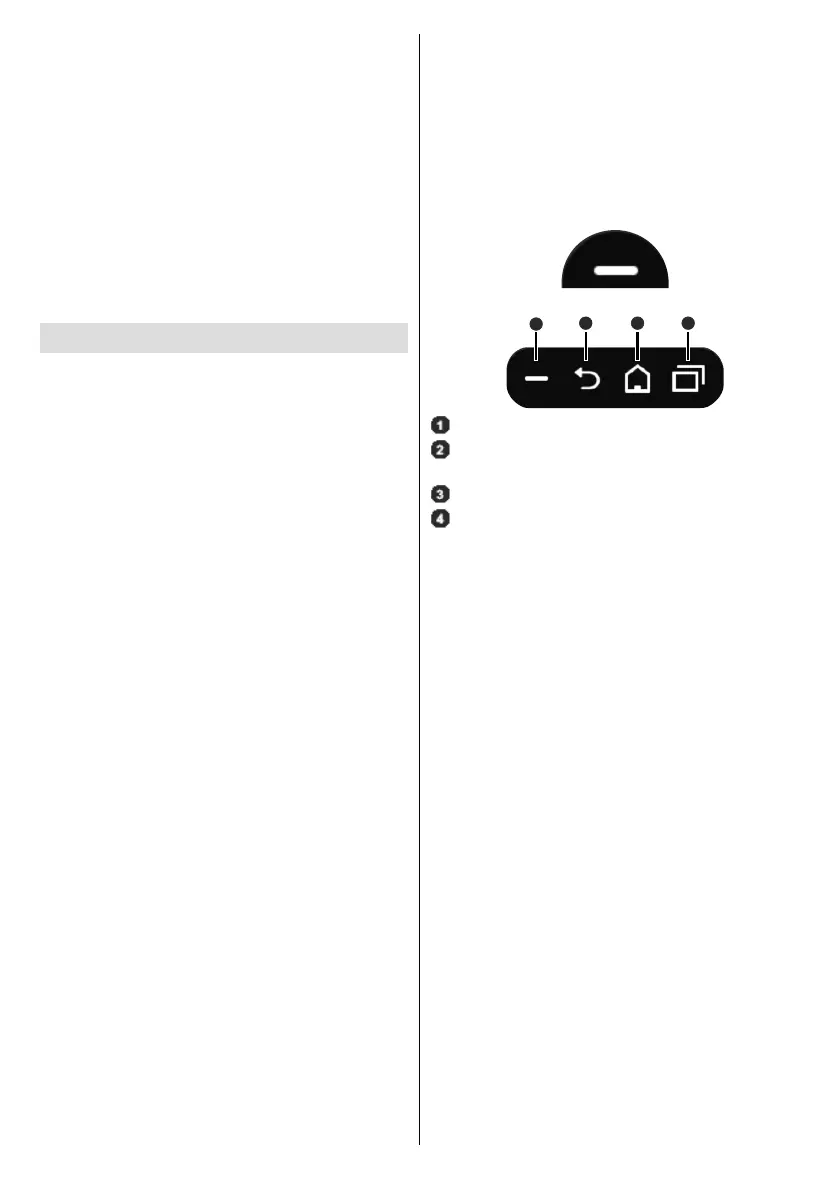
Navigation Toolbar
Over the bottom edge of the screen navigation toolbar
will be available. Touch the Collapse/Expand button
of the tool bar to expand it. You can touch this button
again to hide. BackHome and Recent Apps buttons
will be available when you expand the bar. You can
use these buttons to navigate through the menus
without having to use the remote control.
Toolbar in collapsed state
Toolbar in expanded state
1
2
3
4
Collapse / Expand
Back:
Home: Touch to return to the home screen
Recent Apps: Touch to display recent apps
The toolbar is pinned to the bottom edge of the screen
However you can change the position of it. Touch and
direction to move the bar over the bottom edge of the
screen. The toolbar can not be dragged when it is in
expanded state.
Settings (Home Screen)
the hidden Settings menu. In order to do that touch
and hold the logo on the home screen for at least
requested to enter a password in order to access
the settings. Enter the default password(*) using the
OK.
(*) Default password is set to android.
displaying of the time and date widget and change the
password using the options in the Settings screen.
Wallpaper: The preview of the current wallpaper
will be displayed. Touch BROWSE to select a new
RESET to reset
the default wallpaper.
Logo: The preview of the current logo will be
displayed. Touch BROWSE to select a new logo.
GIF and WebP. Touch RESET to reset the default
logo. The logo can be positioned in any of the 4


 To Next Page