English - 14 -
follow the below mentioned steps in order to install a
third party application.
formatted USB storage device
Connect the USB storage device to one of the
Android USB inputs on the Display. Refer to General
View section to see the USB inputs dedicated to the
Android system.
Select the USB storage device from the Android
launchers Removable Storage menu and press
OK
OK. Your permission
will be asked. Select Install and press OK again
to proceed.
Connecting To Internet
access the System Settings>Device>Network menu
Wi-Fi and Ethernet.
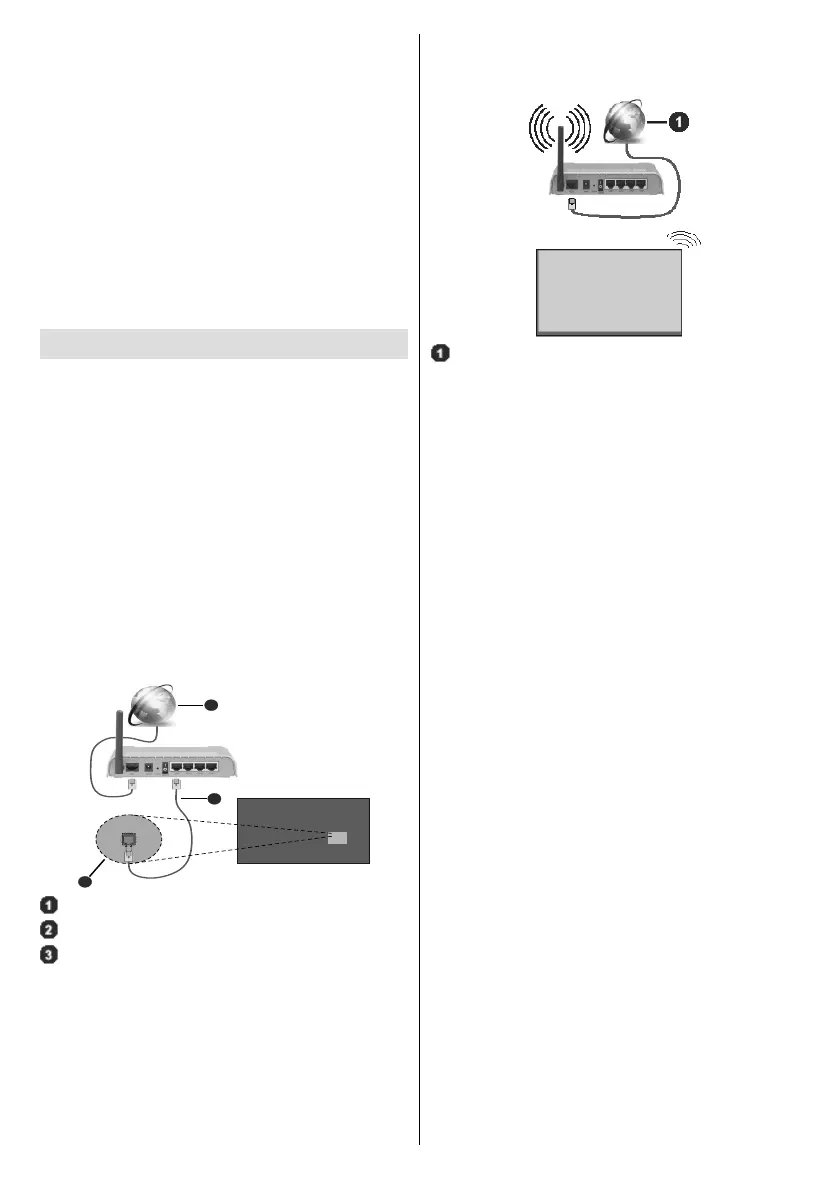
To Connect to a Wired Network
There is a secondary LAN port on the rear side of
your Display dedicated to Android source. Connect
your Display to your modem/router via this LAN port
using an ethernet cable. Refer to the General View
the right socket.
The status of the Ethernet option in the Network
Settings menu will be changed to Connected. The
MAC and IP addresses will also be displayed under
this caption.
Broadband ISP connection
LAN (Ethernet) cable
LAN input on the rear side of the Display
To Connect to a Wireless Network
A wireless LAN modem/router is required to connect
the Display to a wireless network.
Highlight Wi-Fi option in the Network menu and
press OK to turn on the WLAN. Available networks
will be listed. Select one and press OK to connect.
You may be asked to enter a password to connect to
protected. Additionally you can connect to your router/
modem via WPS or add new networks by using the
related options.
Broadband ISP connection
A network with hidden SSID (wireless network name)
can not be detected by other devices. If you want to
Add
new network option under the Other options caption.
Add the network by entering its name manually using
the modem/router without entering a password or
Select Connect via WPS
option under the Network Settings>Wi-Fi menu on
the home screen. Go to your modem/router device and
press the WPS button on it to make the connection.
once the devices have paired. Select OK to proceed.
A Wireless-N router (IEEE 802.11a/b/g/n/ac) with
simultaneous 2.4 and 5 GHz bands is designed
to increase bandwidth. These are optimized for
transfers and wireless gaming.
the area.
distance and number of obstructions between the
and the products that you use. The transmission may
other WLAN 11b appliances. The standard values of
the transmission speed are the theoretical maximum
values for the wireless standards. They are not the
actual speeds of data transmission.


 To Next Page