Clickfree Portable Backup Drive User Guide Advanced topics
Copyright © 2009 Storage Appliance Corporation. 53
♦ To temporarily disable reminders:
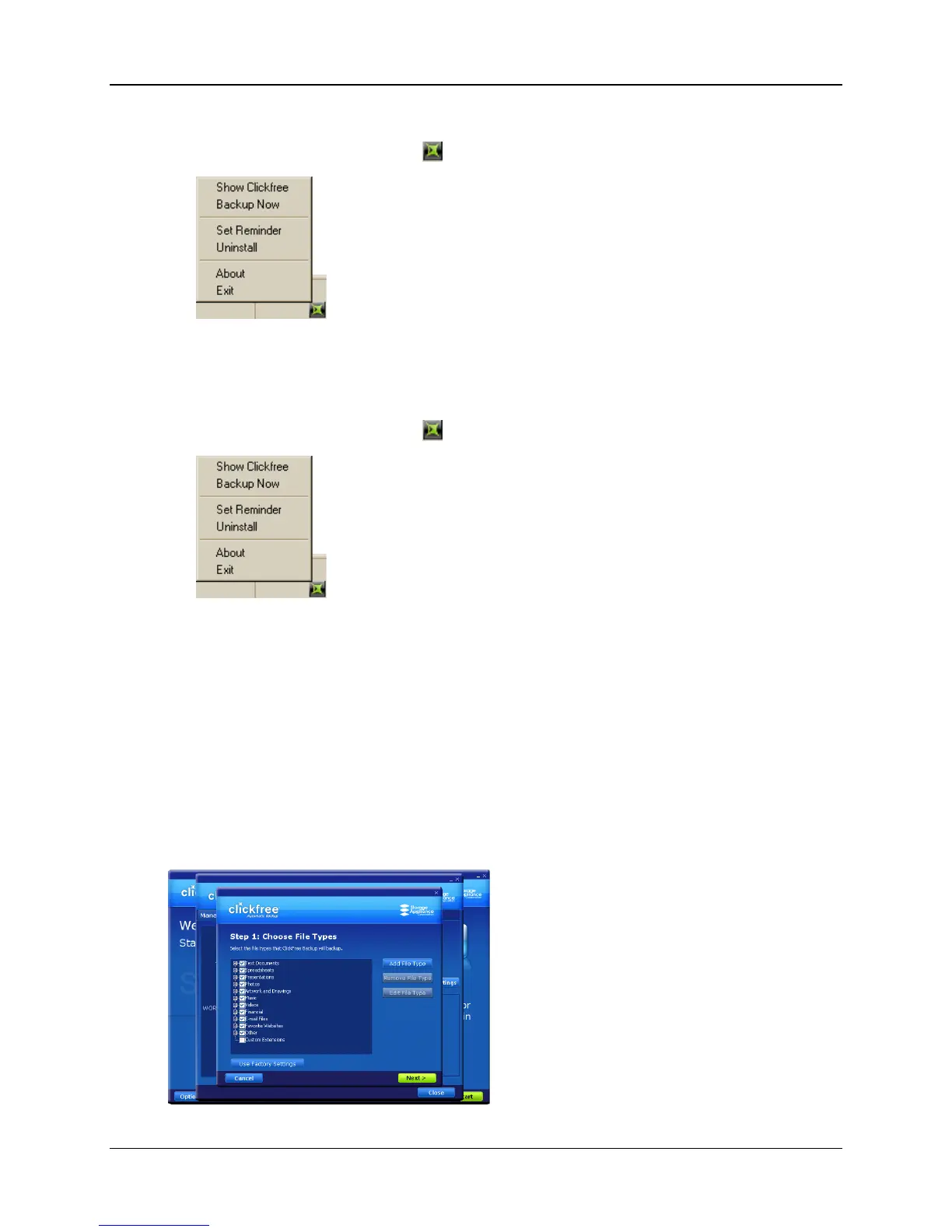
1. Right-click the Clickfree icon in the bottom right corner of your computer screen:
2. Click Exit:
The icon disappears, and reminders are disabled until you next start your computer.
♦ To stop getting reminders:
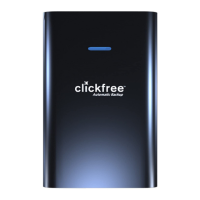
1. Right-click the Clickfree icon in the bottom right corner of your computer screen:
2. Click Uninstall.
The icon disappears, and reminders are permanently disabled.
If you want to see reminders in the future, you can install them again.
HOW DO I ADD/REMOVE/EDIT FILETYPES
In addition to allowing you to choose to back up pre-defined file types within the pre-
defined categories, Clickfree has a category called Custom Extensions to which you can
add file types that are not included in the pre-defined categories.
You can add, remove, and change file types using the Choose File Types screen:


 To Next Page