GRMON3-UM
June 2019, Version 3.1.0
39 www.cobham.com/gaisler
4. Graphical user interface
This chapter describes how to operate the Grapical User Interface (GUI) introduced with GRMON3.
4.1. Overview
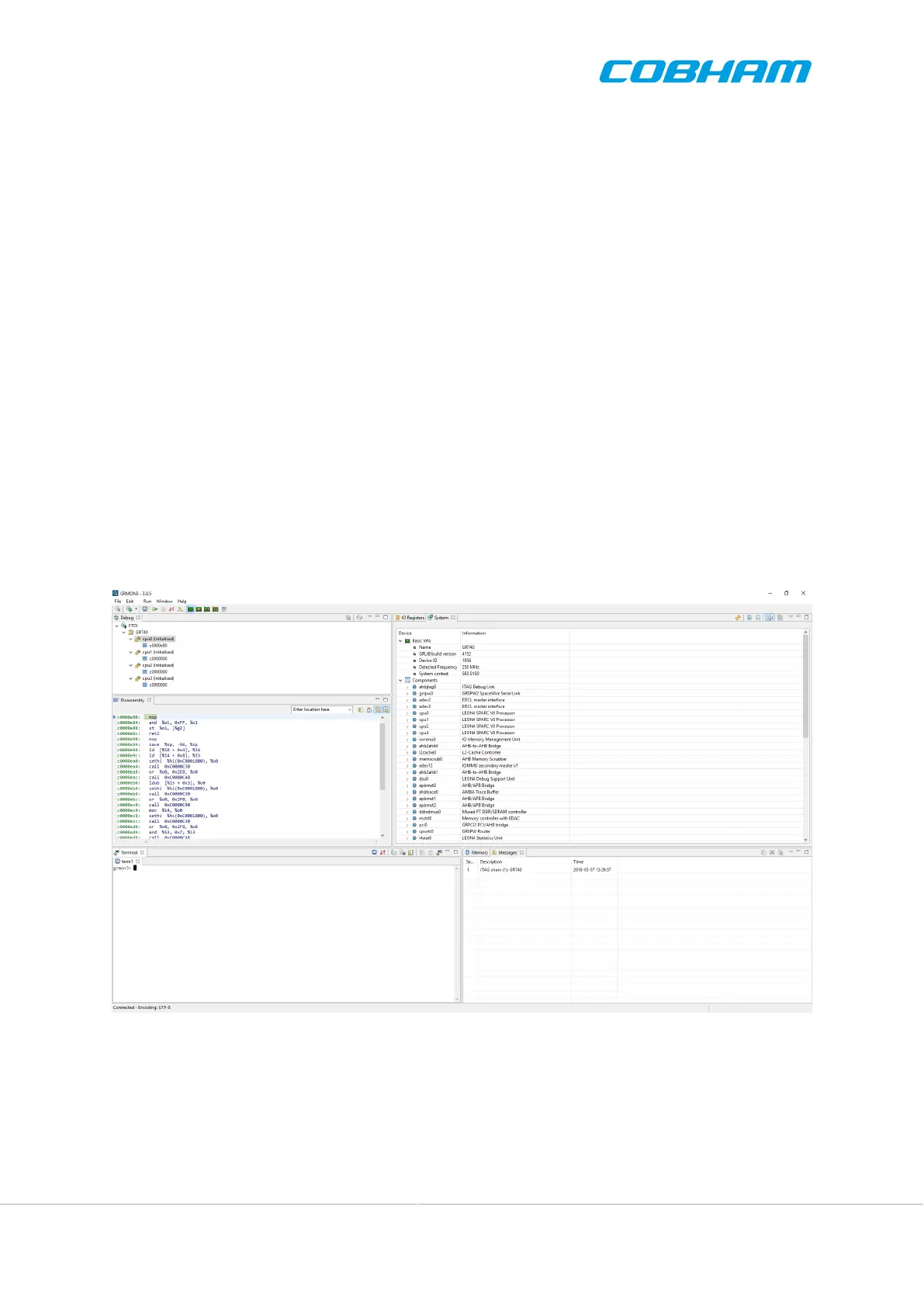
The GUI provides the user with a fully interactive environment with the possibility to monitor and control different
parts of the system in parallel. All functionality of the GRMON Tcl command line interface are accessible from
the terminal emulator view.
GRMON visualises hardware state by views includes the following functions:
• Debug-link and system configuration dialog
• Multi-core LEON and OS threads execution status and backtrace view
• Disassembly view with symbol information
• Memory, CPU register and I/O register inspection and edit views
• Optimized SPARC/LEON IU register view
• Basic execution control such as single-stepping, continuing, breaking
• Application launch dialog
• Tcl terminal views with history, tab-completion, etc.
• Application terminals via UART forwarding
• GRLIB SOC system hardware overview
Users which are already familiar with the GRMON CLI can use the GUI as a drop-in replacement with the added
interactive functionality.
Figure 4.1. The GRMON graphical user interface
4.2. Starting GRMON GUI
GRMON is started by executing the same grmon or grmon.exe binary as the CLI version. The switches described
in Section 3.2.3, “General options” determine the start-up operation.
If GRMON is started without any debug link command line options, then GRMON will start the GUI and open a
dialog window which allows for selecting debug link. This is described in Section 4.3, “Connect to target”.



 To Next Page