4.3 Logging into or creating a Cocoon HD DVR Account
1. If you don’t have a Cocoon HD DVR Account, use the ‘Register’ button and input the required
elds to create one
NOTE: Your DVR’s username and password cannot be used to log into the app. If you have never used
the app, you will need to create a new username and password on the app. The DVR User Account and
the Cocoon HD App Account are separate accounts and must use dierent usernames.
2. Follow the prompts for setup
3. Enter validation code and email address
4. Create a password. Enter twice to make sure they match and hit “register”
5. Enter your User ID and Password into their respective elds
6. Press the Login button to login
Please write down your Cocoon DVR app password
User (Device) Name: ___________ (Device) Password:___________
4.4 Adding your DVR device to the App
Enabling your DVR footage to be watched and recorded on your smartphone is simple via the app.
1. Within the DVR Main Menu, navigate to Information System. You will notice a ‘Device ID’ QR
code on the bottom right hand side. Keep this menu option open and complete the below
instructions.
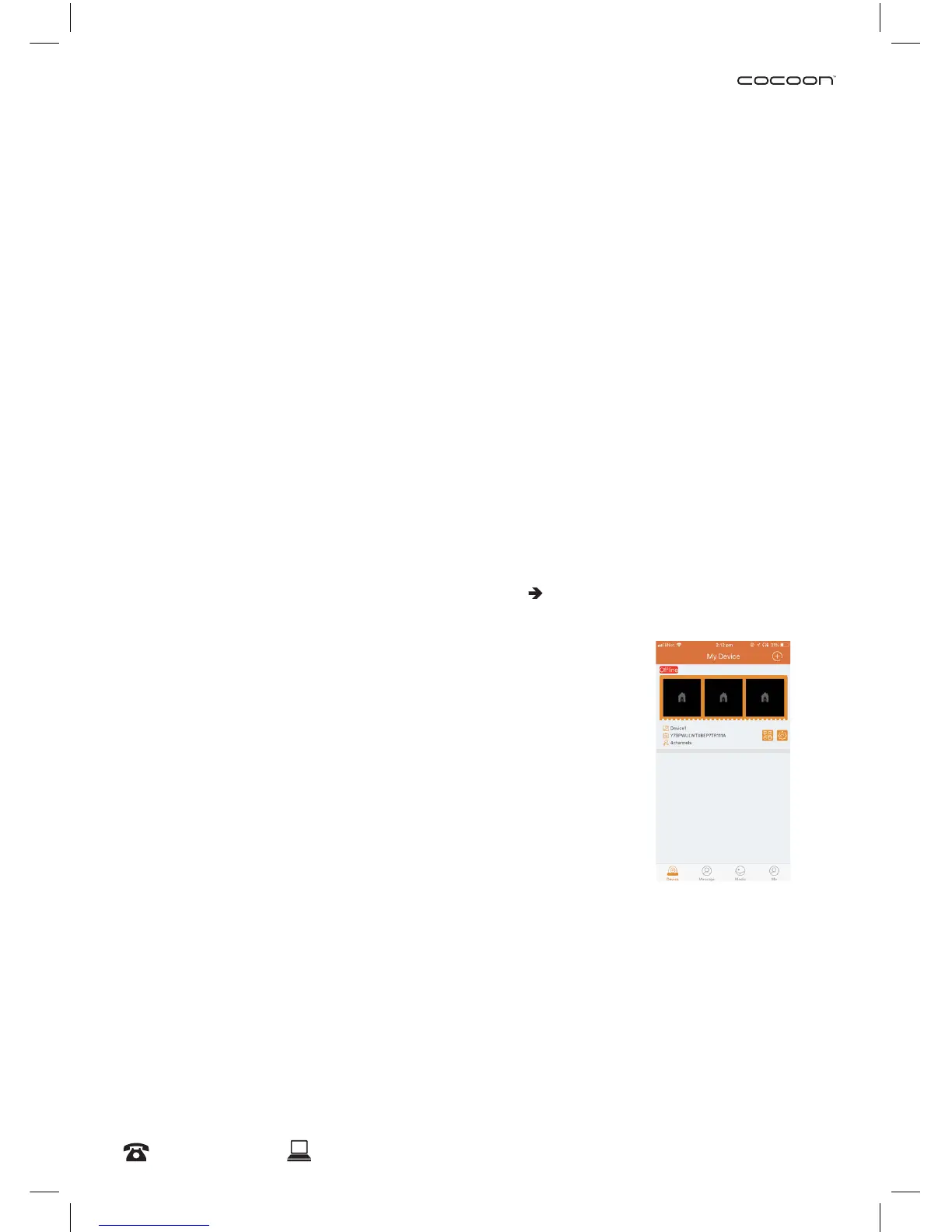
2. On the Cocoon HD App select the + symbol in the top-right hand
corner to add the Cocoon HD security system as your device. From
there you will be within the add device sub-menu
3. Select type of device you wish to add. In this case it will be “DVR”
4. Pair your device using one of two methods:
a. Scan QR Code Device ID
On the App, click on the QR scan button next to the words
‘Enter Device ID”. Your camera should pop up which will allow
you scan your DVR’s unique QR code found on the DVR’s main
MENU as mentioned above in point 1. Point your smartphone camera at the QR code
in the bottom right hand corner with the heading “Device ID”. It will scan and add your
device automatically.
b. Manually type the Device ID
Type the Device ID (as noted above in point 1) into your Cocoon HD app under
‘Enter Device ID’
Mobile Phone Setup


 To Next Page