6.1.4 Schedule
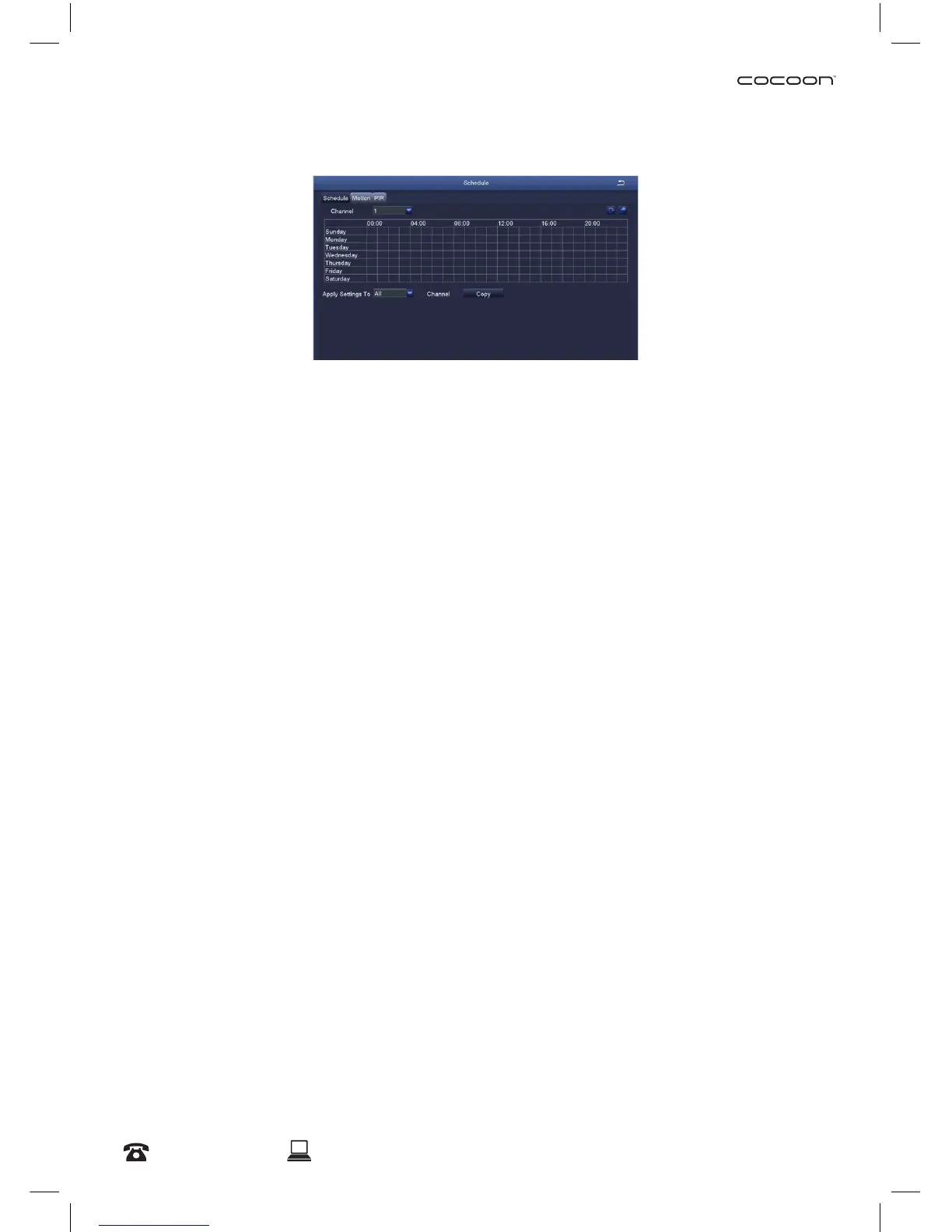
Allows manual record and motion record times to be scheduled to set an active record time, follow
these steps:
1. Select ‘Schedule’ for manual recording or ‘Motion’ for motion recording schedule settings
2. Double-click an area on the graph where you would like to schedule recording
3. Ensure that the correct day is shown on the top left corner
4. Select ‘Add’, then use the dropdown menu to set a start and end time
5. Once set, press the tick button to add the time to the schedule
6. To copy the schedule between days, use the dropdown menu at the top right corner to select
a day, then press ‘Copy’
7. Press ‘Ok’ when complete
8. To copy the schedule between cameras, use the dropdown menu at the bottom of the
schedule screen to select a camera, then select ‘Copy’
9. To save settings, press ‘Apply’
NOTE: Time selected will be highlighted in blue blocks. As default, the DVR is scheduled for 24/7 motion
recording, but no scheduled manual recordings
PIR tab
Passive infrared sensors can physically detect motion and activate recording
NOTE: PIR sensors are not included
Advanced Settings



 To Next Page